trzsz-go – Native trzsz Support for Local Shell Terminals and Go Applications


trzsz-go is a CLI tool that enables native trzsz (trz / tsz) file transfer support in terminals with local shell support. It can also be embedded into Go-based terminal applications to provide native trzsz integration.
⭐ It’s recommended to use the go version of trzsz on the server, use trzsz-ssh ( tssh ) on local.
Please check https://trzsz.github.io/py for more information about trzsz ( trz / tsz ).
Installation
-
Install with apt on Ubuntu
sudo apt install trzsz
sudo apt update && sudo apt install software-properties-common
sudo add-apt-repository ppa:trzsz/ppa && sudo apt update

sudo apt install trzsz
-
Install with apt on Debian
sudo apt install trzsz
sudo apt install curl gpg
curl -s 'https://keyserver.ubuntu.com/pks/lookup?op=get&search=0x7074ce75da7cc691c1ae1a7c7e51d1ad956055ca' \
    | gpg --dearmor -o /usr/share/keyrings/trzsz.gpg
echo 'deb [signed-by=/usr/share/keyrings/trzsz.gpg] https://ppa.launchpadcontent.net/trzsz/ppa/ubuntu jammy main' \
    | sudo tee /etc/apt/sources.list.d/trzsz.list
sudo apt update

sudo apt install trzsz
-
Install with dnf on Fedora / CentOS / RHEL
sudo dnf install trzsz
sudo dnf copr enable @trzsz/trzsz
sudo dnf install trzsz
-
Install with yum on Legacy CentOS / RHEL
sudo yum install trzsz
-
Install with gemfury repository.
echo '[trzsz]
name=Trzsz Repo
baseurl=https://yum.fury.io/trzsz/
enabled=1
gpgcheck=0' | sudo tee /etc/yum.repos.d/trzsz.repo

sudo yum install trzsz
-
Install with wlnmp repository. It’s not necessary to configure the epel repository for trzsz.
curl -fsSL "https://sh.wlnmp.com/wlnmp.sh" | bash

sudo yum install trzsz
-
Install with yay on ArchLinux
yay -S trzsz
yay -Syu
yay -S trzsz
-
Install with Homebrew on MacOS
brew install trzsz-go
brew install trzsz-go
-
Install with Chromebrew on ChromeOS
crew install trzsz
crew install trzsz
-
Install with scoop / winget / choco on Windows
scoop install trzsz / winget install trzsz / choco install trzsz
scoop install trzsz
winget install trzsz
choco install trzsz
-
Install with pixi / conda / mamba from conda-forge
pixi global install trzsz / conda install trzsz / mamba install trzsz
pixi global install trzsz
conda install -c conda-forge trzsz
mamba install -c conda-forge trzsz
-
Install with Go ( Requires go 1.26 or later )
go install github.com/trzsz/trzsz-go/cmd/...@latest
# latest release
go install github.com/trzsz/trzsz-go/cmd/trz@latest
go install github.com/trzsz/trzsz-go/cmd/tsz@latest
go install github.com/trzsz/trzsz-go/cmd/trzsz@latest

# latest development version (main branch)
go install github.com/trzsz/trzsz-go/cmd/trz@main
go install github.com/trzsz/trzsz-go/cmd/tsz@main
go install github.com/trzsz/trzsz-go/cmd/trzsz@main
The binaries are usually located in ~/go/bin/ ( C:\Users\your_name\go\bin\ on Windows ).
-
Build from source ( Requires go 1.26 or later )
sudo make install
git clone --depth 1 https://github.com/trzsz/trzsz-go.git
cd trzsz-go
make
sudo make install
-
Download from the GitHub Releases and install locally
download and install locally
sudo apt install /tmp/trzsz_*.deb

sudo dpkg -i /tmp/trzsz_*.deb

sudo dnf install /tmp/trzsz_*.rpm

sudo yum install /tmp/trzsz_*.rpm

sudo rpm -i /tmp/trzsz_*.rpm

tar zxvf trzsz_*.tar.gz && sudo cp trzsz_*/t* /usr/bin/
Usage
Use on the local computer
-
Add trzsz before the shell to support trzsz ( trz / tsz ), e.g.:
trzsz bash
trzsz PowerShell
trzsz ssh x.x.x.x
-
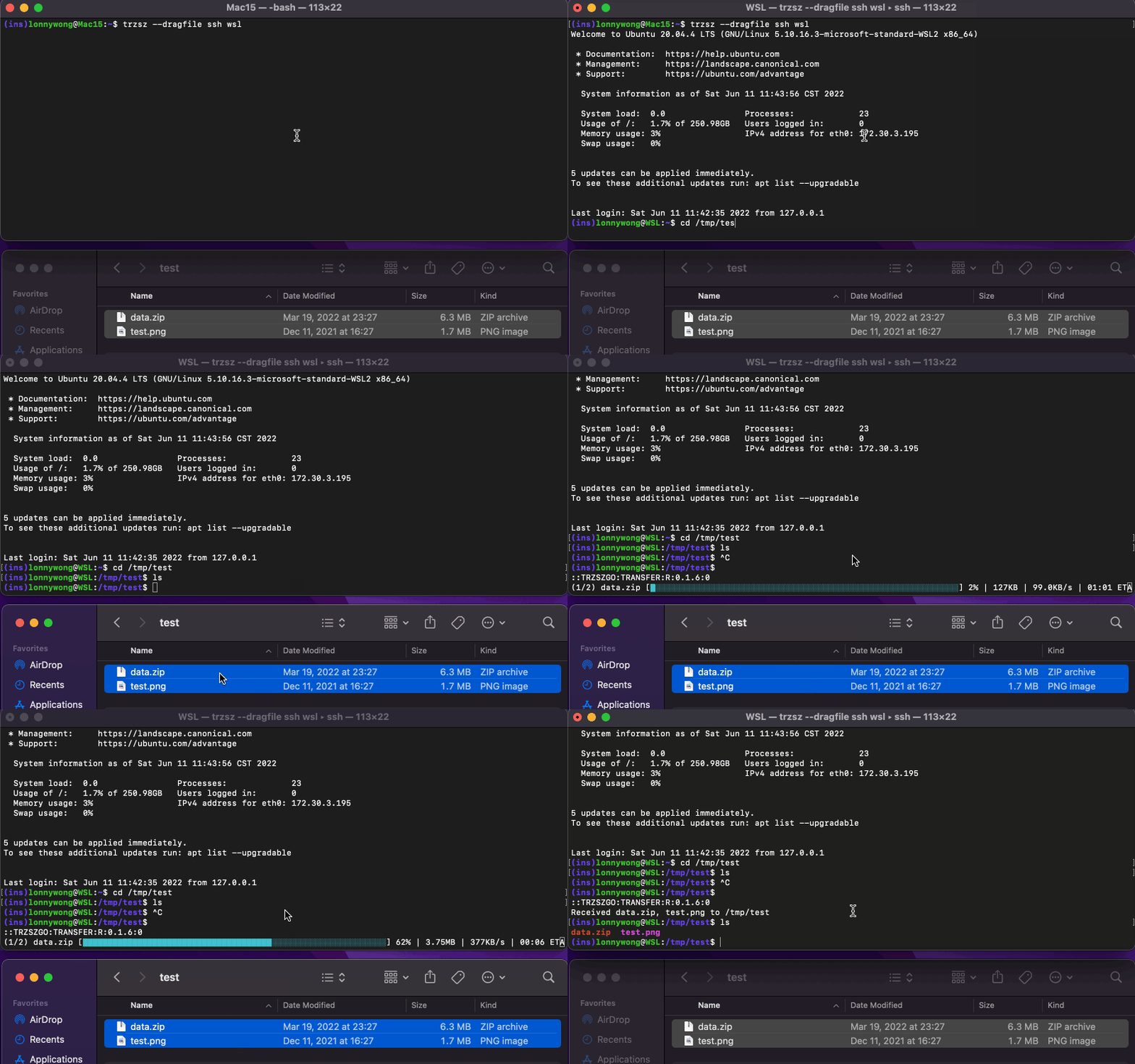
Add trzsz --dragfile before the ssh to enable drag files and directories to upload, e.g.:
trzsz -d ssh x.x.x.x
trzsz --dragfile ssh x.x.x.x
Use on the jump server
-
If using tmux on the jump server, use trzsz --relay ssh to login to the remote server, e.g.:
trzsz ssh jump_server
tmux
trzsz --relay ssh remote_server
Use on the remote server
Suggestion
-
It is recommended to set alias ssh="trzsz ssh" for convenience, alias ssh="trzsz -d ssh" for dragging files to upload.
-
If using tmux on the local computer, run tmux ( without trzsz ) first, then trzsz ssh to login.
Zmodem support
-
Use -z or --zmodem to enable the rz / sz feature. e.g., trzsz -z ssh remote_server.
-
lrzsz needs to be installed on the client ( local computer ). e.g., brew install lrzsz, apt install lrzsz, etc.
-
trzsz --zmodem ssh xxx is not supported on Windows. You can use trzsz-ssh ( tssh ) instead, tssh --zmodem xxx.
-
About the progress, the transferred and speed are not precise, there will be some deviation. It just indicating that the transfer is in progress.
Clipboard integration
-
Use -o or --osc52 to enable the clipboard integration feature. e.g., trzsz -o ssh remote_server.
-
Clipboard integration allows remote servers to write to the local clipboard via OSC52 sequences.
-
On Linux, clipboard integration requires xclip or xsel command to be installed.
Configuration
trzsz looks for configuration at ~/.trzsz.conf ( C:\Users\your_name\.trzsz.conf on Windows ), e.g.:
DefaultUploadPath =
DefaultDownloadPath = /Users/username/Downloads/
AllowedAutoUploadDirs = ~/Downloads/ '/Users/username/My Documents/'
DragFileUploadCommand = trz -y
ProgressColorPair = B14FFF 00FFA3
ZmodemAutoRename = no
-
If the DefaultUploadPath is not empty, the path will be opened by default while choosing upload files.
-
If the DefaultDownloadPath is not empty, downloading files will be saved to the path automatically instead of asking each time.
-
The AllowedAutoUploadDirs configures the directories allowed for automatic upload (without popping up a file selection dialog). You can configure one or multiple paths separated by spaces. If a path contains spaces, wrap the entire path in single or double quotes. The configured paths must be absolute paths or start with ~/.
⚠️ Security Warning: Please use this feature with caution. If you log into a malicious server, the server could stealthily steal all files under the configured directories without your confirmation.
-
The default value of DragFileUploadCommand is trz, configure it to trz -y if you want to overwrite the existing files, configure it to rz if you want to use rz to upload.
-
The ProgressColorPair configures the color of the progress bar. You need to configure 2 colors and do not include #. The progress bar will gradient from the first color to the second color.
-
The ZmodemAutoRename configures whether to automatically rename files when file name conflicts occur during Zmodem (rz/sz) transfers (corresponding to the -E option). Valid values are on, true, yes, 1, off, false, no, and 0. The default value is no.
Trouble shooting
-
If using MSYS2 or Git Bash on windows, and getting an error The handle is invalid.
- Install winpty by
pacman -S winpty in MSYS2.
Git Bash should have winpty installed, no need to install it manually.- Add
winpty before trzsz, e.g.: winpty trzsz ssh x.x.x.x.
-
The /usr/bin/ssh in MSYS2 and Cygwin is not supported yet, use the OpenSSH instead.
- In
MSYS2, e.g.: winpty trzsz /c/Windows/System32/OpenSSH/ssh.exe x.x.x.x.
- In
Cygwin, e.g.: trzsz "C:\Windows\System32\OpenSSH\ssh.exe" x.x.x.x.
- ⭐ Recommended to use trzsz-ssh ( tssh ) instead,
tssh is same as trzsz ssh.
-
Dragging files doesn’t upload?
- Don’t forget the
--dragfile option. e.g.: trzsz -d ssh x.x.x.x.
- Make sure the
trz in one of the PATH directory on the server.
- On Windows, make sure there is no
Administrator on the title.
- The
cmd and PowerShell only support draging one file into it.
- On the Windows Terminal, drag files to the top left where shows
Paste path to file.
Development
Want to write your own ssh client that supports trzsz? Please check the go ssh client example.
Screenshot
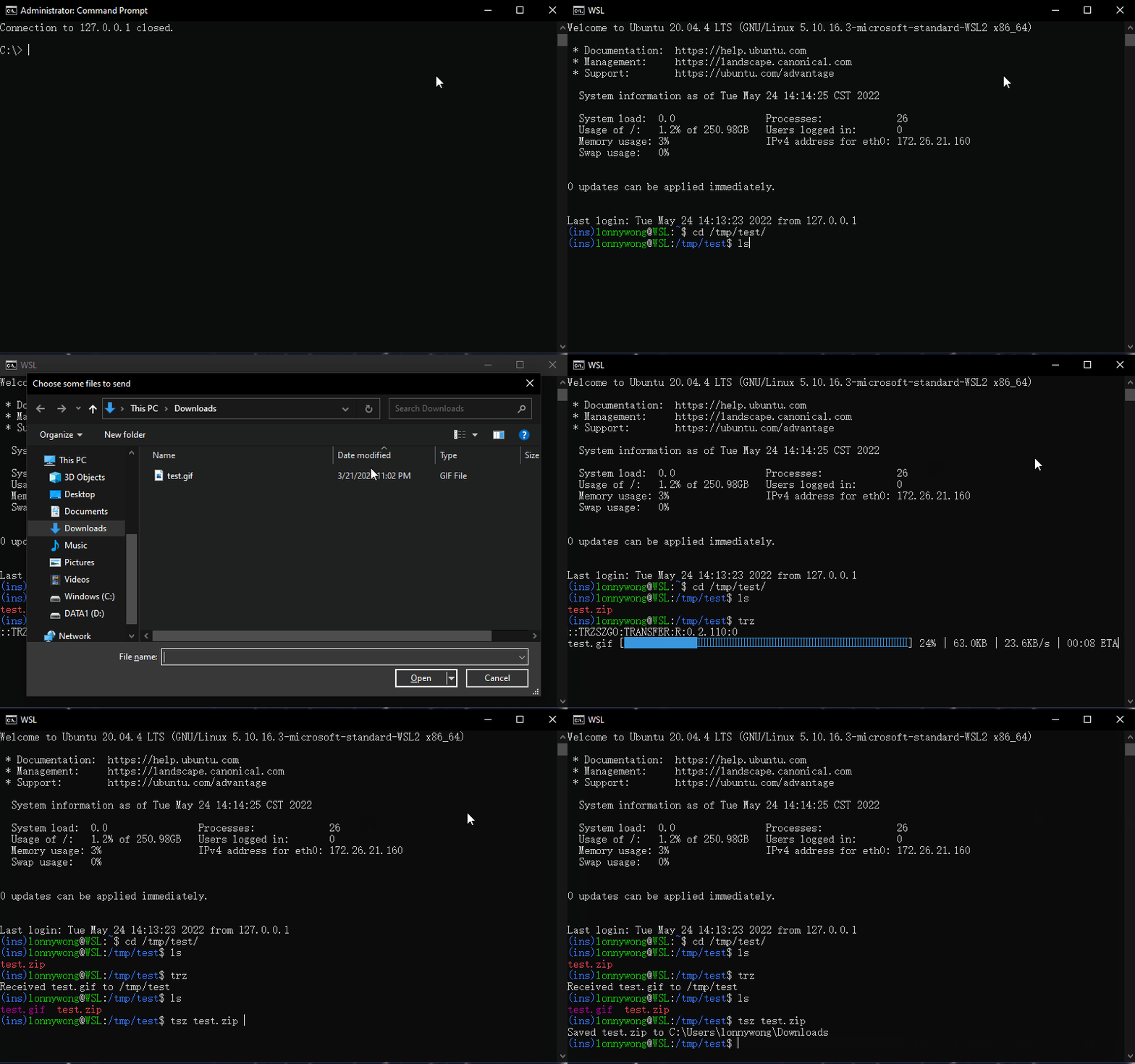
Windows
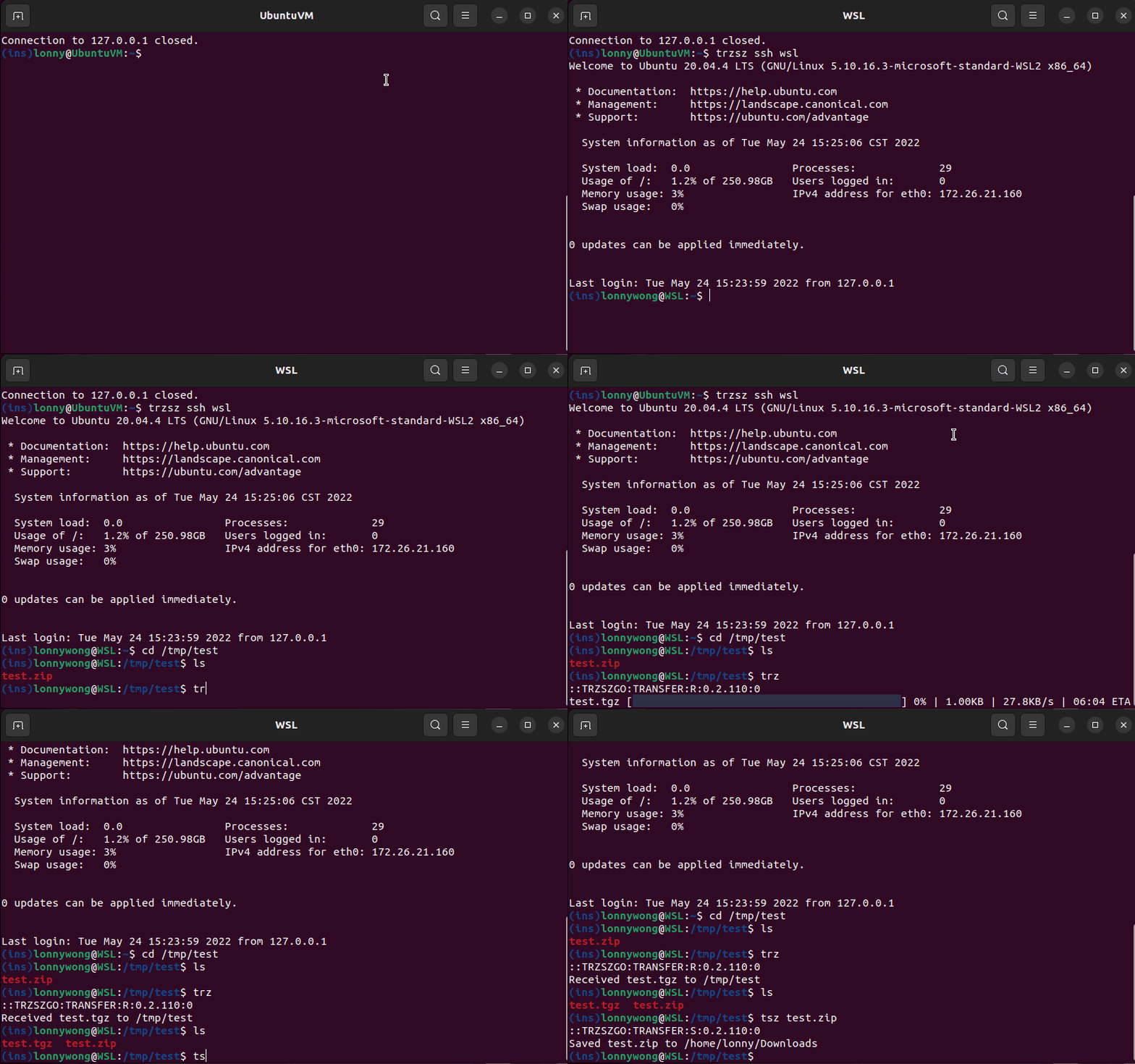
Ubuntu
Drag files
Feel free to email the author [email protected], or create an issue. Welcome to join the QQ group: 318578930.
❤️ Sponsor trzsz ❤️, buy the author a drink 🍺 ? Thank you for your support!


评论