
A virtual offline Kanban Board for your personal projects and work flows.




English - Français - Español - Pусский - Deutsch - हिंदी - 中文 - 日本語
Personal Kanban is an offline capable application or tool that implements kanban to manage work at personal level. Work items can be represented as records and columns to depict each stage of your work process. Columns can be as simple as “todo”, “in-progress” and “done”, or it can be complex to suit your flow.
It’s a tool to visualize and optimize your workflow. Physical boards are popular among few, while virtual boards like Personal Kanban play a critical role in agile software development considering their accessibility, simplicity and elegant display. Regardless of whether a board is physical or virtual, it must depict work visually along with clearly identifying the blockage and other dependencies. Each of these features are offered seamlessly by Personal Kanban.
Plan your work with flexibility, identify and resolve bottlenecks and overview your complete work visually.
Table of Contents
Introduction
It is an agile project management tool that helps you visualize your work, limit your work-in-progress(wip) and to craft & optimize your work flow to get the maximum output. To achieve this, it makes use of columns and records. Personal kanban offers visual clue, columns, wip limits, start point and end point to set you up for success.
Features
A few of the things you can do with Personal Kanban:
- Add, Edit, Delete Columns
- Move Columns
- Add, Edit, Delete Records
- Move Records
- Restrict WIP limits for Columns
- Manage Column and Records Background Colors
- Clear Board
- Dark Mode
- Localization Support
- Offline local storage
How to Use
You can access the application by visiting Website. The application has a features set as follows :
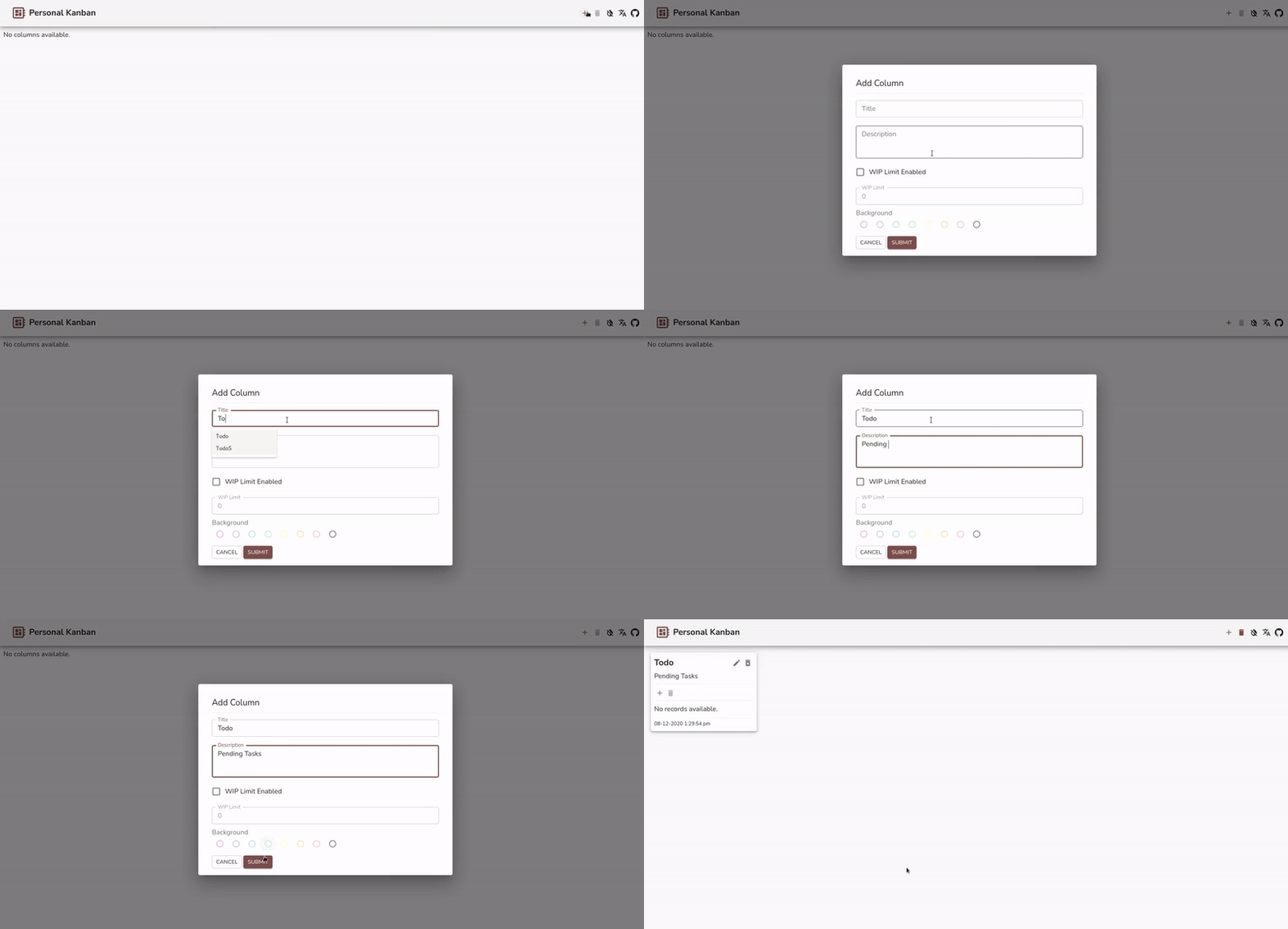
Add Column
Add a new column by click on + icon button from the toolbar. Enter the details of the column, including title ( mandatory ), description, background color and wip limit.
Edit Column
Edit the column by click on edit icon button besides column title. Update the form and click submit for commiting change or cancel to close the dialog.

Delete Column
Delete the column by click on delete icon button besides edit icon button. This will delete the column along with all the records for the column.

Move Column
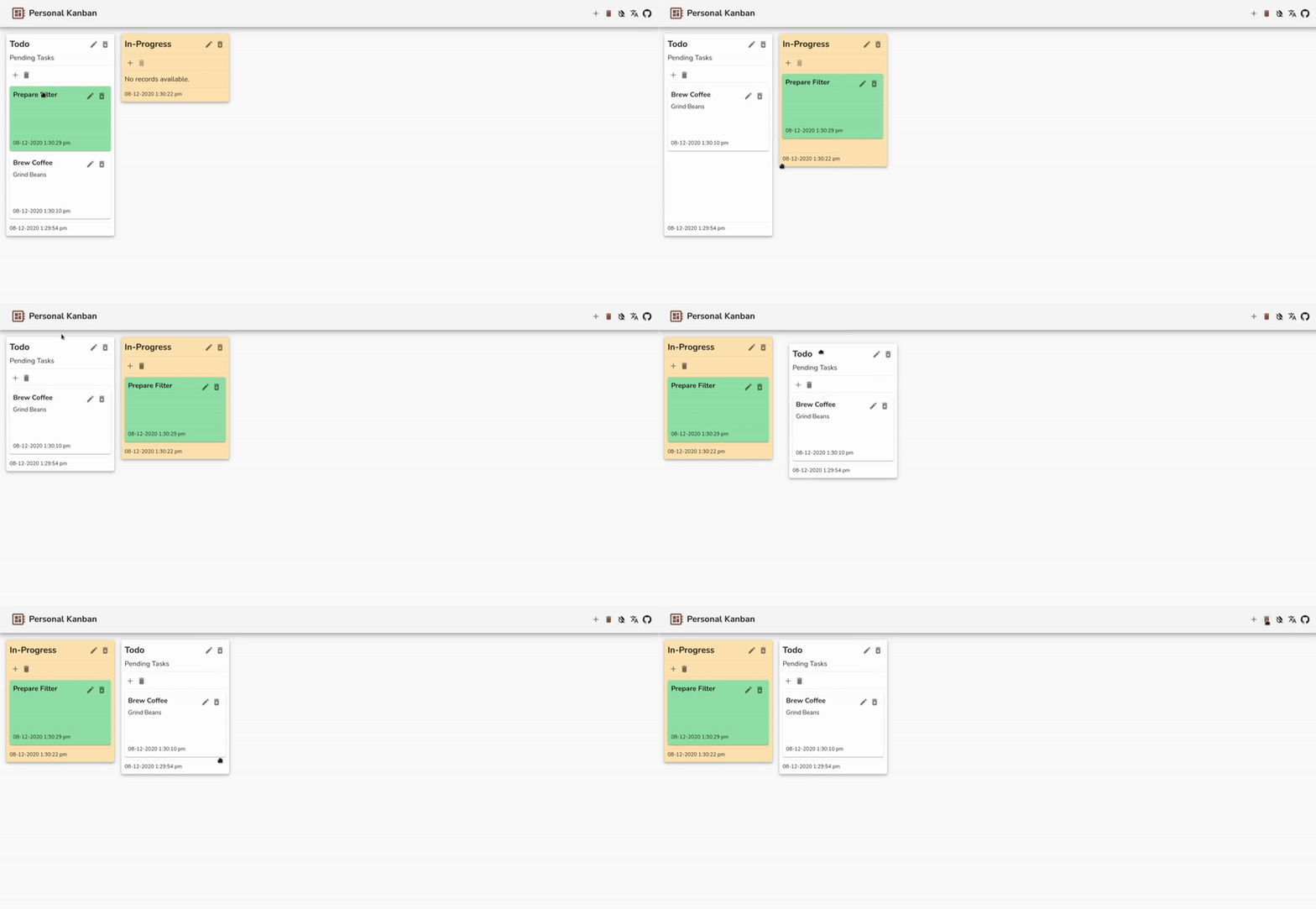
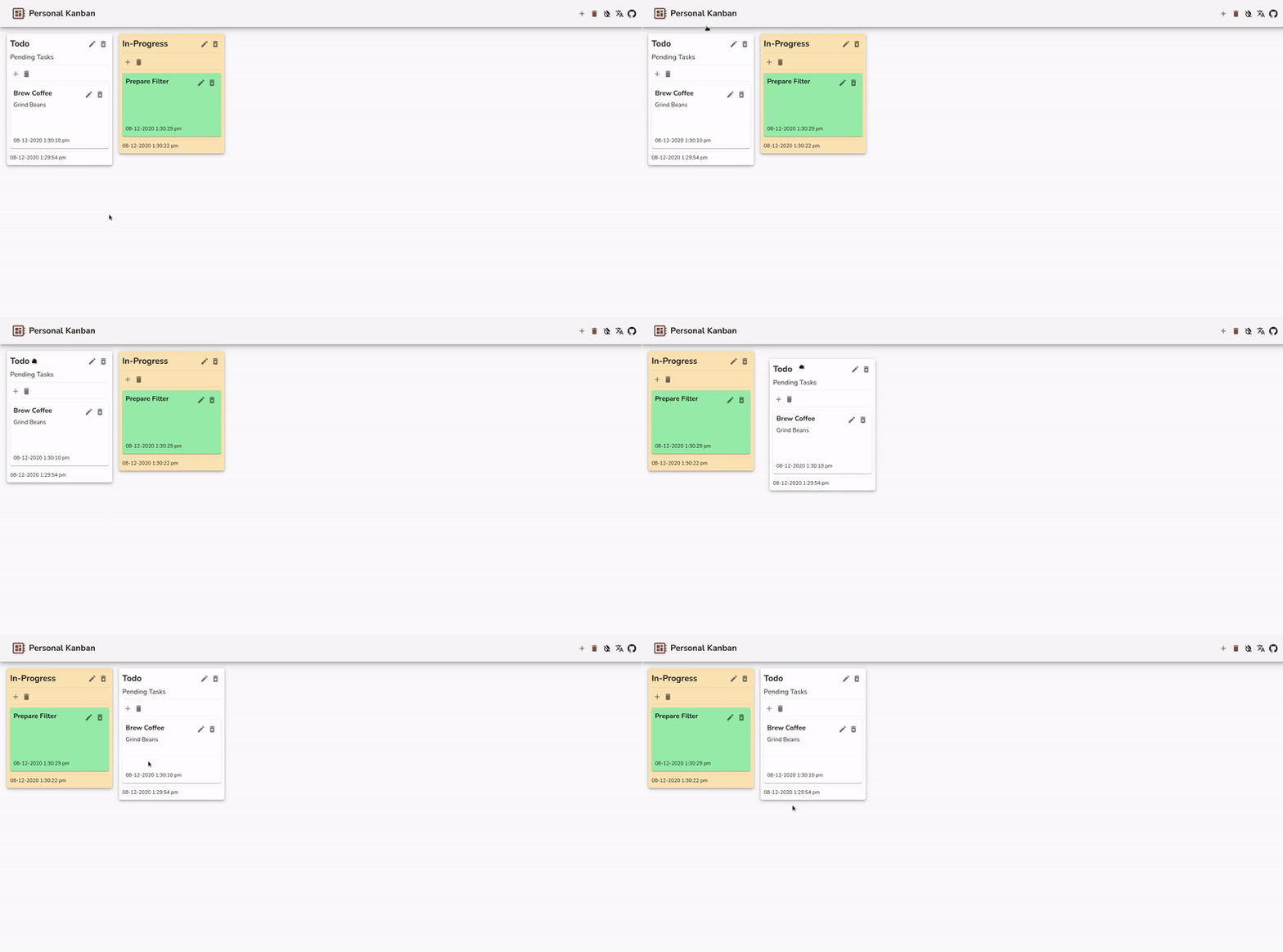
Hold and drag the column from it’s body or column header to move it across other columns on the board.
Add Record
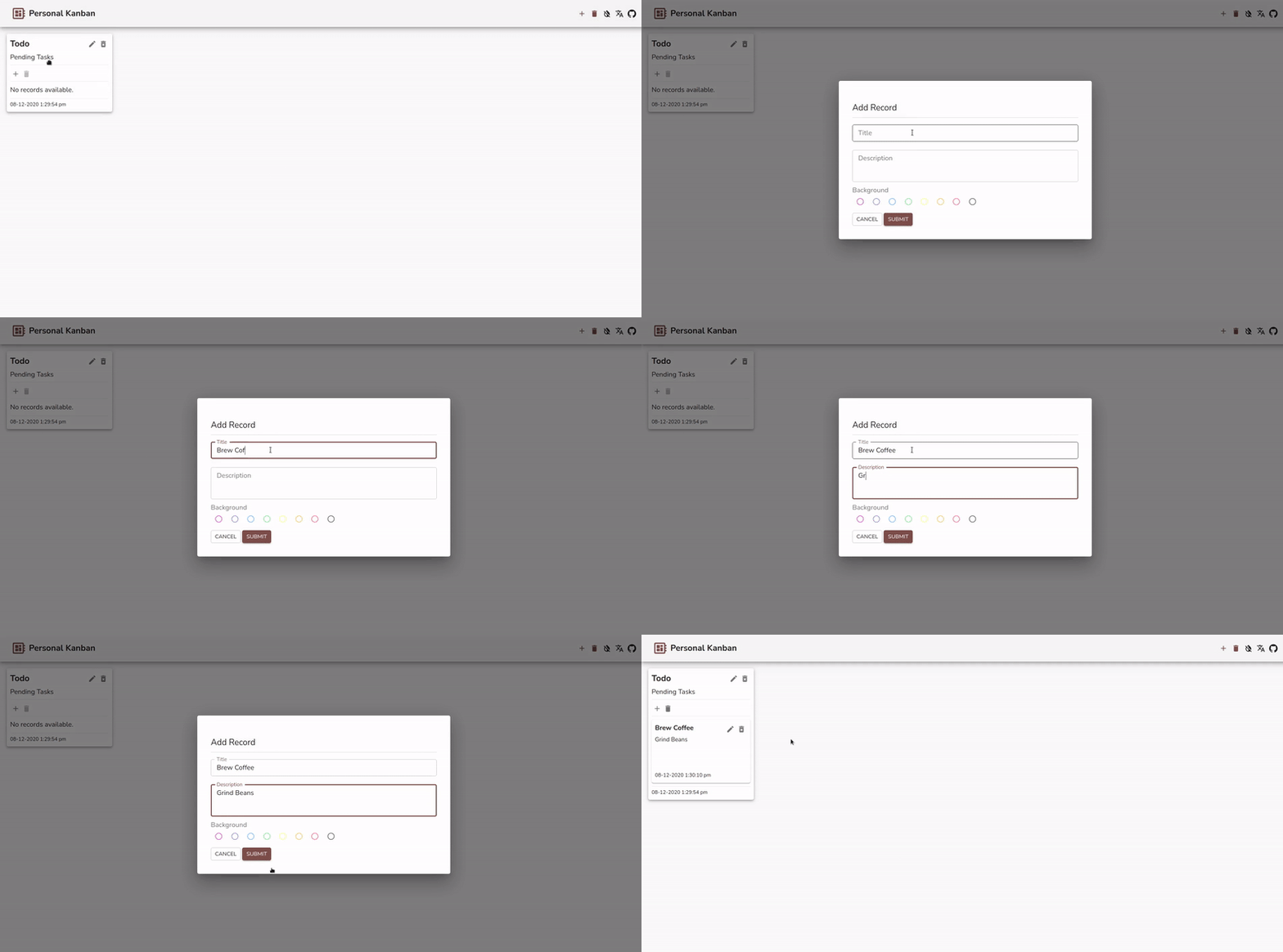
Add a new record by click on add icon button beneath column title / description. Enter the details of the record title ( mandatory ), description and background color. On submitting a new record will be added to column with created timestamp as caption.
Edit Record
Edit the record by click on edit icon button besides record title. Update the form and click submit for commiting change or cancel to close the dialog.

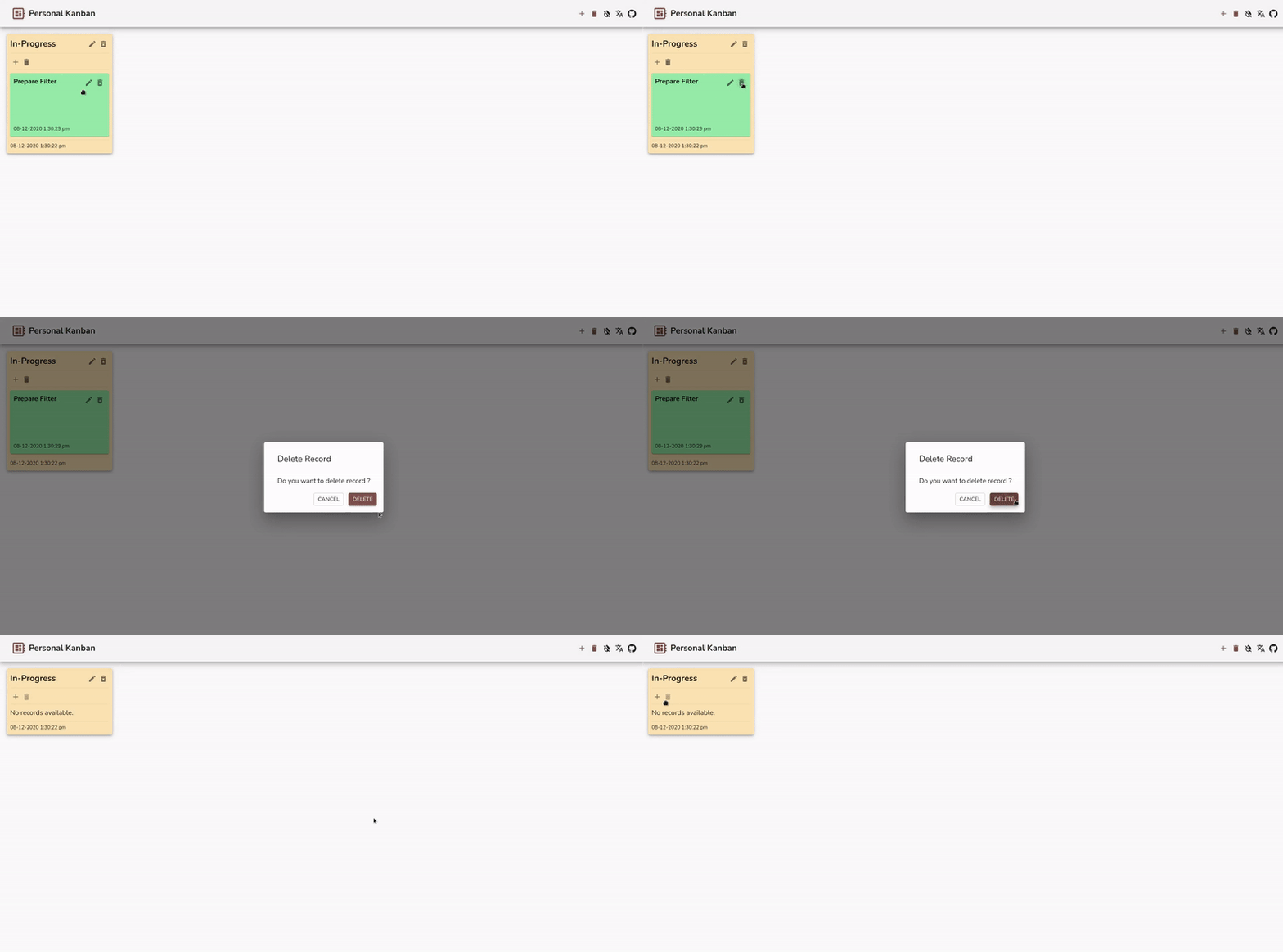
Delete Record
Delete the record by click on delete icon button besides record edit icon button. This will delete the record from the column.
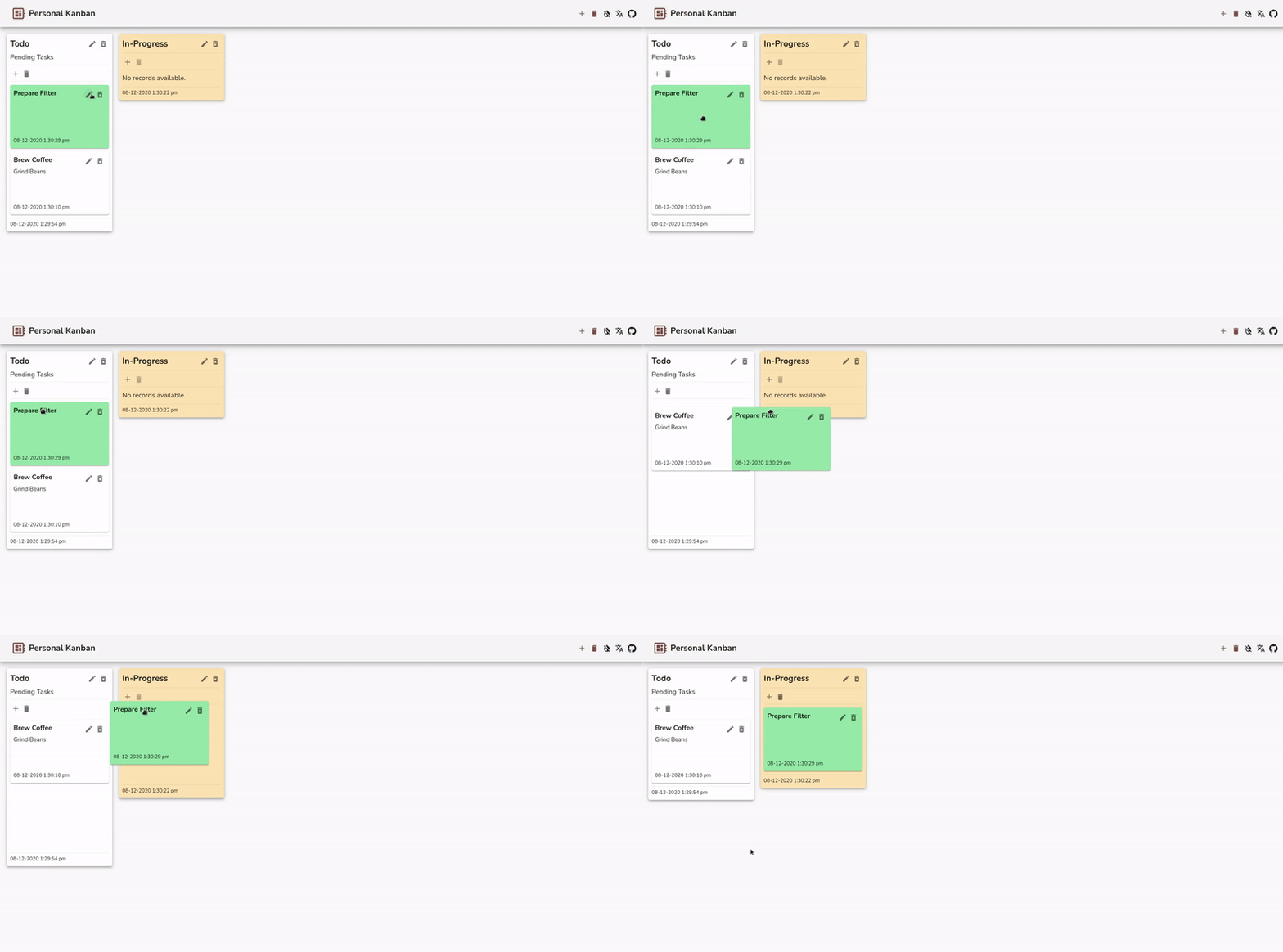
Move Record
Hold and drag the record from it’s body or record header to move it across other columns record list on the board.
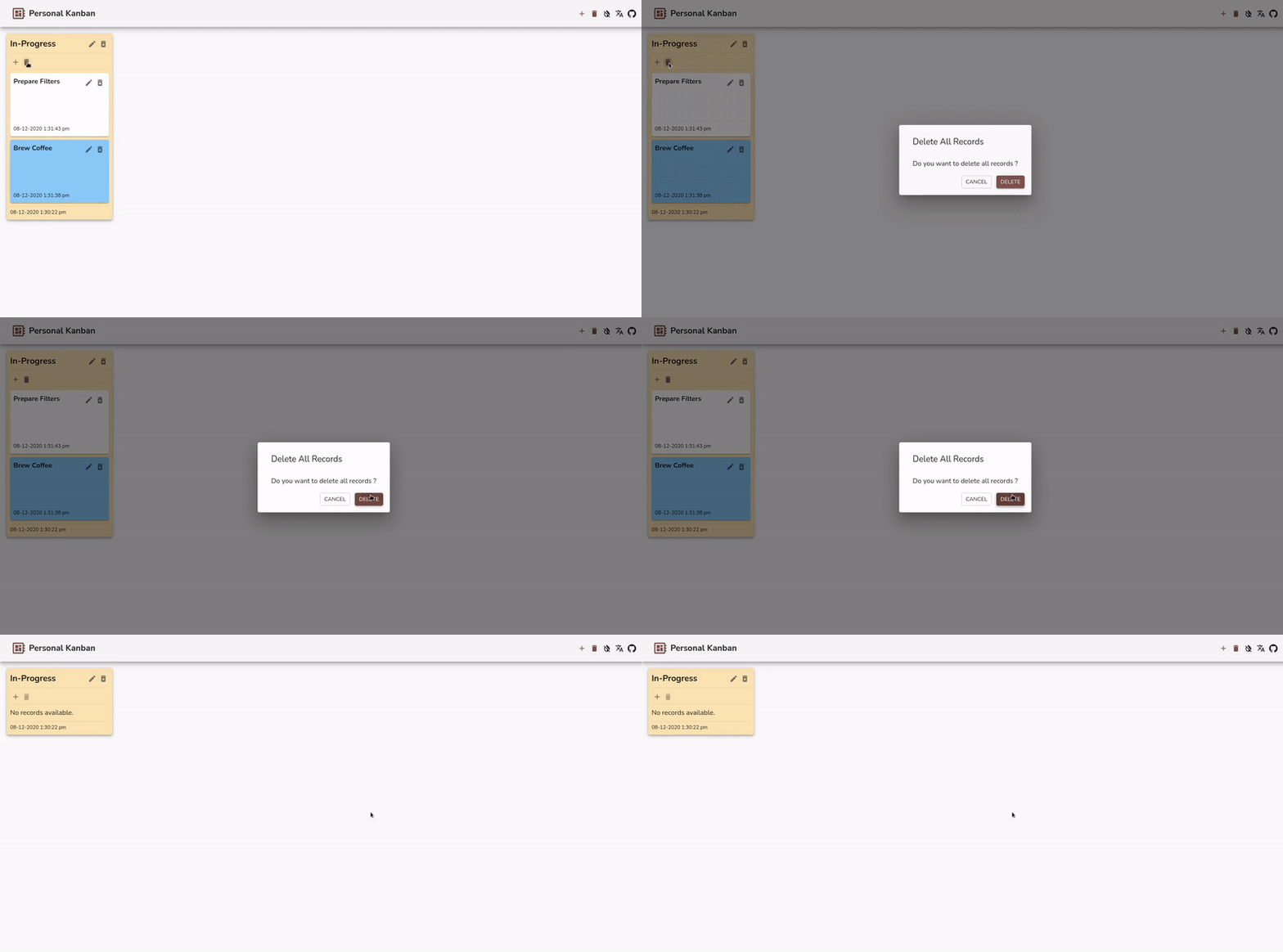
Delete All Records
Delete all the record belonging to the column by clicking on the delete icon button besides add record icon button. It will remove entire record list from column.
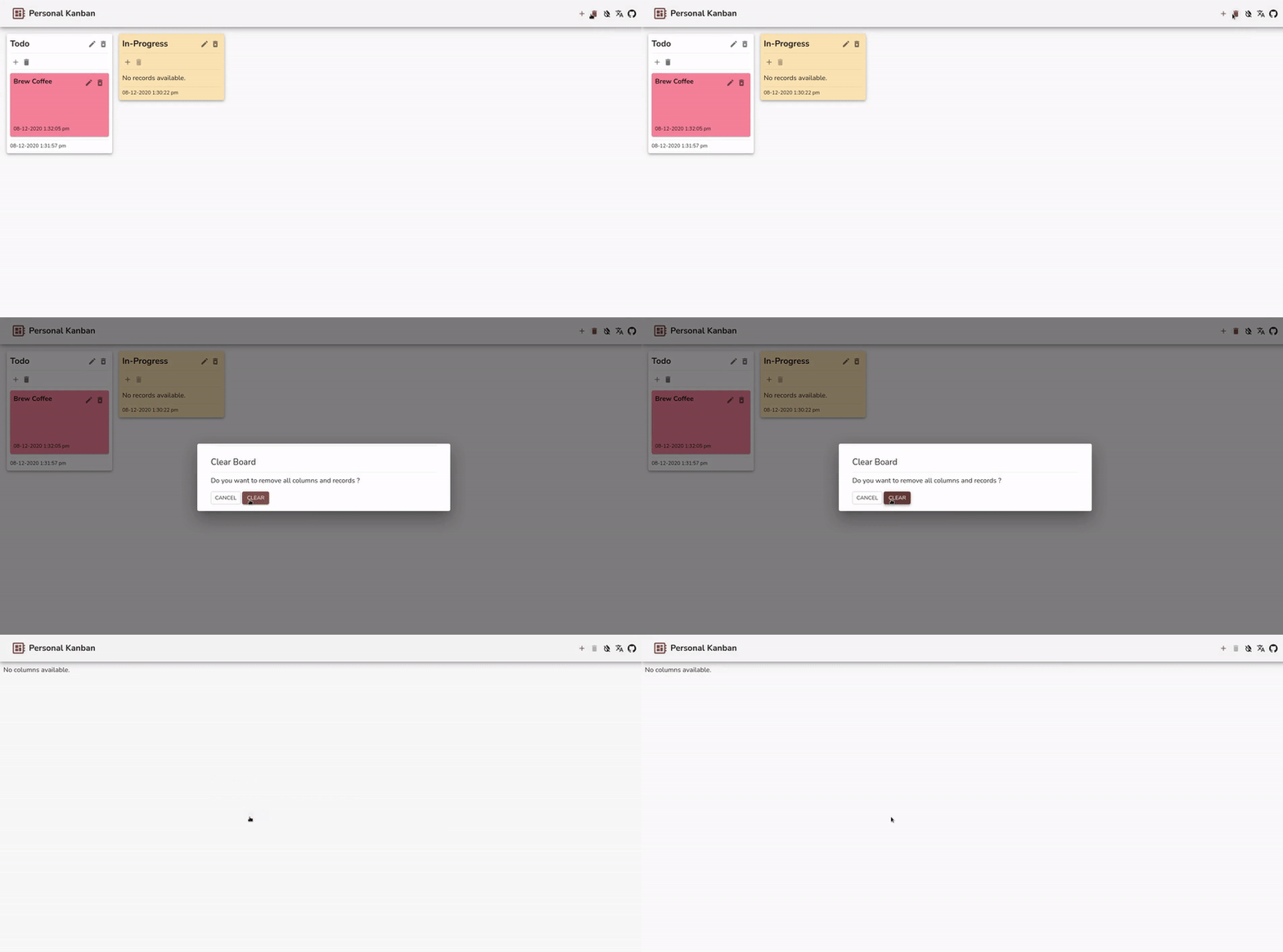
Clear Board
Click on the delete icon button from the toolbar to clear entire board. It will delete all the columns and records from the board.
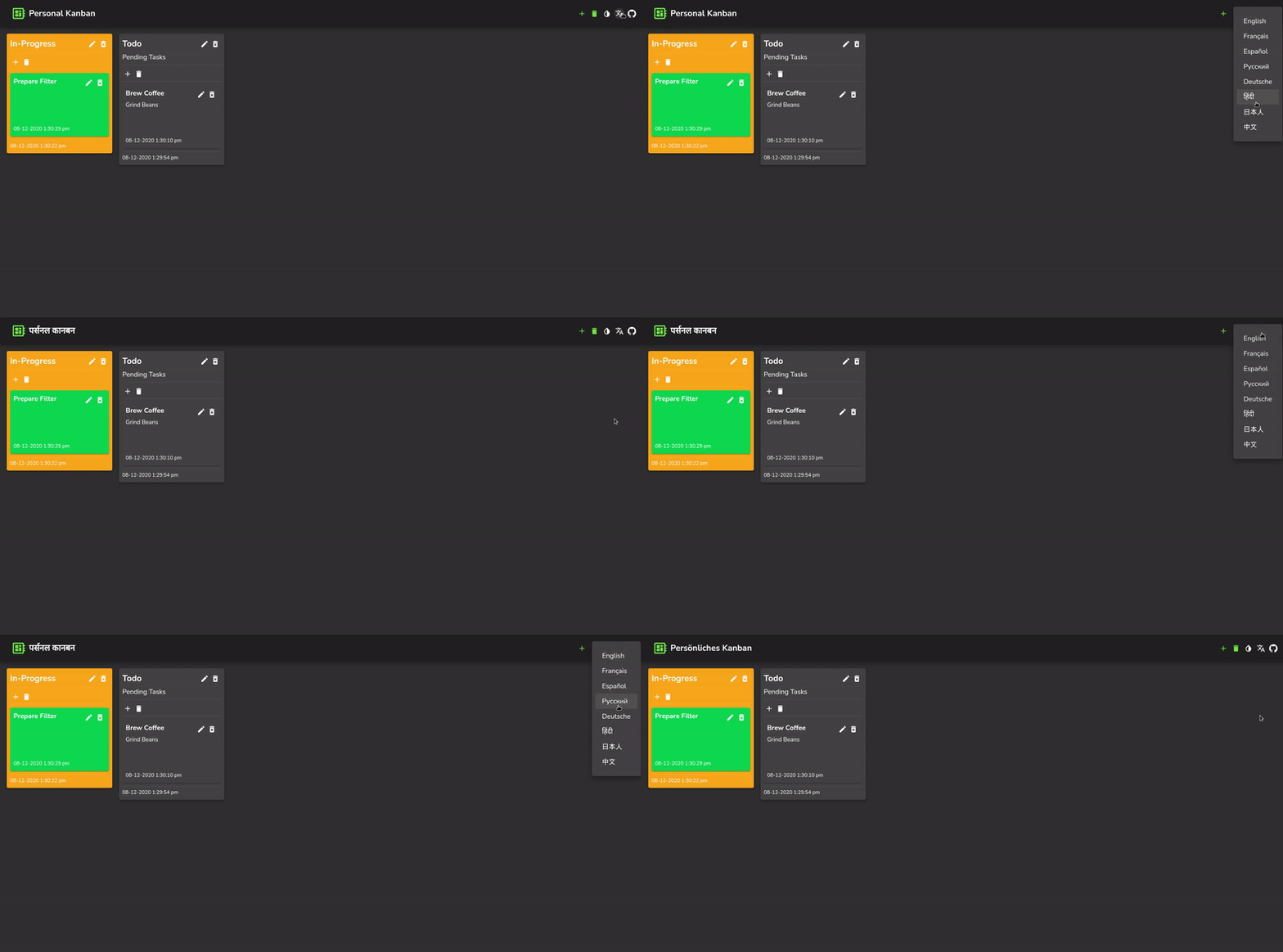
Change Language
You can change language of the application by clicking on the globe icon button in the toolbar. Select suitable language from the menu and the application locale will be change to selected language.
Toggle Dark Mode
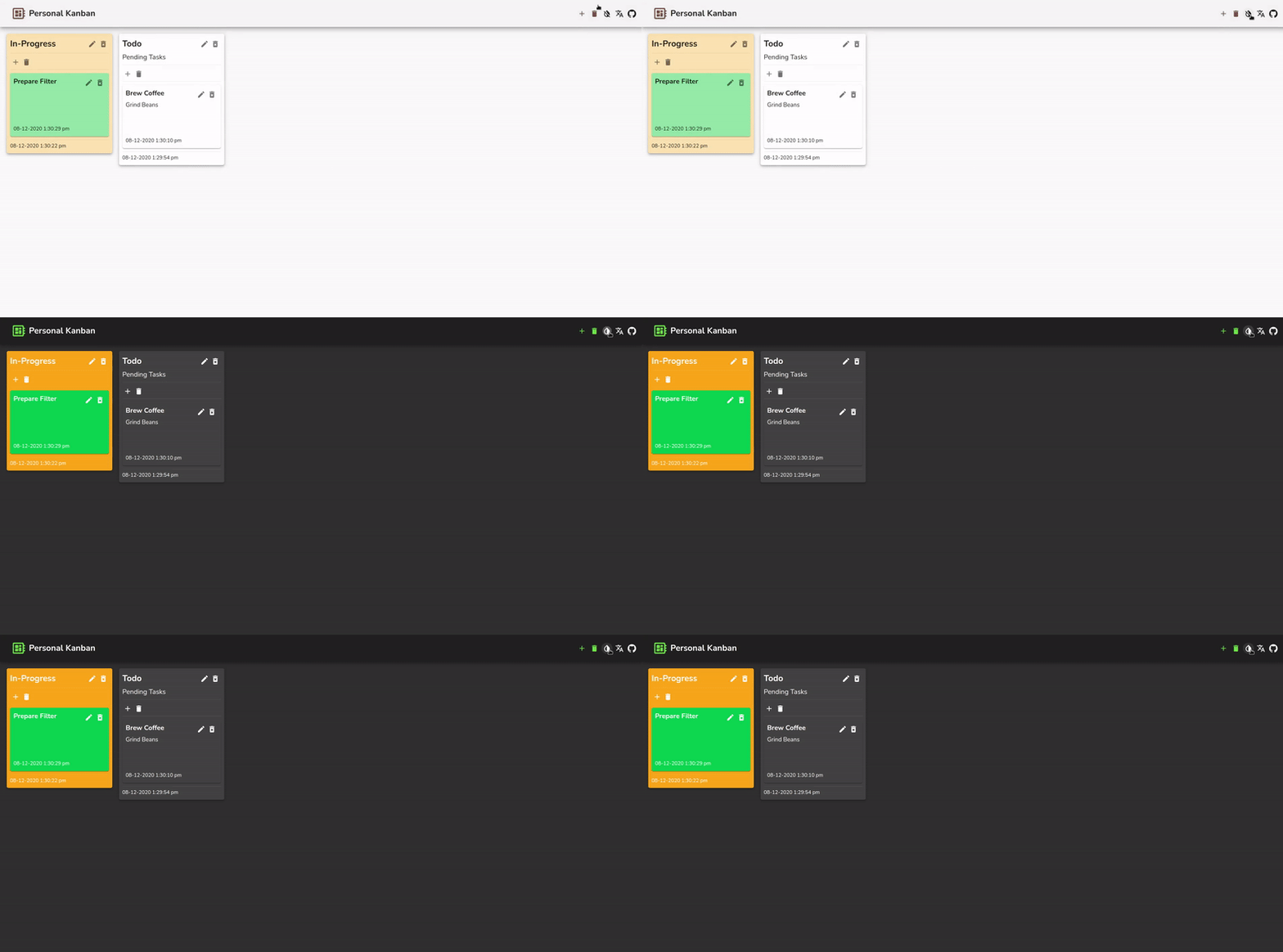
You can toggle between the dark mode by clicking on the icon button from the toolbar.
Dark Mode
Dark mode helps you quickly turn the screen to dark ( while using during night). Toolbar offers you icon button that serve as an on/off switch for dark mode.
Localization
Personal kanban offers local support for language including :
- English
- Français
- Español
- Pусский
- Deutsch
- हिंदी
- 中文
- 日本語
Offline Usage
The application is registered with service workers and behaves as a progressive web application (PWA). For offline usage you can select the Add To Home option, while accessing application in browser, to install the application locally to your mobile devices.
Development
The application is scaffolded using create-react-app (CRA) with Typescript templating. You can clone the Personal Kanban repository for custom development.
To run the application locally on your machine you can follow the steps below :
1: git clone https://github.com/nishantpainter/personal-kanban.git
2: cd personal-kanban
3: npm install
4: npm run build
5: sudo npm install -g serve
6: serve -s build
1: git clone https://github.com/nishantpainter/personal-kanban.git
2: cd personal-kanban
3: yarn install
4: yarn build
5: sudo npm install -g serve
6: serve -s build
Privacy
The application makes use of local storage for persisting your work columns & records and does not store any personal kanban data on any sort of server. The application uses Google analytics to get an overview of the application usage.
Other References


评论