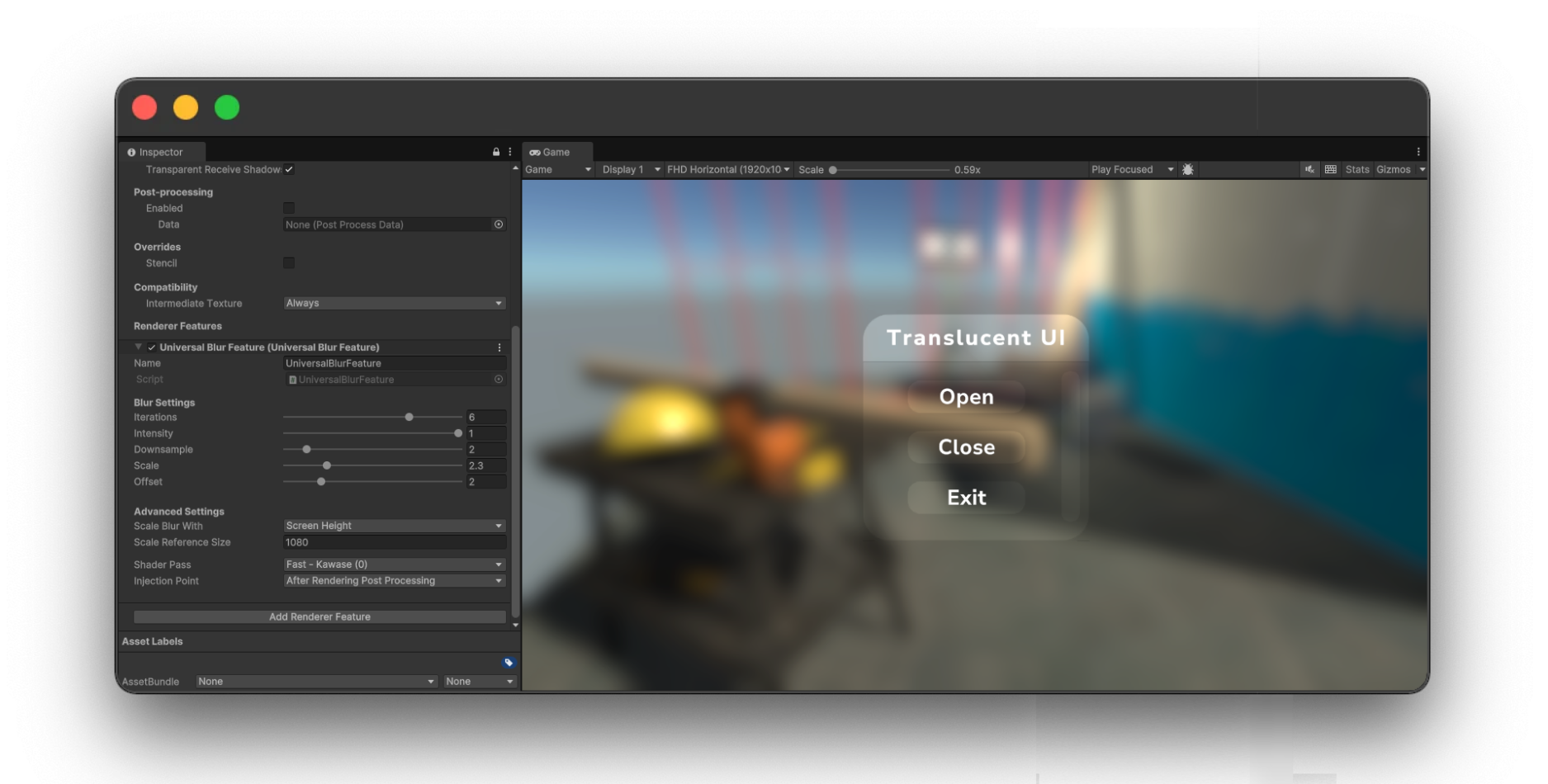
Unified Blur
A modern screen blur for Unity, built on Render Graph with performance and compatibility in mind.


Introduction
Unified Blur is a performant and flexible screen blur effect for Unity, built using the new Render Graph API.
It supports both modern Unity 6 projects and some of the older versions through a legacy compatibility path.
Designed to be easy to use, efficient, and highly customizable, Unified Blur is perfect for creating clean translucent effects for your games and applications.
Installation · Setup · Use Cases · How It Works · Troubleshooting · Limitations
Installation
- Unity Package Manager - Copy git url and add it via package manager’s
Add package from git URL... (for a specific version visit releases).
- Open UPM - For more information, visit OpenUPM Page.
- Manual - Download zip, extract and put its content anywhere in the project (preferably in Plugins folder).
Setup
-
Add Unified Blur Render Feature
Add Unified Blur Render Feature to the renderer data asset used by your project. Step by step:
- Open
Project Settings → Graphics and locate the Scriptable Render Pipeline Settings field (this is your URP Asset). Alternatively, open Project Settings → Quality and read the URP Asset assigned to the currently active quality level.
- Select the URP Asset in the Project window and look at the
Renderer List in its inspector. Each entry points to a renderer data asset (e.g. PC_Renderer, Mobile_Renderer).
- Select the renderer data asset you want to extend in the Project window.
- In the inspector, scroll down to the
Renderer Features section and click Add Renderer Feature → Universal Blur Feature.
A project can have multiple renderer assets (one per platform/quality level - PC, Mobile, WebGL, etc.). The feature must be added to the renderer asset used by the active quality preset, otherwise the blur will not appear at runtime. If you target multiple platforms, add the feature to each renderer asset that needs the effect (see Troubleshooting).
-
Assign Blur Material to UI Image Component
Assign UniversalBlurUI material to any UI Image component that you want to display the blurred screen on.
-
Play with Settings
Adjust settings in the Unified Blur Render Feature settings to get the desired blur effect.
Use Cases
Unified Blur works best with UI components that are part of the Screen Space - Overlay canvas. Other canvas types are supported as well, although with some limitations (see the limitations section).
- Option 1: UI Image Component with Blur Material
Display a blurred version of the screen on a UI Image component. This is useful for creating translucent UI effects.
- Option 2: Custom Shader with Unified Blur
Use the global texture generated by Unified Blur Render Feature in your custom shader to create unique effects.
How It Works
Unified Blur works by inserting a custom render pass into the render graph, at a configurable injection point, which copies the back buffer and applies a blur effect to it. Once the pass completes, the blurred result is exposed as a global texture for downstream shaders to sample.
Troubleshooting
Blur material shows but no blur effect
- Confirm the
Universal Blur Feature is added to the renderer data asset used by the active quality level. Open Project Settings → Quality, check which URP Asset is assigned to the active level, then verify the renderer asset it references is the one carrying the feature. A common pitfall is adding the feature to a desktop renderer while the active quality level points at a mobile renderer (or vice versa).
- Verify post-processing is enabled on the main camera: select the camera, then in the inspector under
Rendering make sure Post Processing is checked. Without it, the blur pass output may not reach the screen as expected.
- If the camera renders to a custom render target, make sure the target format is compatible with the blur pass. A mismatched format (e.g. no alpha, unexpected color space) can produce a transparent or blank result.
WebGL build shows no blur
WebGL builds typically fall back to the Mobile renderer data, not the desktop renderer. If you only added Universal Blur Feature to the PC renderer, the WebGL build will run without it.
- Open the URP Asset assigned to the WebGL/Mobile quality level, locate its renderer data asset, and add
Universal Blur Feature to that asset as well.
- After adding it, rebuild the WebGL player so the updated renderer asset is included.
Yes. Each Quality Level can reference a different URP Asset, and each URP Asset can reference a different renderer data asset. By adding Universal Blur Feature to multiple renderer assets, you can tune blur settings (intensity, downsample, iterations) independently per platform or quality preset.
Limitations
- Limited support for world space or screen space camera canvases.
To enable this, change the injection point in the Render Feature’s settings panel to BeforeRenderingTransparents. Note: transparent objects and other canvases will not be visible in this scenario.


评论