Alfred-chromium-workflow




Alfred workflow for Chromium browsers
Why?
This workflow originated from alfred-chrome-workflow.
The previous workflow has several installation issues like this.
In addition to resolving installation issues, this workflow provides several following benefits over the previous one.
- Support favicon images in almost all features
- Support switching browsers, profiles with ease
- Support more Chromium based browsers
- Lightning-fast
- Provide localized subtitle
🌈 Features
- 📄 Search visit histories
- 🔖 Search bookmark, bookmark folders
- 📜 Search search histories
- 🔎 Search download logs
- 📒 Search and copy your autofill data
- 📎 Search your opened tabs and focus, close them
📌 Prerequisite
The prerequisites below are required to use that package.
🎯 Supported Browsers
Currently supported browsers are as follows.
This workflow assumes your browser is Chrome at default.
You can switch the browser with ch browser.
🔨 How to install
Download alfred-chromium-workflow.alfredworkflow on the Release page and double click the file to add to Alfred.
-
The executable is not code-signed so manual verification of the executable is required to run Alfred commands. From the Alfred Preferences’ Workflows tab, right-click alfred-chromium-workflow in the left nav, and select “Open in Finder”. Find and right-click the alfred-chromium-workflow executable, then click “Open” (do not simply double-click the file). You will be presented with a modal dialog that reads “macOS cannot verify the developer of “alfred-chromium-workflow”. Are you sure you want to open it?” - click Open. The warning will no longer appear during workflow usage.
-
Note that if your browser is not the default browser (Chrome), you need to switch your browser through ch browser first.
-
Register your customized hotkeys if you need to.
Note : This workflow may not work on Intel Macs in versions 0.3.0 and above.
📗 Usage
chb
Retrieve bookmarks.

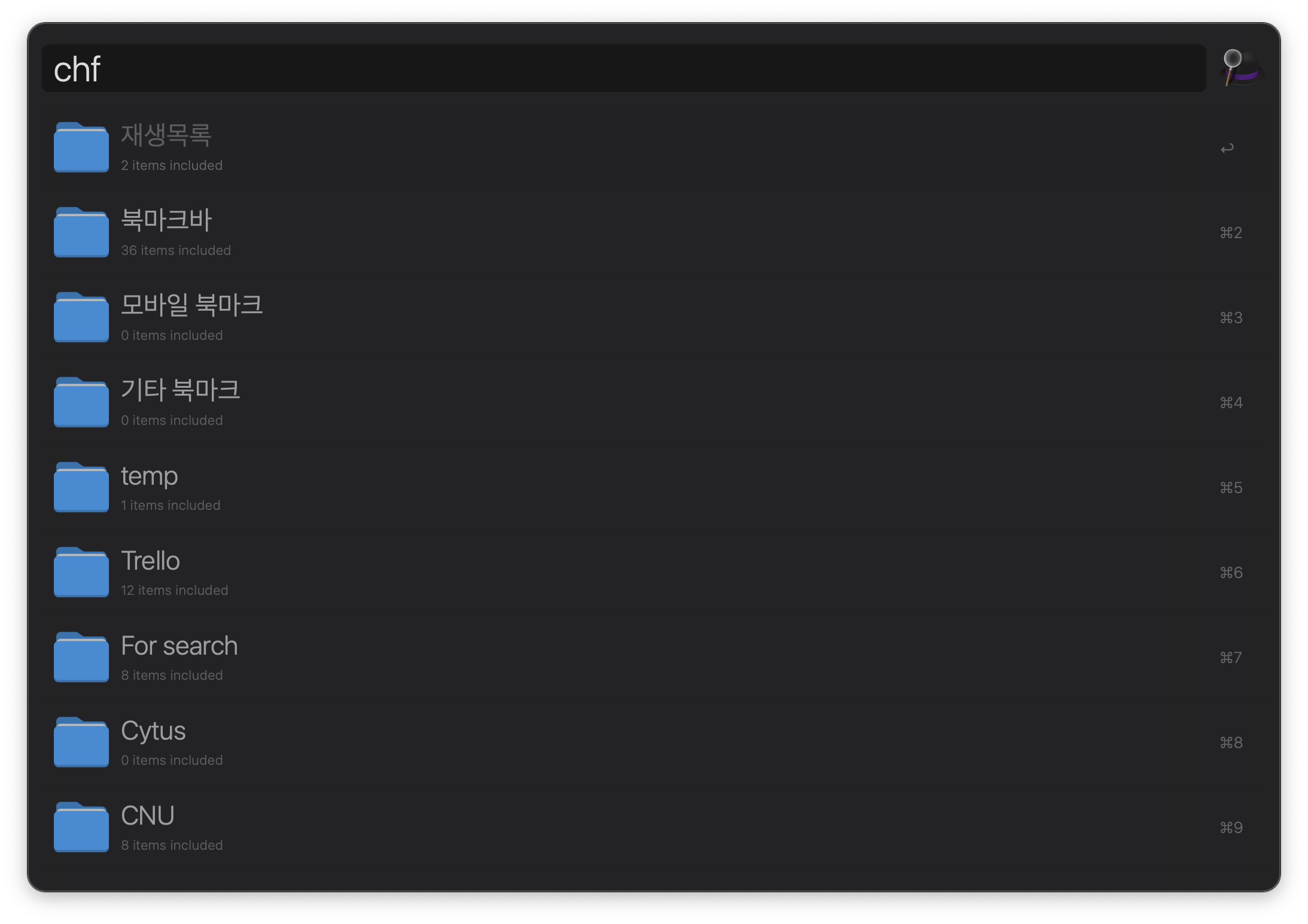
chf
Retrieve bookmark folders.
chh
Retrieve visit histories.
Append word starting with # to retrieve only the logs in that domain.
Example:
chh #github [foo bar]

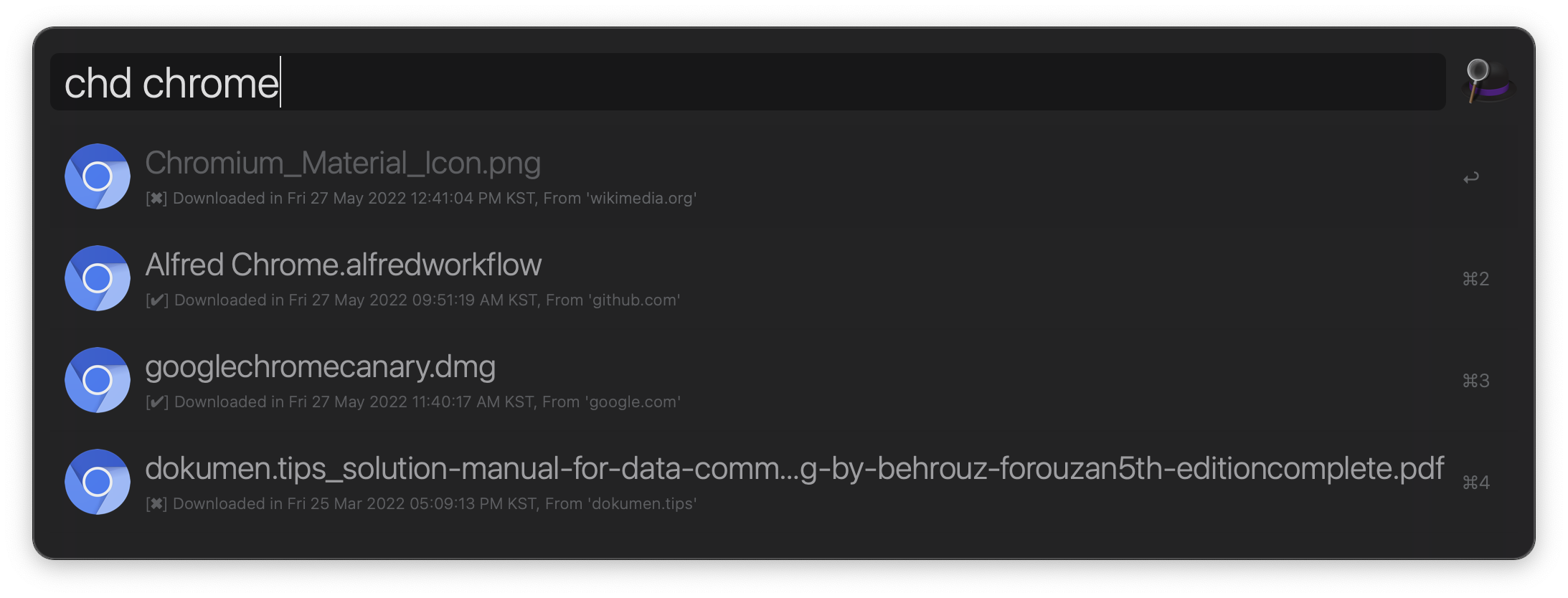
chd
Retrieve download histories.
chdc
Retrieve download histories but only show existing files.
chs
Retrieve your search histories.
Append word starting with # to retrieve only the logs in that domain.
Example:
chs #github [foo bar]

cha
Retrieve autofill data.
Press enter with option key to paste the value directly.
chid
Retrieve login data (like email).
Press enter with option key to paste the value directly.
cho
Open new window through selected profile.
If you change your profile through ch profile, other commands try to work with the previously opened window.
This command would be useful in such a case.
Open new window with changed profile before the command.
cht
Search opened tabs and focus, close them.
Tabs are sorted by their domain.
ch browser
Switch browsers with ease.
This command also let you change the browser profile after changing the browser.
ch profile
Switch profiles with ease.
Tip: You can check what is your Browser’s profile’s name in chrome://version.
ch helper
Provides several useful helper features.
- Update workflow if a new version is available
- Cache favicon manually
- Open Github issues
- Open Alfred forum link
- Open READMD.md
🔖 Options
Configure below options through Workflow Environment Variables.

Profile
Browser’s profile name.
You don’t need to change this value manually.
Instead, you can change this value through ch profile with ease.
CustomizedProfiles
List up your custom profile names if there are.
This could be useful when you have profiles in customized locations.
You can switch your profile through ch profile with Profile {number}, Default and these values.
Each profile name should be splited with comma (,).
Locale
This is used to provide localized subtitles.
Refer to the following page for seeing supported locales.
https://github.com/klauspost/lctime/tree/master/internal/locales
Browser
Browser name.
You don’t need to change this value manually.
Instead, you can change this value through ch browser with ease.
ResultCountLimit
Max number of items to show in Alfred.
But the maximum count limit is limited to 200 regardless of its value to prevent truncating json string.
🌟 Contribution
Contributions of any kind are welcome.
Add supporting new browser
This workflow needs help to support as many browsers as possible.
To add new browser, please follow below guideline.
- Check the browser is based on
Chromium.
- Add new path to
GetProfileRootPath in src/utils.go.
- Add the browser’s proper Application Name to
getApplicationName in src/tabManager.go. You can check this value through Applescript Editor’s Dictionary.
- Add proper
Open URL block of info.plist using Alfred.
- Add new browser’s item
SelectBrowser in src/config.go.
- Add the browser name to
READMD.md.
- Add the browser’s icon to
assets/browser-icons.
You may also consider below workflows interesting.
License
MIT © jopemachine


评论