GNU General Public License v3.0

项目介绍

corbindavenport/creative-cloud-linux 是一个托管在 GitHub 上的开源项目,主要使用 Shell 编写,采用 GNU General Public License v3.0 许可证,目前获得 754 个 Star、115 次 Fork。

仓库全名
corbindavenport/creative-cloud-linux
开源许可证
GNU General Public License v3.0
Star 数
754
Fork 数
115

README 摘要

Creative Cloud for PlayOnLinux This script has not worked for some time, and since Adobe's newer installers use a form of embedded Internet Explorer that Wine doesn't support (and installing IE in the Wine prefix doesn't solve the issue), I don't think this will work anytime soon. I'm leaving the code publicly available for reference, and I will accept any PRs that make it functional again, but I am done working on…

完整内容见 GitHub 原始 README 或本页 。

常见问题

creative-cloud-linux 用什么语言开发?

主要使用 Shell 编写,采用 GNU General Public License v3.0 许可证,目前有 754 个 Star。

creative-cloud-linux 可以免费商用吗?

仓库标注的许可证为 GNU General Public License v3.0,商用前请先阅读仓库 LICENSE 文件确认授权范围。

如何获取 creative-cloud-linux 的源码?

可以直接克隆仓库:git clone https://github.com/corbindavenport/creative-cloud-linux.git,默认分支为 master;安装与运行步骤见仓库 README。

creative-cloud-linux 最近还在维护吗?

仓库最近一次更新为 2020年4月24日,当前没有未关闭的 Issue;Star 数为 754,可作为社区活跃度的参考。

关于

PlayOnLinux install script for Adobe Creative Cloud

描述取自 GitHub 官方 API,中文内容由 GitRead 中文社区 编辑团队整理。

语言占比

Shell

README

Creative Cloud for PlayOnLinux

This script has not worked for some time, and since Adobe’s newer installers use a form of embedded Internet Explorer that Wine doesn’t support (and installing IE in the Wine prefix doesn’t solve the issue), I don’t think this will work anytime soon.

I’m leaving the code publicly available for reference, and I will accept any PRs that make it functional again, but I am done working on this. A newer version of the script without the PlayOnLinux dependency is available in the dev branch.

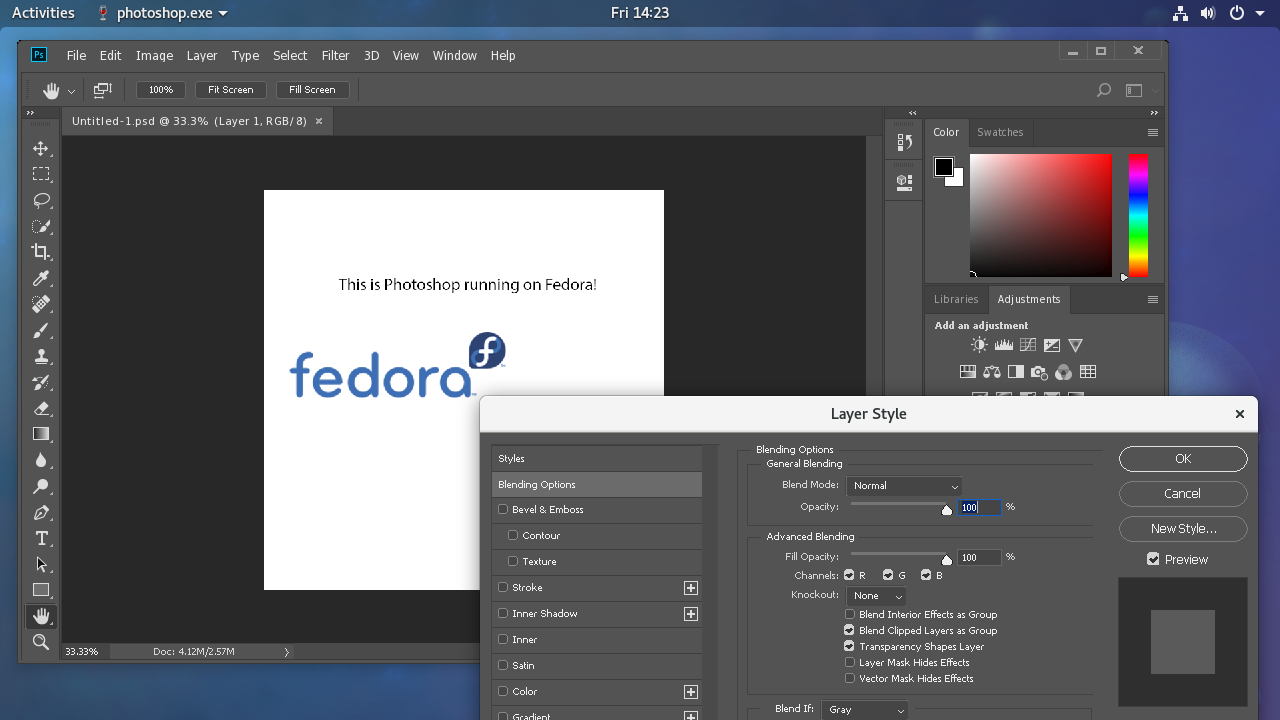
This is an install script for Adobe Creative Cloud, designed to be used with PlayOnLinux. The script sets up the Adobe Creative Cloud desktop program, which can be used to install and update Photoshop, Lightroom, Dreamweaver, Illustrator, and other apps.

Photoshop CC Screenshot

A (free) Adobe ID is required. Most Adobe applications require a paid subscription.

How to use this script

  1. Download PlayOnLinux from your distribution’s package manager (e.g. Ubuntu Software Center) or from the PlayOnLinux website
  2. Save the install script to your computer
  3. Open PlayOnLinux, go to Tools > Run a local script
  4. Select the install script you just downloaded

After the setup process is finished, you can open Adobe Creative Cloud from PlayOnLinux to download and install the apps you need. After you download an app, you can add a PlayOnLinux shortcut for it by clicking Adobe Application Manager in the app list, clicking Configure, and clicking Make a new shortcut from this virtual drive. Then look for the app you need, like Photoshop.exe, and add it.

Tip: Tooltips in Photoshop might not disappear automatically. You can turn off tooltips completely by going to Edit > Preferences > Tools and un-checking the Show tooltips box.

If the installer crashes, see the Troubleshooting page. If you still have issues, try the classic script.


This program is free software: you can redistribute it and/or modify
it under the terms of the GNU General Public License as published by
the Free Software Foundation, either version 3 of the License, or
(at your option) any later version.

This program is distributed in the hope that it will be useful,
but WITHOUT ANY WARRANTY; without even the implied warranty of
MERCHANTABILITY or FITNESS FOR A PARTICULAR PURPOSE.  See the
GNU General Public License for more details.

You should have received a copy of the GNU General Public License
along with this program.  If not, see <http://www.gnu.org/licenses/>.

评论

暂无评论