MIT License

技术解读

以下内容由 GitRead 中文社区 编辑团队基于项目 README 与官方资料整理, 结合中文开发者的常见使用场景补充技术选型建议。具体以项目官方文档为准。

auto-py-to-exe:把 PyInstaller 的命令行地狱,收进一张表单

项目背景与痛点

把 Python 脚本变成一个双击就能跑的 .exe,这件事在 Python 生态里从来没真正“简单”过。PyInstaller 是事实上的标准答案,但它的官方接口是一条长得能把终端撑爆的命令行:--onefile、--noconsole、--add-data、--hidden-import、--collect-all、--runtime-hook……再加上不同平台下资源路径分隔符是 ; 还是 :、相对路径到底相对于哪个工作目录、打包后 ImportError 却又看不到报错,这些坑几乎每个 Python 开发者都踩过至少一次。

auto-py-to-exe 切中的正是这个痛点:它不重写打包器,而是给 PyInstaller 套一层本地 Web GUI,把几十个晦涩的 flag 变成可勾选的表单、路径选择器和实时日志窗口。对“我只要把这个爬虫脚本发给运营同事”这类需求,它把从查文档到出包的时间从半小时压缩到三分钟。

核心技术揭秘

理解这个项目最关键的一点是:它自己就是一个 PyInstaller 打包产物,用的是典型的“吃自己的狗粮”策略——先让工具跑起来,再用它打包自己。

技术栈上,它没有用 Qt 或 Tkinter,而是选了 Eel:一个基于 Flask + gevent 起本地 HTTP 服务、再用 Chrome/Edge 的 app 模式打开前端的轻量框架。Python 侧定义函数并暴露给 JS,JS 侧通过 eel.xxx() 反向调用,形成双向 RPC。这个选择非常务实——界面用 HTML/CSS 写,迭代成本远低于传统桌面 GUI,同时天然获得富文本日志、拖拽上传等能力,而代价只是依赖用户机器上有个 Chromium 内核浏览器。

整体数据流如下:

graph TD A[前端 HTML/JS 表单] -->|"eel 暴露函数"| B[Eel 桥接层] B --> C[参数收集与合法性校验] C --> D{"参数是否合法?"} D -->|"否"| E[回传错误提示到 UI] D -->|"是"| F[组装 PyInstaller 参数列表] F --> G[subprocess 拉起 PyInstaller] G --> H[逐行读取 stdout/stderr] H --> I[流式日志回传前端] G --> J[产出 dist/ 与 build/ 目录]

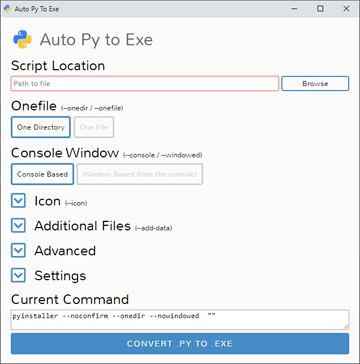
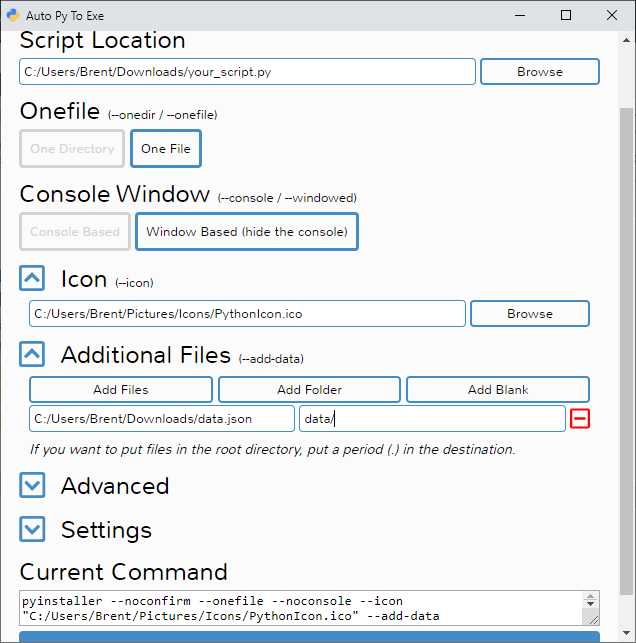
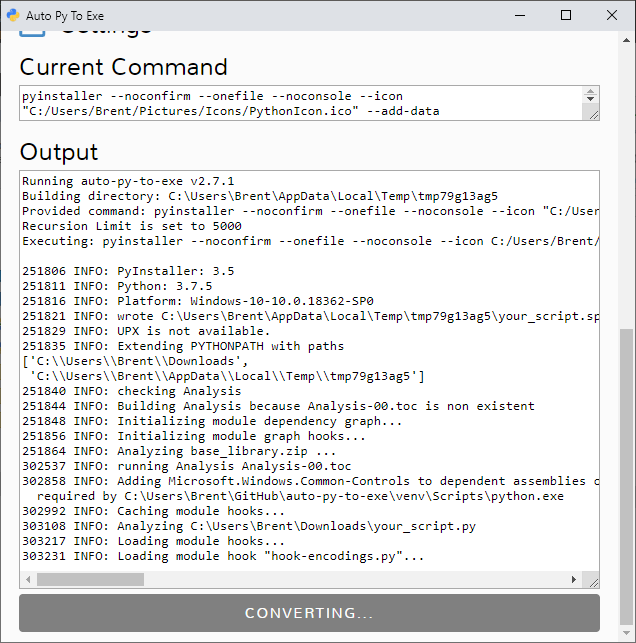
真正见功力的地方有三处。其一是参数状态的单一数据源:所有表单输入先归一化成一个字典,再由一个组装函数映射为 argv 数组;UI 上那个「Current Command」面板实时展示的就是这份 argv 序列化后的结果——这既是调试利器,也是给用户留的“迁移出口”,让人可以照抄命令写进 CI。其二是子进程与日志流:PyInstaller 的输出必须被实时读取而不是等进程结束,否则大项目打包时界面会假死几分钟;同时要处理输出缓冲和编码问题,否则中文路径下日志会乱码。其三是版本兼容层:PyInstaller 的参数在不同版本间有增删(比如 --splash 依赖 tkinter 支持),工具需要探测已安装版本并动态禁用不支持的选项,而不是让用户勾了之后在子进程里报错。

功能亮点与差异

和 cx_Freeze、Nuitka 这些“另一条技术路线”不同,auto-py-to-exe 的定位是PyInstaller 的可视化前端,所以它天然继承了后者生态最广、hook 最全的优势,同时把学习曲线削平。

几个真正实用的设计:

  • 配置导入/导出(JSON):打包配置可版本化、可共享,团队里一个人调好的参数,其他人直接导入即可。
  • 实时命令预览:把 GUI 操作翻译成命令行,解决了 GUI 工具“学不到东西”的通病。
  • 附加文件与二进制分栏管理:--add-data 和 --add-binary 分开处理,并自动处理平台分隔符,这是手工命令行最容易错的地方。
  • 多语言与输出隔离:日志区独立滚动,不污染表单;打包产物默认落到 output/ 而非原地,避免污染项目根目录。

相比动辄要写 .spec 文件的纯命令行流派,它的杀手锏就是:不需要先理解 PyInstaller 的模型,也能成功出包。

应用场景与落地建议

它最适合的场景是:内部小工具交付、给非技术同事分发脚本、教学演示、以及在正式接入 CI 之前快速试错打包参数。

但生产环境请务必注意几点:

  1. 别把它当构建系统。它是一次性的参数试验田。验证通过后,把「Current Command」里的命令固化进 build.sh 或写进 .spec 文件,纳入 CI,否则你无法复现历史构建。
  2. 杀毒误报是常态。PyInstaller 的 bootloader 被大量恶意样本滥用,单文件包极易被 Windows Defender 或国产杀软拦截,正式交付建议给用户提供签名证书或改用目录模式分发。
  3. 体积与启动速度。--onefile 每次运行都要解压到临时目录,冷启动明显慢于目录模式;配合 UPX 压缩能减体积但会进一步增加误报率,需要权衡。
  4. 隐藏导入的坑不会消失。GUI 只是把 --hidden-import 摆到了台面上,运行时 ModuleNotFoundError 依然要靠读日志定位,这一点它救不了你。

综合评价

优点:定位精准、技术选型务实(Eel + subprocess 的组合轻得恰到好处)、命令实时预览和配置导出这两个细节体现了作者对真实工作流的理解;跨平台可用,维护活跃。

缺点:本质是薄壳,PyInstaller 的所有坑它一个都填不了,只是把坑标了出来;依赖系统浏览器,在受限企业环境中可能打不开窗口;不支持 .spec 文件的可视化编辑,复杂项目仍然要回到命令行。

一句话总结:它不是打包器,是打包器的“翻译器”。对新手是救命稻草,对老手是调参沙盒,对生产流水线则请把它当作起点而非终点。

关于

GitHub 原始描述(英文)

Converts .py to .exe using a simple graphical interface

描述取自 GitHub 官方 API,保持仓库作者书写的原文。

简要分析

热度分
6705
价值分
3252
活跃状态
活跃

语言占比

CSS
HTML
JavaScript
Python

Release

README

Auto PY to EXE

A .py to .exe converter using a simple graphical interface and PyInstaller in Python.

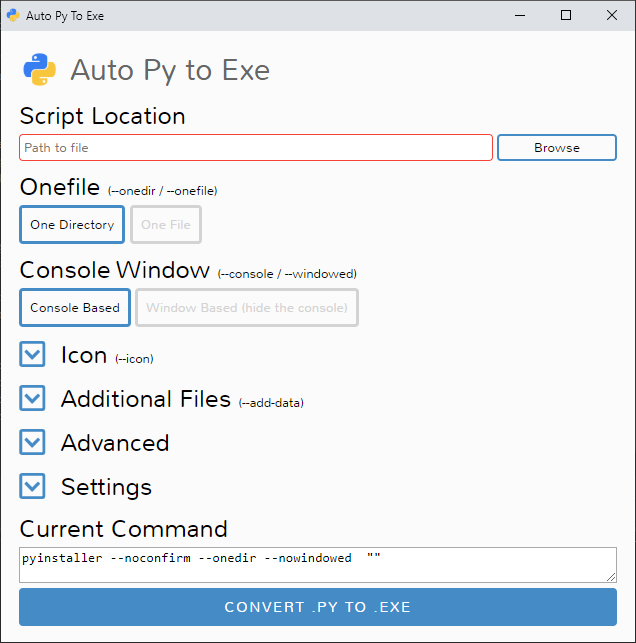
Empty interface

PyPI Version PyPI Supported Versions License Downloads Per Month Supported Platforms Donate

English | 简体中文 | Suomen kieli | Türkçe | فارسی | 한국어 | Български | हिन्दी | עברית | العربية | Беларуская | Slovenščina | српски | srpski | Русский | Français | Polski

Demo

auto-py-to-exe Demo

Getting Started

Prerequisites

  • Python: 3.6-3.14

To have the interface displayed in the images, you will need Chrome. If Chrome is not installed or --default-browser is passed, the default browser will be used.

Installation and Usage

Installing via PyPI

You can install this project using PyPI:

pip install auto-py-to-exe

Then to run it, execute the following in the terminal:

auto-py-to-exe

If you have more than one version of Python installed, you can use python -m auto_py_to_exe instead of auto-py-to-exe.

Installing via GitHub
git clone https://github.com/brentvollebregt/auto-py-to-exe.git
cd auto-py-to-exe
python setup.py install

Then to run it, execute the following in the terminal:

auto-py-to-exe
Running Locally via Github (no install)

You can run this project locally by following these steps:

  1. Clone/download the repo
  2. Open cmd/terminal and cd into the project’s root folder
  3. Execute python -m pip install -r requirements.txt
  4. Execute python -m auto_py_to_exe to run the application

Using the Application

  1. Select your script location (paste in or use a file explorer)
    • The outline will become blue if the file exists
  2. Select other options and add things like an icon or other files
  3. Click the big blue button at the bottom to convert
  4. Find your converted files in /output when completed

Easy.

Arguments

Use the help flag to get the usage: auto-py-to-exe --help

Argument Type Description
filename positional/optional Pre-fill the “Script Location” field in the UI.
-db, --default-browser optional Open the UI using the default browser (which may be Chrome). Will not try to find Chrome.
-nu, --no-ui optional Don’t try to open the UI in a browser and simply print out the address where the application can be accessed.
-c [CONFIG], --config [CONFIG] optional Provide a configuration file (JSON) to pre-fill the UI. These can be generated in the settings tab.
-o [PATH], --output-dir [PATH] optional Set the default output directory. This can still be changed in the UI.
-bdo [FOLDER_PATH], --build-directory-override [FOLDER_PATH] optional Override the default build directory. Useful if you need to whitelist a folder to stop your antivirus from removing files.
-lang [LANGUAGE_CODE], --language [LANGUAGE_CODE] optional Hint the UI what language it should default to when opening. Language codes can be found in the table under “Translations” below.

JSON Configuration

Instead of inserting the same data into the UI over and over again, you can export the current state by going to the “Configuration” section within the settings tab and exporting the config to a JSON file. This can then be imported into the UI again to re-populate all fields.

This JSON config export action does not save the output directory automatically as moving hosts could mean different directory structures. If you want to have the output directory in the JSON config, add the directory under nonPyinstallerOptions.outputDirectory in the JSON file (will need to create a new key).

Examples

The examples/ directory offers some examples of how to write your scripts and package them with auto-py-to-exe.

Video

If you need something visual to help you get started, I made a video for the original release of this project; some things may be different but the same concepts still apply.

Contributing

Check out CONTRIBUTING.md to see guidelines on how to contribute. This outlines what to do if you have a new feature, a change, translation update or have found an issue with auto-py-to-exe.

Issues Using the Tool

If you’re having issues with the packaged executable or using this tool in general, I recommend you read my blog post on common issues when using auto-py-to-exe. This post covers things you should know about packaging Python scripts and fixes for things that commonly go wrong.

If you believe you’ve found an issue with this tool, please follow the “Reporting an Issue” section in CONTRIBUTING.md.

Translations

Language Translators UI README CONTRIBUTING Examples
Arabic (العربية) Tayeb-Ali, 0xTrix ✔️ ✔️
Belarusian (Беларуская) Zmicier21 ✔️⚠️ ✔️
Brazilian Portuguese (Português Brasileiro) marleyas, reneoliveirajr ✔️
Bulgarian (Български) kbkozlev ✔️ ✔️
Chinese Simplified (简体中文) jiangzhe11, Emptylight ✔️ ✔️ ✔️
Chinese Traditional (繁體中文) startgo ✔️
Czech (Čeština) Matto58 ✔️
Dutch (Nederlands) barremans ✔️
English - ✔️ ✔️ ✔️ ✔️
Finnish (Suomen kieli) ZapX5 ✔️ ✔️
French (Français) flaviedesp, samuellouf ✔️ ✔️
German (Deutsch) hebens, ackhh ✔️
Greek (Ελληνικά) sofronas ✔️
Hebrew (עברית) ronbentata ✔️ ✔️
Hindi (हिन्दी) triach-rold ✔️ ✔️
Hungarian (Magyar) synexdev01 ✔️
Indonesian (Bahasa Indonesia) MarvinZhong ✔️
Italian (Italiano) itsEmax64 ✔️
Japanese (日本語) NattyanTV ✔️
Korean (한국어) jhk1090 ✔️ ✔️
Persian (فارسی) DrunkLeen, Ar.dst ✔️ ✔️
Polish (Polski) Akuczaku ✔️ ✔️ ✔️ ✔️
Russian (Русский) Oleg, Sandile ✔️ ✔️
Serbian Cyrillic (српски) Radoš Milićev ✔️ ✔️ ✔️ ✔️
Serbian Latin (srpski) rina, Radoš Milićev ✔️ ✔️ ✔️ ✔️
Slovak (Slovenčina) mostypc123 ✔️
Slovenian (Slovenščina) Andrew Poženel ✔️ ✔️
Spanish (Español) enriiquee ✔️
Spanish Latin America (Español Latam) Matyrela ✔️
Thai (ภาษาไทย) teerut26 ✔️⚠️
Turkish (Türkçe) mcagriaksoy ✔️ ✔️
Ukrainian (Українська) AndrejGorodnij ✔️
Vietnamese (Tiếng Việt) 7777Hecker ✔️

Want to add a translation for another language? Follow the “Add or Update a Translation” section in CONTRIBUTING.md.

Python 2.7 Support

As of PyInstaller v4.0 released on Aug 9 2020, Python 2.7 is no longer supported; although you can still use this tool with Python 2.7 by installing an older version of PyInstaller. PyInstaller v3.6 was the last version that supported Python 2.7; to install this, first uninstall any existing versions of PyInstaller and then execute python -m pip install pyinstaller==3.6.

Testing

Tests are located in tests/ directory and are run using pytest:

pip install pytest
pip install -e .
pytest

Screenshots

Empty interface Filled out
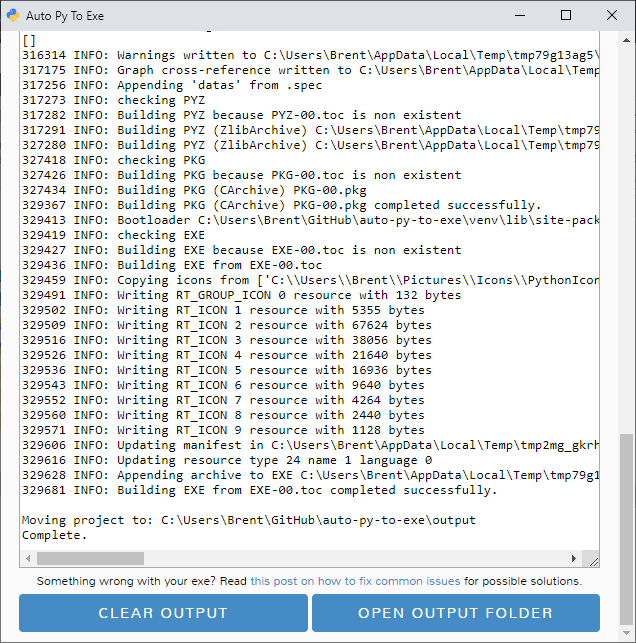
Converting Completed

评论

暂无评论