Formatter is a versatile config-file-driven plugin for Sublime Text 3 & 4 to beautify and minify source code.
In theory, it can also serve as a platform to transform any form of text, beyond beautifying and minifying.
Key features:
- Supports over 70 major programming languages via plugins.
- Transforms text in various ways:
- Text-to-Text (Text diagramms, ASCII art, etc.)
- Text-to-Image (Image diagramms, QR-code images, etc.)
- Capable to format entire file, single or multiple selections.
- Capable to format entire directory recursively.
- Operates more accurately based on syntax scope, not file extension.
- Works with both saved and unsaved dirty files (buffer).
- Unified settings across different systems.
- Supports auto-detect formatting.
- with the ability to chain multiple formatters sequentially in a single run.
- Supports per-project formatting.
- Capable to format on Save.
- with options to exclude dirs, files, extensions, syntaxes.
- Capable to format on Paste.
- Shared config files available to get started.
- Displays real-time word and character counts.
- Automatically remembers and restores text position.
- Customizable and extendable through 2 methods to add your own plugins:
- Generic: Adding a portion JSON settings (no coding needed). see Configuration
- Modules: Integration of your own modules (easy API). see Development
- Zero dependencies to install.
Limitations:
Formatter in action:
| Text-to-Text |
Text-to-Image |
 |
 |
| Pretty-printing… |
Converting… |
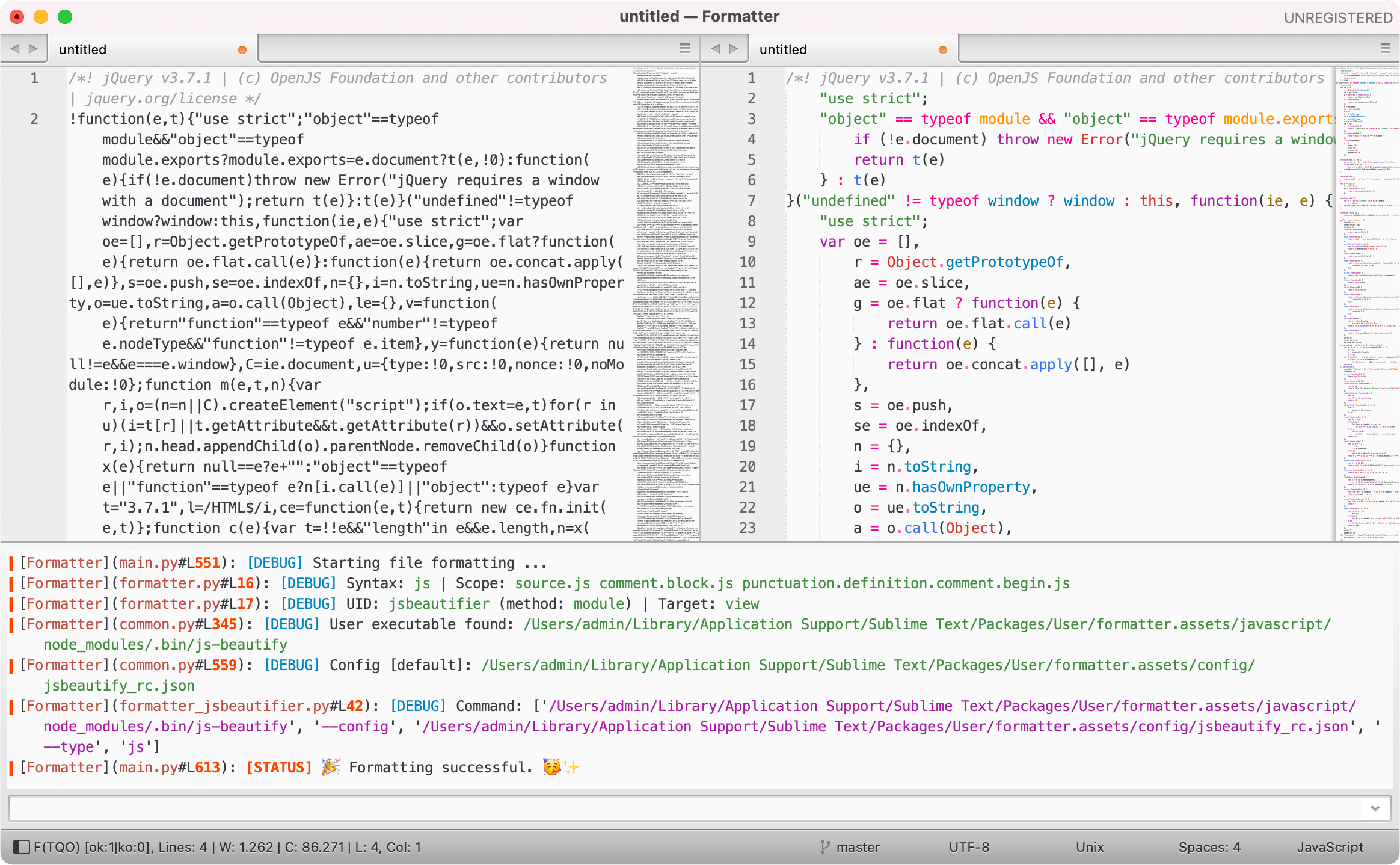 |
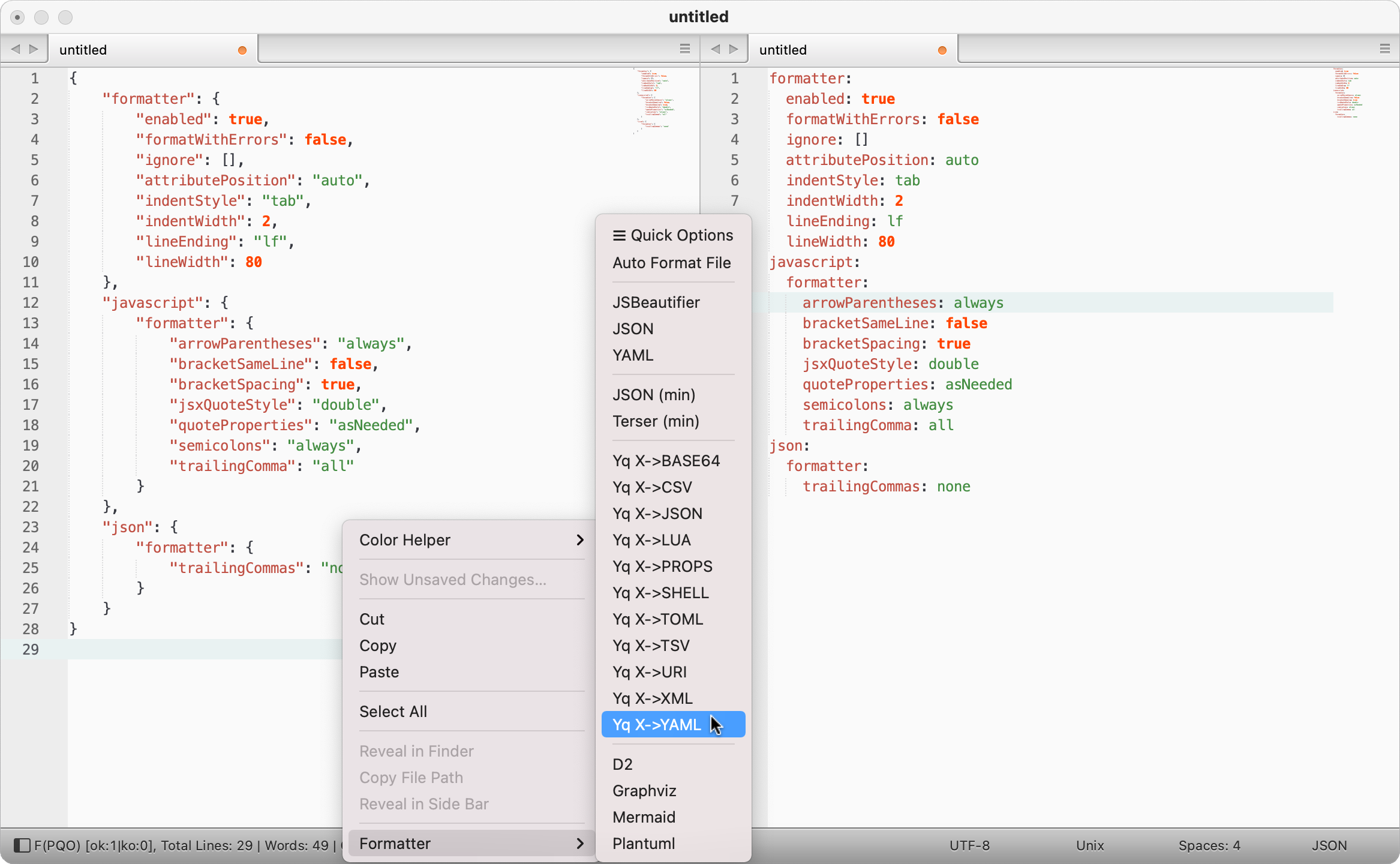 |
| Not OllyDbg, IDA but… |
Assembling… |
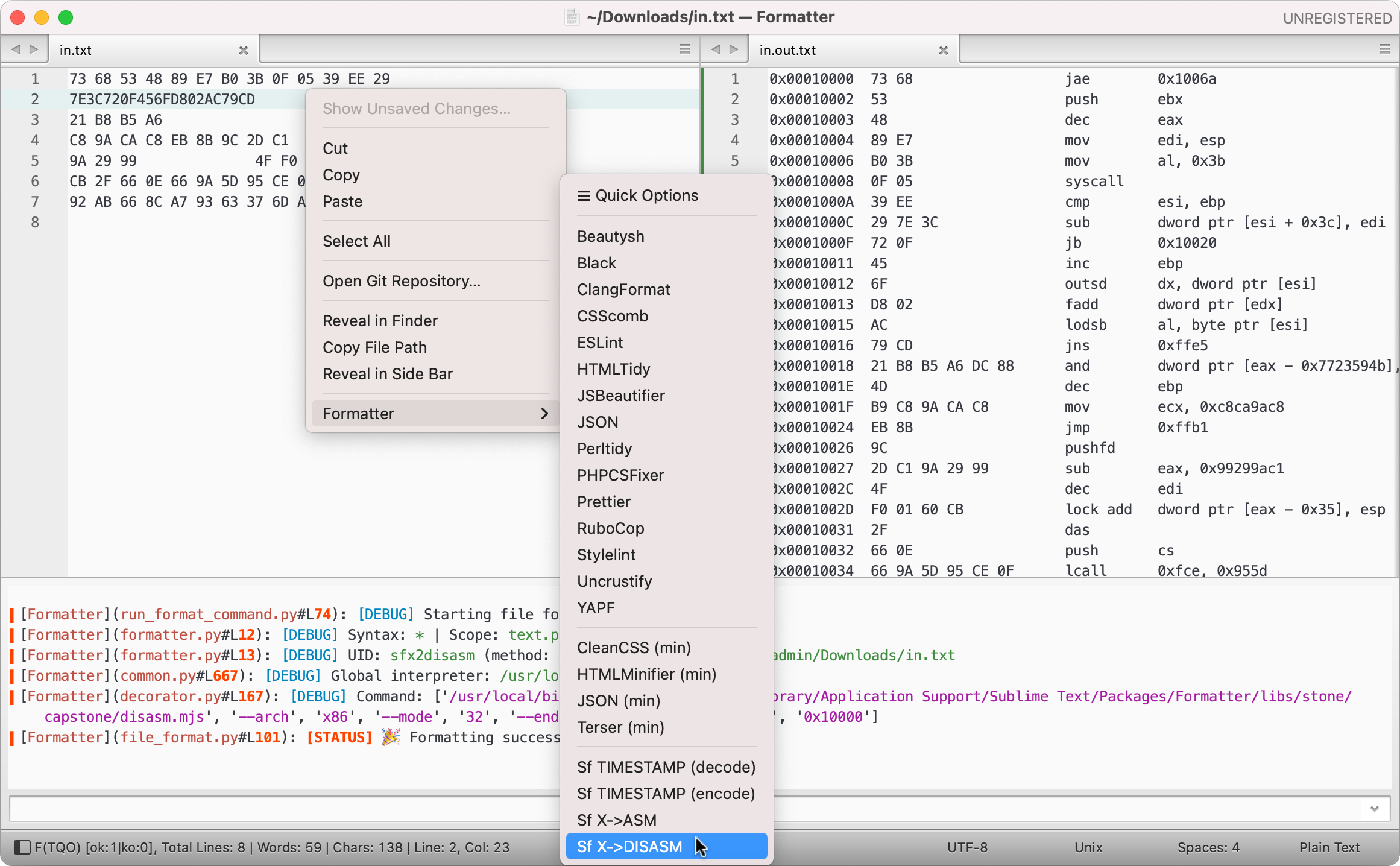 |
 |
Theme used: theme-dosa and color-scheme-two
Guides
Plugins
Formatter requires third-party plugins to work, as it relies on external plugins to format code. Users must install these plugins themselves. This means, Formatter is not responsible for:
- The quality of formatted code.
- Keeping third-party plugins up-to-date.
Table of supported plugins
Need more? see: Configuration and Development to add your own.
- The same table with clear names, auto generated: _summary.txt
(I) = (integrated/build-in) No installation required; specifically designed for Formatter.None = Mostly standalone binaries.Req. = Requirements might not be up-to-date.
| Langs |
Beautifiers |
Minifiers |
Graphics |
Req. |
Config |
| Angular |
prettier, prettierd |
– |
– |
Node.js |
– |
| Arduino |
uncrustify [1], clang-format [2], artistic style |
– |
– |
None |
[1], [2] |
| Assembly |
asmfmt, nasmfmt |
– |
– |
None |
– |
| Astro |
prettier, prettierd |
– |
– |
Node.js |
– |
| BibTeX |
bibtex-tidy [1] |
– |
– |
Node.js 12.0+ |
[1] |
| Blade |
blade-formatter |
– |
– |
Node.js |
– |
| C, C++, C#, Objective-C |
uncrustify [1], clang-format [2], artistic style |
– |
– |
None |
[1], [2] |
| Cabal |
cabal-fmt |
– |
– |
Haskell |
– |
| Caddyfile |
caddy-fmt |
– |
– |
None |
– |
| Clojure |
cljfmt, zprint |
– |
– |
None, (Java) |
– |
| CMake |
cmake-format |
– |
– |
Python |
– |
| Crystal |
crystal tool format |
– |
– |
None |
– |
| CSS, SCSS, Sass, Less, SugarSS |
stylelint [1], js-beautifier, prettier, prettierd, prettydiff [2], csscomb, stylefmt |
cleancss CLI, prettydiff [2] |
– |
Node.js |
[1], [2] |
| CSV, TSV, DSV, Text |
prettytable (I), prettydiff [1] [2] |
– |
– |
Python, Node.js [2] |
[1] |
| D |
uncrustify [1] |
– |
– |
None |
[1] |
| D2 |
d2 fmt |
– |
d2 |
None |
– |
| Dart |
dart-format |
– |
– |
Dart |
– |
| Dhall |
dhall format |
– |
– |
None |
– |
| Dockerfile |
dockfmt |
– |
– |
None |
– |
| Drawio |
– |
– |
draw.io |
None |
– |
| Elixir |
mix format |
– |
– |
Erlang |
– |
| Elm |
elm-format |
– |
– |
None |
– |
| Erlang |
erlfmt [1], efmt |
– |
– |
rebar3 [1], None |
– |
| Fortran |
fprettify |
– |
– |
Python |
– |
| Gleam |
gleam format |
– |
– |
None |
– |
| GLSL |
clang-format [1] |
– |
– |
None |
[1] |
| Go |
gofmt, goimports, gofumpt |
– |
– |
None |
– |
| GraphQL |
prettier, prettierd |
– |
– |
Node.js |
– |
| Graphviz |
– |
– |
graphviz |
None |
– |
| Groovy, Gradle |
npm-groovy-lint |
– |
– |
Node.js 12.0+ |
– |
| Haskell |
ormolu, fourmolu [1], hindent, stylish-haskell, floskell |
– |
– |
Haskell |
[1] |
| HCL |
hclfmt |
– |
– |
None |
– |
| HTML, XHTML, XML |
js-beautifier, prettier, prettierd, prettydiff [1], html-tidy |
html-minifier, prettydiff [1] |
– |
Node.js |
[1] |
| Java |
google java format [1], uncrustify [2], clang-format [3], artistic style |
– |
– |
Java [1], None |
[2], [3] |
| JavaScript |
eslint, eslint_d [3], js-beautifier, prettier, prettierd, standard js, standardx js, semistandard js, prettydiff, clang-format [1] [2], deno [2], dprint [2], biome [2] |
terser, prettydiff |
– |
14.0+ [3], Node.js, None [2] |
[1] |
| JSON |
jsonmax (I), js-beautifier, prettier, prettierd, prettydiff [1], deno [2], topiary [2], dprint [2], biome [2] |
jsonmin (I), prettydiff [1] |
– |
Node.js, None [2] |
[1] |
| Julia |
juliaformatter |
– |
– |
Julia 0.6+ |
– |
| Kotlin |
ktlint |
– |
– |
Java |
– |
| LaTeX |
latexindent |
– |
– |
Perl, None |
– |
| Lua |
stylua, luaformatter |
– |
– |
None |
– |
| Markdown |
prettier, prettierd, deno [1], dprint [1] |
– |
– |
Node.js, None [1] |
– |
| Mermaid |
– |
– |
mermaid [1] |
Node.js |
[1] |
| Nginx |
nginxfmt |
– |
– |
Python 3.4+ |
– |
| Nickel |
topiary |
– |
– |
None |
– |
| OCaml |
ocamlformat, ocp-indent, topiary |
– |
– |
None |
– |
| Perl |
perltidy |
– |
– |
Perl |
– |
| Pawn |
uncrustify [1] |
– |
– |
None |
[1] |
| PHP |
php-cs-fixer [1], php_codesniffer |
– |
– |
PHP 7.4+ [1] |
[1] |
| Plantuml |
plantumlascii |
– |
plantuml |
Java |
– |
| Proto |
clang-format [1] |
– |
– |
None [1] |
[1] |
| Python |
ruff, yapf [1], black [1], autopep8, isort, docformatter, pyment |
python-minifier [2] |
– |
Python 3.7+ [1] |
[2] |
| R |
styler, formatR [1] |
– |
– |
R |
[1] |
| Racket |
raco fmt |
– |
– |
Racket 8.0+ |
– |
| Ruby |
rubocop [1], rubyfmt, standardrb, rufo [1] |
– |
– |
Ruby [1], None |
– |
| Rust |
rustfmt |
– |
– |
Rust 1.24+ |
– |
| Scala |
scalafmt, scalariform [1] |
– |
– |
None, Java [1] |
– |
| Shell, Bash |
beautysh [1], shfmt, shellcheck |
shfmt |
– |
Python [1], None |
– |
| SQL, SQL dialects, PostgreSQL |
sql-formatter [1], pg_format [2], sqlparse [3] |
sqlmin (I) |
– |
Node.js [1], Perl [2], Python 3.6+ [3] |
[1], [2] |
| Swift |
apple swift-format, swiftformat |
– |
– |
None |
– |
| SVG |
svgo max |
svgo min |
– |
Node.js |
– |
| TableGen |
clang-format [1] |
– |
– |
None |
[1] |
| Terraform |
terraform fmt |
– |
– |
None |
– |
| TextProto |
clang-format [1] |
– |
– |
None |
[1] |
| TOML |
taplo, topiary, dprint |
– |
– |
None |
– |
| TypeScript |
prettier, prettierd, js-beautifier, ts-standard, prettydiff [1], tsfmt, deno [2], dprint [2], biome [2] |
prettydiff [1] |
– |
Node.js, None [2] |
[1] |
| VALA |
uncrustify [1] |
– |
– |
None |
[1] |
| Verilog |
clang-format [1] |
– |
– |
None |
[1] |
| Vue |
prettier, prettierd, js-beautifier |
– |
– |
Node.js |
– |
| YAML |
yamlmax (I), yamlfmt [1], prettier [2], prettierd [2] |
– |
– |
None [1], Node.js [2] |
– |
| Zig |
zigfmt |
– |
– |
None |
– |
- The
sfhexenc (Hex encoder) operates on bytes. To convert a Decimal value to Hexadecimal you need to use sfbaseenc (Base encoder) with a "--radix" of 16.
| Converters |
Input |
Output |
Req. |
Note |
| yq |
YAML, JSON, CSV, TSV, XML, TOML, LUA, TEXT |
YAML, JSON, PROPS, CSV, TSV, XML, BASE64, URI, TOML, SHELL, LUA |
None |
– |
| yj |
YAML, JSON, TOML, HCL |
YAML, JSON, TOML, HCL |
None |
– |
sfloremipsum (I) |
any |
TEXT |
None |
lorem |
sfurienc (I) |
any |
TEXT |
None |
uri |
sfuridec (I) |
any |
TEXT |
None |
uri |
sfhtmlentitize (I) |
any |
TEXT |
None |
html |
sfhtmldeentitize (I) |
any |
TEXT |
None |
html |
sfhtmlstriptags (I) |
any |
TEXT |
None |
html |
sfregexescape (I) |
any |
TEXT |
None |
regex |
sfregexunescape (I) |
any |
TEXT |
None |
regex |
sfstringescape (I) |
any |
TEXT |
None |
string |
sfstringunescape (I) |
any |
TEXT |
None |
string |
sfunicodeescape (I) |
any |
TEXT |
None |
unicode |
sfunicodeunescape (I) |
any |
TEXT |
None |
unicode |
sfcharcodeenc (I) |
any |
TEXT |
None |
charcode |
sfcharcodedec (I) |
any |
TEXT |
None |
charcode |
sfpunycodeenc (I) |
any |
TEXT |
None |
punycode |
sfpunycodedec (I) |
any |
TEXT |
None |
punycode |
sfbrailleenc (I) |
any |
TEXT |
None |
braille |
sfbrailledec (I) |
any |
TEXT |
None |
braille |
sfquotedprintableenc (I) |
any |
TEXT |
None |
QP |
sfquotedprintabledec (I) |
any |
TEXT |
None |
QP |
sflzmacompress (I) |
any |
TEXT |
None |
LZMA |
sflzmadecompress (I) |
any |
TEXT |
None |
LZMA |
sfgzipcompress (I) |
any |
TEXT |
None |
GZIP |
sfgzipdecompress (I) |
any |
TEXT |
None |
GZIP |
sfbase16enc (I) |
any |
TEXT |
None |
base16 |
sfbase16dec (I) |
any |
TEXT |
None |
base16 |
sfbase32enc (I) |
any |
TEXT |
None |
base32 |
sfbase32dec (I) |
any |
TEXT |
None |
base32 |
sfbase64enc (I) |
any |
TEXT |
None |
base64 |
sfbase64dec (I) |
any |
TEXT |
None |
base64 |
sfbaseenc (I) |
any |
TEXT |
None |
base |
sfbasedec (I) |
any |
TEXT |
None |
base |
sfbinaryenc (I) |
any |
TEXT |
None |
binary |
sfbinarydec (I) |
any |
TEXT |
None |
binary |
sfdecimalenc (I) |
any |
TEXT |
None |
decimal |
sfdecimaldec (I) |
any |
TEXT |
None |
decimal |
sfoctalenc (I) |
any |
TEXT |
None |
octal |
sfoctaldec (I) |
any |
TEXT |
None |
octal |
sfhexenc (I) |
any |
TEXT |
None |
hex |
sfhexdec (I) |
any |
TEXT |
None |
hex |
sfhexdumpenc (I) |
any |
TEXT |
None |
hexdump |
sfhexdumpdec (I) |
any |
TEXT |
None |
hexdump |
sfromannumeralenc (I) |
any |
TEXT |
None |
roman |
sfromannumeraldec (I) |
any |
TEXT |
None |
roman |
sfx2diacritics (I) |
any |
TEXT |
None |
diacritics |
sfx2uuid (I) |
any |
TEXT |
None |
UUID |
sfx2randpass (I) |
any |
TEXT |
None |
random |
sfx2crc32 (I) |
any |
TEXT |
None |
crc32 |
sfx2md5 (I) |
any |
TEXT |
None |
md5 |
sfx2sha1 (I) |
any |
TEXT |
None |
sha1 |
sfx2sha256 (I) |
any |
TEXT |
None |
sha256 |
sfx2sha512 (I) |
any |
TEXT |
None |
sha512 |
sfx2sha3256 (I) |
any |
TEXT |
None |
sha3_256 |
sfx2sha3512 (I) |
any |
TEXT |
None |
sha3_512 |
sfx2shake256 (I) |
any |
TEXT |
None |
shake_256 |
sfx2shake512 (I) |
any |
TEXT |
None |
shake_512 |
sfextractemailaddr (I) |
any |
TEXT |
None |
emails |
sfextractipaddr (I) |
any |
TEXT |
None |
IPaddr |
sfextractmacaddr (I) |
any |
TEXT |
None |
MACaddr |
sfextracturls (I) |
any |
TEXT |
None |
URLs,domains |
sfextractfilepaths (I) |
any |
TEXT |
None |
filepaths |
sfextractdates (I) |
any |
TEXT |
None |
dates |
sfunixtimestampenc (I) |
any |
TEXT |
None |
timestamp |
sfunixtimestampdec (I) |
any |
TEXT |
None |
timestamp |
sfx2asm (I) |
any |
TEXT |
Node.js |
arm,x86 32/64 assembler |
sfx2disasm (I) |
any |
TEXT |
Node.js |
arm,x86 32/64 disassembler |
sf = Sublime Formatter
Installation
- Using Package Control: run
Package Control: Install Package and select Formatter
- or Download: the latest source from GitHub to your sublime
Packages directory and rename it to Formatter
The Packages directory is located in:
- MacOSX:
~/Library/Application Support/Sublime Text 3/Packages/
- Linux:
~/.config/sublime-text-3/Packages/
- Windows:
%APPDATA%/Sublime Text 3/Packages/
Configuration
This section is the head of Formatter. While the configuration is easy and self-explained, it still needs a detailed explanation of the underlying principles and context.
Formatter stores third-party plugin config files in:
Sublime Text > Packages > User > formatter.assets > config
- You can use these files directly or place them in a location of your choice. Formatter provides only a set of default (original) config files to illustrate how it works. You might want to tweak and refine them to fit your needs. The full list of supported options and parameters can be found on plugins dev websites.
- You can use a different config file format than the default one provided by Formatter. For example, while Formatter typically uses JSON or YAML (
xxx_rc.json) by default, you can write your own config in JavaScript format (xxx_rc.mjs) or any other format supported by third-party plugins.
Do not use files with the suffix .master. as they serve as reference(example) files for your final configuration and could be overwritten by any package updates.
Reason: Some exotic plugins do not support input config file, while others do not understand stdio. To overcome this limitation, you will need these example files as reference to configure them.
It is recommended to explore this folder, as it may contain additional config files for the same plugin.
Formatter settings can be accessed from: Preferences > Package Settings > Formatter > Settings
The following setting details - along with their default values and examples - are provided to guide you on how to set it up:
- Options are optional: you do not need to take the whole set of options. Take only what you need, but keep the JSON structure intact.
- You do not have to use the preset modules. Instead, you can create new ones with a unique UID using either generic or module methods.
- Not all syntax highlighting plugins exist for every language. Syntaxes like
"text" or "plain" can serve as workarounds.
-
Example setting options: Formatter.sublime-settings
{
     // Enable debug mode to view errors in the console.
     // Accepted values: true (verbose), false, OR "status" (recommended)
     "debug": false,

     // By default, all previous console messages will be cleared. (ST4088+ only)
     // If you want to retain the console message history, set this to false.
     "clear_console": true

     // Auto open the console panel whenever formatting fails.
     // This is useful if "debug" is "status" or true
     "open_console_on_failure": false,

     // The counterpart for success.
     "close_console_on_success": false,

     // Timeout to abort subprocess in seconds.
     // Default to 10 seconds. Set to false to disable the timeout.
     "timeout": 10,

     // Limit the total number of characters in the file.
     // A max of 1 MB = 1024 * 1024 ≈ 1.048.576 chars seems reasonable.
     // Accepted values: int OR false
     "file_chars_limit": false,

     // Integrate your custom modules into the Formatter ecosystem.
     // Modules can be located either locally or remotely (with or without signing).
     // This option must be of type string pointing to the JSON metata file path.
     // More about the format of this file, see README.md > Integrating modules
     "custom_modules_manifest": "",

     // Display results in the status bar with the current settings mode info:
     // PUS: Persistent User Settings
     // PQO: Persistent Quick Options
     // TQO: Temporary Quick Options
     "show_statusbar": true,

     // Display a real-time word and character count in the status bar.
     // By default, whitespace is not included in the character count.
     "show_words_count": {
         "enable": true,
         "use_short_label": false,
         "ignore_whitespace_char": true
     },

     // Remember and restore cursor position, selections, bookmarks,
     // and foldings each time a file is closed and re-opened.
     // This is helpful to resume your work from where you left off.
     // It does not remember any sublime sessions as name might suggest.
     "remember_session": true,

     // Configure the layout when opening new files.
     // This only takes effect if the "new_file_on_format" option is true.
     // Accepted values: "2cols", "2rows", "single" OR false
     "layout": {
         "enable": "2cols",
         "sync_scroll": true
     },

     // A set of directories where executable programs are located.
     // These can be absolute paths to module directories or Python zipfiles.
     // Any environment variables like PATH, PYTHONPATH, GEM_PATH, GOPATH,
     // GOROOT, GOBIN, TMPDIR, WHATEVER, etc. can be added here.
     // This is similar to running 'export PYTHONPATH="/path/to/my/site-packages"'
     // from the terminal. It is temporary, your system environment remains untouched.
     // On Windows, you can use either escaped backslashes (e.g., "C:\\a\\b\\c") or
     // forward slashes (e.g., "C:/a/b/c") as path separators for all other options.
     // Tip: Activating "print_on_console" will help to set the correct environment.
     "environ": {
         "print_on_console": false,
         "PATH": ["/path/to/erlang@22/bin:$PATH", "$PATH:/path/to/elixir/bin", "/path/to/.cache/rebar3/bin:$PATH"],
         "GEM_PATH": ["${HOME}/to/my/ruby"],
         "PYTHONPATH": ["${packages}/User/MyFolder/python/lib/python3.7/site-packages"],
         "OLALA": ["$HOME/.cabal/bin:$PATH", "~/.olala/bin:$PATH"]
     },

     // This option resolves the syntax conflicts described in "format_on_save".
     // It acts as an override and only applies to the following options:
     // 1. "format_on_save"
     // 2. "format_on_paste"
     // Syntaxes in this option always take precedence over the syntaxes specified there.
     // All syntaxes must be unique without any duplicates.
     "format_on_priority": {
         "enable": false,
         "csscomb": ["css"],
         "jsbeautifier": ["js"]
     },

     // This option enables auto-detect formatting for file.
     // Configure it here and/or by using the dot files in your working folder.
     // If both methods are used, the config from the dot files will override this embedded one.
     // Advantage: The embedded one can handle both saved and unsaved files,
     // while the dot files variant only applies to saved files, as unsaved files
     // (puffer in view) never have a working dir to contain dot files.
     //
     // This option supports chaining multiple formatters in a single run.
     // Chaining requires a list type with a maximum of 10 items in a list.
     //
     // By default, "format_on_save" and "format_on_paste" use a boolean value: false OR true
     // But you can use the dictionary format to exclude dirs, files, extensions and syntaxes:
     // "format_on_save": {
     //     "exclude_dirs_regex": [".*(\\.git|node_modules|__pycache__|env).*", ".*/project/test"],
     //     "exclude_files_regex": [".*test_file\\.py\\$", ".*/project/test/config\\.json"],
     //     "exclude_extension

提示:代码过长已自动截断
-
Example setting plugins: Formatter.sublime-settings
{
"debug": true,
"environ": {
"print_on_console": true,
"PATH": ["/path/to/erlang@22/bin:$PATH", "$PATH:/path/to/elixir/bin", "/path/to/.cache/rebar3/bin:$PATH"],
"GEM_PATH": ["${HOME}/to/my/ruby"],
"PYTHONPATH": ["${packages}/User/MyFolder/python/lib/python3.7/site-packages"],
"OLALA": ["$HOME/.cabal/bin:$PATH", "~/.olala/bin:$PATH"]
},
"formatters": {
"stylelint": {
"info": "https://github.com/stylelint/stylelint",
"enable": true,
"format_on_paste": false,
"format_on_save": false,
"new_file_on_format": false,
"dir_format": {
"exclude_dirs_regex": [".*(\\.git|node_modules|__pycache__|env).*", ".*/project/test"],
"exclude_files_regex": [".*test_file\\.py\\$", ".*/project/test/config\\.json"],
"exclude_extensions_regex": ["DS_Store", "localized", "tmp", "bak", "ya?ml", "mjs", "json"],
"exclude_syntaxes": []
},
"syntaxes": ["css", "scss", "sass", "less", "sss", "sugarss"],
"executable_path": ["${packages}/User/myjs/node_modules/.bin/stylelint"],
"args": ["--config-basedir", "/path/to/js/node_modules"],
"config_path": {
"ignore_dotfiles": false,
"default": "${packages}/User/formatter.assets/config/stylelint_rc.json"
}
},
"uncrustify": {
"name": "Uncrustify",
"type": "beautifier",
"success_code": 0,
"dotfiles": [".uncrusifyrc", "pyproject.toml"],
"args": ["{{e}}", " --style=file:{{c}} ", "--"],
"info": "https://github.com/uncrustify/uncrustify",
"enable": true,
"format_on_save": false,
"dir_format": false
"syntaxes": ["c", "c++", "cs", "objc", "objc++", "d", "java", "pawn", "vala"],
"executable_path": ["${HOME}/path/to/bin/uncrustify"],
"config_path": {
"ignore_dotfiles": true,
"objc": "${packages}/User/formatter.assets/config/uncrustify_objc_rc.cfg",
"objc++": "${packages}/User/formatter.assets/config/uncrustify_objc_rc.cfg",
"java": "${packages}/User/formatter.assets/config/uncrustify_sun_java_rc.cfg",
"default": "${packages}/User/formatter.assets/config/uncrustify_rc.cfg"
}
},
"d2": {
"name": "D2",
"type": "graphic",
"success_code": 0,
"render_extended": true,
"info": "https://github.com/terrastruct/d2",
"enable": true,
"format_on_save": false,
"format_on_paste": false,
"syntaxes": ["d2"],
"args": ["{{e}}", "--theme", "300", "--dark-theme", "200", "-l", "elk", "--pad", "0", "-", "{{o}}"],
"args_extended": {
"svg": ["{{e}}", "--theme", "300", "--dark-theme", "200", "-l", "elk", "--pad", "0", "-", "{{o}}"],
"pdf": ["{{e}}", "--theme", "300", "--dark-theme", "200", "-l", "elk", "--pad", "0", "-", "{{o}}"]
},
"executable_path": "/path/to/bin/d2",
"config_path": {
"ignore_dotfiles": true,
"default": "${packages}/User/formatter.assets/config/d2_rc.yaml"
}
}
}
}
Starting from version 1.4.0, Formatter introduces a configuration mechanism to auto-detect formatter for itself (Special thanks to @midrare for ideas, tests and suggestions). There are 2 methods to achieve this:
- Using embedded settings in your User
Formatter.sublime-settings
- Placing dot files inside the working folder, similar to per-project basis.
Advantage: The embedded one can handle both saved and unsaved files, while the dot files variant only applies to saved file, as unsaved files (puffer on view) never have a working dir in order to contain a dot file.
This option supports chaining multiple formatters in a single run.
Chaining multiple formatters is limited to max. 10 items in a list.
-
The dot files variant: will start to search up the file tree inside the working folder until a following file is found: .sublimeformatter.json OR .sublimeformatter
.sublimeformatter.json, .sublimeformatter
{
"python": ["isort", "black"],
"json": "jsbeautifier",
"php": {
"uid": "phpcsfixer"
},
"html": {
"uid": "jsbeautifier",
"exclude_syntaxes": {
"html": ["markdown"]
}
}
}
- User-specific actions can be set using:
.sublimeformatter.user.json OR .sublimeformatter-user
.sublimeformatter.user.json, .sublimeformatter-user
{
    "format_on_save": true,
    "format_on_paste": false
}
Or if you prefer the dictionary format:
{
    "format_on_save": {
        "exclude_dirs_regex": [".*(\\.git|node_modules|__pycache__|env).*", ".*/project/test"],
        "exclude_files_regex": [".*test_file\\.py\\$", ".*/project/test/config\\.json"],
        "exclude_extensions_regex": ["ya?ml", "mjs", "json"],
        "exclude_syntaxes": []
    },
    "format_on_paste": false
}
- To ignore a specific syntax and its associated plugin, you can use:
.sublimeformatter.ignore.json OR .sublimeformatter.ignore
For example, if you want to ignore the local config dotfile .prettierrc in your working folder in favor of your own config file specified in the option "config_path":
.sublimeformatter.ignore.json, .sublimeformatter.ignore
{
"ignore_dotfiles": true,
"json": ["jsbeautifier", "deno"],
"python": ["autopep8"],
"default": ["scalafmt", "stylelint"]
}
-
The embedded variant: embeds your auto-detect config within your User Formatter.sublime-settings. In cases where both the dot files and embedded methods coexist, then the config from dot files will take precedence over the embedded one.
Formatter.sublime-settings
{
"debug": "status",
"auto_format": {
"config": {
"format_on_save": false,
"format_on_paste": false
},
"python": ["isort", "black"],
"json": "jsbeautifier",
"php": {
"uid": "phpcsfixer"
},
"html": {
"uid": "jsbeautifier",
"exclude_syntaxes": {
"html": ["markdown"]
}
}
},
"formatters": {}
}
This is a one-command/one-keybinding feature. Both the app and context menu will now indicate whether a current folder is ready for Formatter with a new item: Auto Format File
Project-specific formatting can be configured using 3 methods in the following order:
- User project config dotfile.
- Third-party plugin project config dotfile.
- Sublime Text project config file (
.sublime-project)
- User project config dotfile:
This file is actually the config file you specify in the "config_path" setting, but renamed and placed in the root folder of your project.
The naming pattern should follow: .sf + uid + rc
For example: .sfautopep8rc (sf = Sublime Formatter)
- Third-party plugin project config dotfile:
This refers to common dotfiles used by popular plugins, such as .prettierrc, .clang-format, etc.
- Sublime Text project config file:
Formatter is able to add and override any setting on per-project basis using .sublime-project files.
You might want to restart Sublime Text to apply the changes to the .sublime-project file.
.sublime-project
{
"folders": [
{
"path": "/path/to/my/project"
}
],
"settings": {
"Formatter": {
"debug": "status",
"formatters": {
"htmltidy": {
"format_on_save": true
},
"jsbeautifier": {
"config_path": {
"js": null,
"default": "${HOME}/path/to/new/jsbeautify_rc.json"
}
}
}
}
}
}
Usage
Formatter has been designed to detect the syntax of files according to file scopes, not file extension. In the most cases, Sublime Text already does this job for you when you open a file. For the rest, you must explicit assign the syntax via the syntax menu in the righ-hand bottom corner or via:
Sublime Text > View > Syntax
Setting wrong syntax when formatting code will cause error:
Syntax out of the scope
Formatting actions can be triggered in different ways:
- Tools > Command Palette (Cmd+Shift+P or Ctrl+Shift+P) and type
Formatter.
- Tools > Formatter
- Right-click > Context-Menu > Formatter
- Preferences > Package Settings > Formatter > Key Bindings
The Quick Options
This feature is designed to help users quickly access and switch between options, without the need to navigate the Settings file.
It has no default values and is primarily intended for temporarily toggling between File Format and Dir Format modes, given the limited UI and API design of Sublime Text.
It includes 3 modes:
- Temporary Quick Options (TQO): By default, all options are temporary and only take effect during the current Sublime session. They will be automatically reset when you close Sublime.
- Persistent User Settings (PUS): Clicking the
Reset option will reset all current Temporary Quick Options and switch to using your User Settings from Formatter.sublime-settings.
- Persistent Quick Options (PQO): Clicking the
Save option will make all current Temporary Quick Options persistently. This means that closing and reopening Sublime will retain these options. To exit this mode just clicking the Reset option.
Summary:
- The
Reset option is the exclusive method to exit any mode.
- Clicking on the same selected item will remove it from the list.
- None of the modes will ever modify your Settings file.
- The current mode is indicated on the status bar for your reference.
Development
Starting from version 1.0.6, you now are able to create your own module for a third-party plugin that hasn’t yet been integrated into Formatter. This allows you to extend your individual needs. In theory, you can use Formatter as a platform to convert any form of text, as long as third-party plugins operate in a text-to-text manner, such as Text-to-QR code, text-to-ASCII image conversion.
1. Prerequisite
-
Create a config file specific to your third-party plugin if needed. Config files for third-party plugins must be placed in the following folder:
Formatter > config
-
Activate the debug mode with the secret key dev in your Formatter settings. The dev key should never be used in a production environment.
Formatter.sublime-settings
{
"debug": true,
"dev": true
...
}
2. Creating a module
Developing a module for Formatter is straightforward. All you need to do is creating a python file with just a few lines of code as below:
-
Create a file with the file name pattern formatter_thisismyfirstpluginmodule.py inside the Formatter > modules folder. Ensure to follow these conventions:
- Create only one file per plugin in the
Formatter > modules folder:
- All functions and other necessary components should reside inside this file.
- The file name is all lowercase and contains only alphanumeric characters (no spaces or underscores):
- Prefix:
formatter_ (indicating that it’s a module for a third-party plugin)
- Suffix:
thisismyfirstpluginmodule (serving as the unique Formatter ID, also known as uid)
- Extension:
.py
- External libraries that the third-party plugin relies on should be placed in the folder:
Formatter > libs
- Libraries must not contain proprietary elements, including the LICENSE file or license notices.
- No communication over the Internet.
It is recommended to add an arbitrary char to your uid to prevent your plugin from being overwritten by future Formatter updates that may introduce new plugins with the same uid.
For plugins that rely on the following special local config dotfiles:
pyproject.toml, .pycodestyle, setup.cfg, tox.ini, .pep8, .editorconfig
you should use a uid matching the relevant section name, such as [tool.autopep8]. Otherwise, Formatter will not be able to identify and apply the correct local config dotfile.
For example, a correct uid would be: formatter_autopep8.py
Alternatively, you can achieve the same result by using the keywords identifier: DF_IDENT = ['autopep8']
-
The content of this module file should follow the structure outlined below:
formatter_thisismyfirstpluginmodule.py
INTERPRETERS = []                                           # optional: fallback list of interpreter names
EXECUTABLES = []                                            # optional: fallback list of executable names
DOTFILES = []                                               # optional: list of the local config dotfile names
DF_IDENT = []                                               # optional: list of keywords to identify special dotfiles
MODULE_CONFIG = {}                                          # REQUIRED: template to create several sublime config files


class ThisismyfirstpluginmoduleFormatter(Module):           # REQUIRED: the Capitalized uid and the Capitalized word "Formatter", nothing else!
    def __init__(self, *args, **kwargs):
        super().__init__(*args, **kwargs)                   # REQUIRED: initialize the module APIs from common.Module

    def get_cmd(self):                                      # optional: get commands, e.g get the "config_path", "executable_path" etc...

    def format(self):                                       # REQUIRED: the entry point, predefined function name exact as written
Details as an example:
from ..core import log                                      # optional: log to debugging this file
from ..core import Module                                   # REQUIRED: a collection of APIs to assist in running this file


INTERPRETERS = ['node']                                     # optional: case-sensitive fallback names (without extension) if interpreter is not found
EXECUTABLES = ['terser']                                    # optional: case-sensitive fallback names (without extension) if executable is not found
DOTFILES = ['.terser.json']                                 # optional: to auto-detecting the local config dotfile
DF_IDENT = []                                               # optional: a list of keywords to identify special local config dotfiles
MODULE_CONFIG = {                                           # REQUIRED: template to create several sublime config files
    'source': 'https://thirdparty-plugin.com',              # REQUIRED: info on where the user can download the plugin
    'name': 'MyFirstPlugin',                                # REQUIRED: a Capitalized plugin name of your choice,
README 内容过长,已截取前 64 KB。完整内容请前往 GitHub 仓库查看。


评论