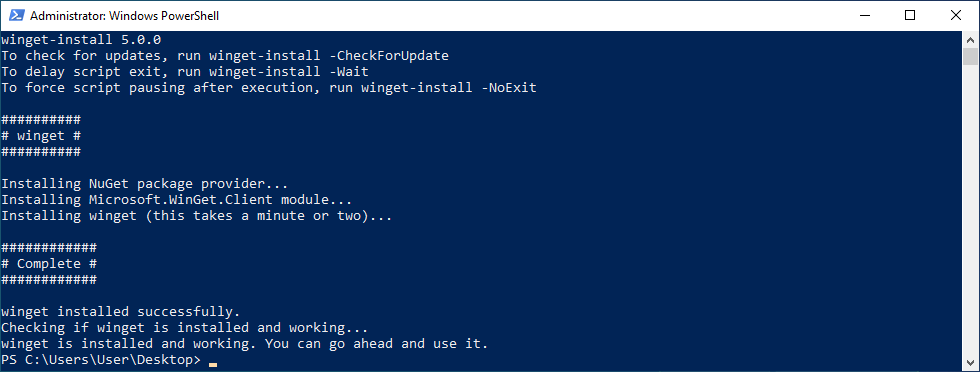




Install WinGet from PowerShell
WinGet, a command line package manager, doesn’t have a command line installer? 🤣 Now it does! 😊
[!NOTE]
What’s New
- Fixed dependencies that were silently skipped instead of installed on Windows Server 2019 and 2022.
- Fixed
-PortableInstallMethod also running the standard install on Windows 10 and 11.
- Fixed PATH handling so entries such as
%LOCALAPPDATA% are stored as expandable strings and existing entries are no longer flattened.
- Hardened portable extraction against path traversal and manifest parsing against external entities.
- Added a Pester test suite under
tests/.
- Added support for GitHub API tokens (
-GHtoken) to improve reliability when checking for the latest WinGet version or when encountering GitHub API rate limits.
- Added the ability to specify a specific WinGet version using
-WingetVersion.
Note: This only works with -AlternateInstallMethod or -PortableInstallMethod. The alternate method is used automatically on Windows Server 2019, Windows Server 2022, and when running as SYSTEM.
Table of Contents
Requirements
- Requires PowerShell running with Administrator privileges - OR - execution under the SYSTEM context
- Compatible with:
- Windows 10 (Version 1809 or higher)
- Windows 11
- Server 2019/2022/2025
- Windows Sandbox
- Server Core (non desktop experience) - still under beta testing, see issue #53 for details
- Not compatible with:
- Server 2016 or lower (WinGet not supported)
Features
- Installs WinGet directly from PowerShell
- Always fetches the latest WinGet version
- Automatically verifies OS compatibility
- Determines and installs the appropriate prerequisites based on OS version
- Supports x86/x64 and arm/arm64 architectures
- Allows bypassing of existing WinGet installation verification through
-Force parameter or $Force session variable
- Supports irm/iex one-line command using short URL
- Supports automatically relaunching in
conhost and ending active processes associated with WinGet that could interfere with the installation
- Code is hosted on PowerShell Gallery
- Supports running under the SYSTEM context
Script Functionality
- Identifies processor architecture to decide which prerequisites are needed (x86/x64 or arm/arm64)
- Checks Windows OS version for compatibility (Windows 10, Windows 11, Server 2019/2022/2025)
- If Windows 10, verifies release ID for compatibility (must be 1809 or newer)
- Windows 10, Windows 11, and Server 2025 (standard method)
- Installs the NuGet package provider for PowerShell Gallery (if not already present)
- Installs the Microsoft.WinGet.Client from PowerShell Gallery
- Runs
Repair-WinGetPackageManager -AllUsers which actually installs WinGet and its dependencies, fixing any issues along the way
- Server 2019, Server 2022, SYSTEM context, or
-AlternateInstallMethod (alternate method)
- Uses the UI.Xaml and VCLibs as recommended by Microsoft
- The WinGet-cli license is downloaded using the latest version from GitHub
- Installs Visual C++ Redistributable if version 14 or higher is not already installed
- WinGet-cli is then installed using the latest version from GitHub
- Server Core or
-PortableInstallMethod (portable method, beta)
- Extracts WinGet and its dependencies to
Program Files\Microsoft\winget without AppX registration
- Adjust access rights & PATH environment variable
- Runs command registration if the WinGet command is not detected at the end of installation
Setup
Method 1 - PowerShell Gallery
This is the recommended method, because it always gets the public release that has been tested, it’s easy to remember, and supports all parameters.
Open PowerShell as Administrator and type
Install-Script winget-install -Force
Follow the prompts to complete the installation (you can tap A to accept all prompts or Y to select them individually.
Note: -Force is optional but recommended, as it will force the script to update if it is outdated. If you do not use -Force, it will not overwrite the script if outdated.
Usage
winget-install
If WinGet is already installed, you can use the -Force parameter to force the script to run anyway.
The script is published on PowerShell Gallery under winget-install.
The URL asheroto.com/winget always redirects to the latest release of the script.
If you just need to run the basic script without any parameters, you can use the following one-line command:
irm asheroto.com/winget | iex
Due to the nature of how PowerShell works, you won’t be able to use any parameters like -Force with this command line. You can set the global variable $Force to $true and the script should pick up on it (more info), but if for some reason that doesn’t work or you absolutely need to use a one-line command with parameters, you can use the following:
&([ScriptBlock]::Create((irm asheroto.com/winget))) -Force
To make it easier to remember, you can also use the URL WinGet.pro which redirects to the same URL. This URL is provided courtesy of Omaha Consulting.
irm winget.pro | iex
Due to the nature of how PowerShell works, you won’t be able to use any parameters like -Force with this command line. You can set the global variable $Force to $true and the script should pick up on it (more info), but if for some reason that doesn’t work or you absolutely need to use a one-line command with parameters, you can use the following:
&([ScriptBlock]::Create((irm winget.pro))) -Force
Option C: direct release URL
Alternatively, you can of course use the latest release URL directly:
irm https://github.com/asheroto/winget-install/releases/latest/download/winget-install.ps1 | iex
Method 3 - Download Locally and Run
As a more conventional approach, download the latest winget-install.ps1 from Releases, then run the script as follows:
.\winget-install.ps1
If PowerShell refuses to run the downloaded file, run Unblock-File .\winget-install.ps1 once, or launch it with powershell -ExecutionPolicy Bypass -File .\winget-install.ps1.
You can use the -Force or -ForceClose parameters if needed, or use $Force = $true and $ForceClose = $true global session variables if preferred.
If for some reason your PowerShell window closes at the end of the script and you don’t want it to, or don’t want your other scripts to be interrupted, you can wrap the command in a powershell "COMMAND HERE". For example, powershell "irm asheroto.com/winget | iex".
[!NOTE]
On Windows 11 IoT, you may need to run the following command. Unlike other editions that may prompt about Execution Policy, IoT might not:
powershell -ep B "irm asheroto.com/winget | iex"
Parameters
No parameters are required to run the script, but there are some optional parameters to use if needed.
| Parameter |
Description |
-Debug |
Enables debug mode, showing additional information for troubleshooting. |
-Force |
Ensures the installation of WinGet and its dependencies, even if they are already present. |
-ForceClose |
If Windows Terminal has trouble installing WinGet, use this parameter to relaunch the script in conhost.exe and automatically end any active processes associated with WinGet that could interfere with the installation. |
-AlternateInstallMethod |
Installs WinGet by downloading the dependencies, license, and package from the winget-cli GitHub repository instead of using Repair-WinGetPackageManager. Used automatically on Windows Server 2019, Windows Server 2022, and when running as SYSTEM. Try this if the primary method fails. |
-PortableInstallMethod |
Extracts WinGet and its dependencies to Program Files\Microsoft\winget without AppX registration. Used automatically on Windows Server Core. Beta, see issue #53. |
-WingetVersion |
Specifies a particular version of WinGet to install. Only supported with -AlternateInstallMethod or -PortableInstallMethod; otherwise, the latest version will always be installed. |
-GHtoken |
Optional GitHub API token to increase API rate limits or access private repositories when downloading WinGet releases. |
-CheckForUpdate |
Checks if there is an update available for the script. |
-Wait |
By default, the script exits immediately after completion. Although this is not supposed to close the PowerShell window, sometimes it still occurs. Use this parameter to pause the script for several seconds before exiting to observe the output. |
-NoExit |
By default, the script exits immediately after completion. Although this is not supposed to close the PowerShell window, sometimes it still occurs. Use this parameter to pause the script indefinitely after execution; pressing Enter will exit the script. |
-UpdateSelf |
Updates the script to the latest version. |
-Version |
Displays the version of the script. |
-Help |
Displays the full help information for the script. |
Example Parameters Usage
winget-install -Force
Global Variables
Global variables are optional and are only needed if you don’t want to use parameters. They can be set before running the script, or you can set them in your PowerShell profile to always use them.
| Variable |
Description |
$Debug |
Enables debug mode, which shows additional information for debugging. |
$Force |
Ensures installation of WinGet and its dependencies, even if already present. |
$ForceClose |
Windows Terminal sometimes has trouble installing WinGet; run the script with the -ForceClose parameter to relaunch the script in conhost.exe and automatically end active processes associated with WinGet that could interfere with the installation |
Example Global Variables Usage
$Force = $true
winget-install
Troubleshooting
Before releasing a new version, the script is tested on a clean install of Windows 10, Windows 11, Server 2019, Server 2022.
- If you run into an issue, please ensure your system is compatible & fully updated.
- If you see an error message when installing, try using the
-AlternateInstallMethod parameter.
- Sometimes PowerShell closes the window before you can read the output. To prevent this, you can use the
-Wait parameter to pause the script for a few seconds or the -NoExit parameter to keep the window open indefinitely. Improving script exit functionality is on our TODO list.
- Try running
winget-install again, sometimes the script will fail due to a temporary issue with the prerequisite server URLs.
- Try using the
-Debug parameters to see if it provides any additional information.
- If winget is unable to run at some point in the future, or if you suspect an issue with the PATH environment variable, run the script again with the
-Force parameter.
- If you’re getting a
resource in use error message, run the script again with the -ForceClose parameter.
- Try installing WinGet manually to see if the issue exists with WinGet itself.
- If the issue occurs when installing WinGet manually, please open an issue on the WinGet-cli repo (unrelated to this script).
- Check the WinGet-cli Troubleshooting Guide.
- If the problem only occurs when using this script, please open an issue here.
Contributing
If you’d like to help develop this project: fork the repo, edit the code, then submit a pull request. 😊


评论