👋 Hello there! Welcome to Multi Cloud Transfer Tool (MCT Tool), a Google Colab based Jupyter Notebook that uses Rclone & other popular engines like yt-dlp, Aria2, Libtorrent and 7-Zip etc to manipulate & tranfer data (even simultaneously) between two or more cloud services without utilizing one’s own bandwidth or system resources. Sounds awesome, right? 😎
But wait, there’s more! MCT Tool also saves important user session or configuration files in safe (encrypted) format to make work easier next time when user perform same task requiring same configuration or session files. No need to remember those pesky passwords or settings ever again! 🙌
MCT Tool is powered by Rclone, one of the best command line tool for data transfer & data management. It can transfer any amount of data from/to any cloud service without breaking a sweat 💦. It’s like having your own personal cloud assistant that does all the work for you while you sit back and relax ☕.
📑 INDEX
⛔ NOTICE
-
Never use MCT Tool for processing any illegal content (Read official FAQ). Since Colab provides flexibility to connect own runtime or server, developers can add features which may or may not be allowed by Colab on runtimes provided by them.
-
Mount points are intended only to use with Add-ons and other sections except for performing large data transfer between two or more cloud using Rclone. User should use Rclone commands with remote names to transfer larger data otherwise using mount points will consume more resources causing Colab session to crash.
-
Don’t execute any unknown .sh file unless you know what it going to do. MCT Tool provides option to execute custom .sh file in setup section if user decides to add more features requiring more dependencies or different environment.
-
Prefer commonly used browsers (MS Edge & Chrome) to access Colab and verify your browser have javascript & pop-ups enabled else you are mostly likely going to tackle an error. Some browsers (specially MS Edge & Brave) provides additional specific content & trackers blocker, which can affect the overall working so make sure you disable it for Colab. Extensions are also capable of changing your browser behaviour and can cause same errors.
🕹️ How to use?
1.Connect Google Account:
Connecting Google Account enables MCT Tool sync configurations files between Colab’s runtime and your Google Drive automatically. This makes it possible to start from where you left off instead of starting
from scratch.
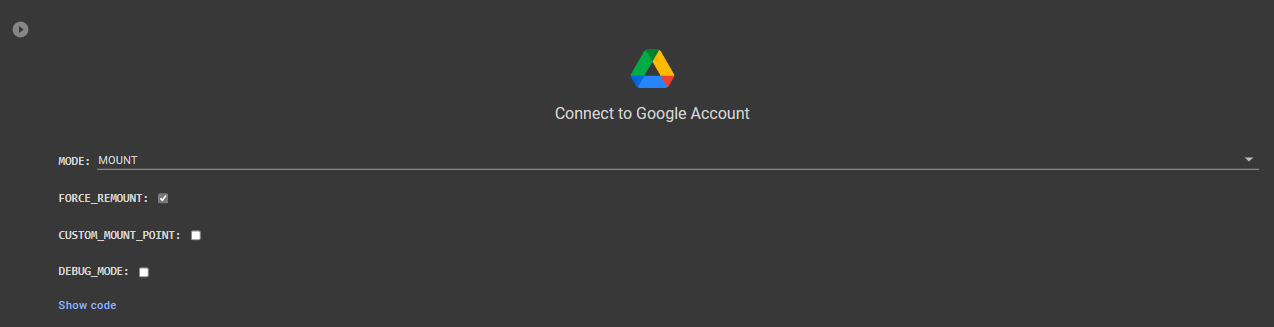
OPTIONS:
FORCE_REMOUNT: Forcefully remount Google Drive. Useful if you tackle an error with mounted location.CUSTOM_MOUNT_POINT: Choose different path for mounting Google Drive. Even if you change the path, MCT Tool will automatically detect the change and hence keeping sync of configuration files unaffected.DEBUG_MODE: Enable or disable DEBUG mode. Useful to report any mount error to Google Colab team.
2.Setup & Configuration:
Running setup automatically installs all dependencies required by MCT Tool and configure them as required without requiring any user effort.

OPTIONS:
INSTALL_RCLONE_FLAVOR: Switch Rclone’s release branch from stable to beta or vice-versa.FORCE_SETUP: Forcefully install Rclone by excluding all other dependencies and download them separately. Useful if any dependency (except Rclone) having temporary setup issue.CUSTOM_SH_FILE: Get custom .sh file from external source (URL or File Path) and execute it to install additional dependecies or requirements with or without normal setup.
3.Retrive Config Files:
You can restore your previous session’s configuration files from Google Drive or somwhere else. MCT Tool automatically places the file in its correct location.

OPTIONS:
CUSTOM_IMPORT_PATH: Scan a custom path (or directory) give by user for usable MCT Configuration files.CUSTOM_EXPORT_PATH: Export all your MCT configuration files to a gives path.
4.Using Service Accounts:
You have plenty of data to transfer from/to Google Drive? MCT Tool supports service accounts to bypass transfer limits by Google Drive. To use them, you first need to pack all of your service accounts’s .json files into a zip named accounts.zip and upload it to Google Colab. MCT Tool will automatically extract it for you in a folder making it easy to create remotes for your service accounts in Rclone.
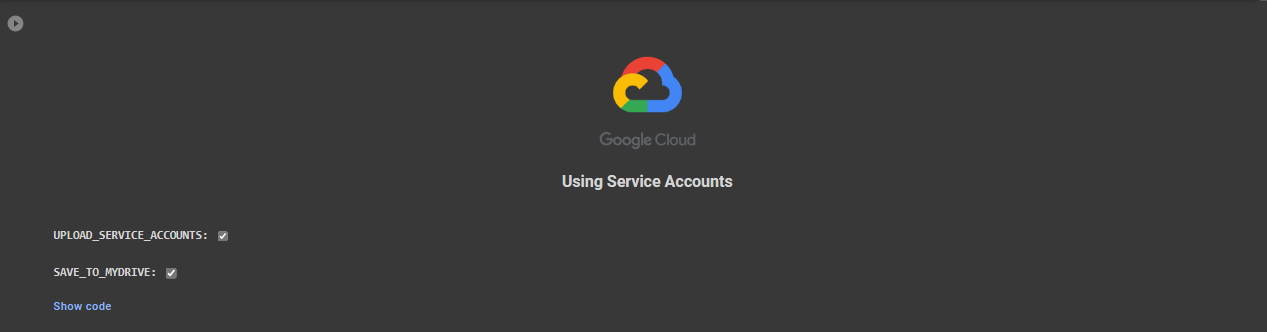
OPTIONS:
UPLOAD_SERVICE_ACCOUNTS: Upload service accounts and automatically unzip them.SAVE_TO_MYDRIVE: Save new/existing Service Accounts to Google Drive.
5.Rclone Operations:
Rclone operations section let newbie users to perform basic tasks through GUI like creating/editing/mounting your Rclone remotes. It is always recommended to use commands over GUI as GUI is more resource intensive.
i.Create/Edit/View/Delete your Rclone Config file:
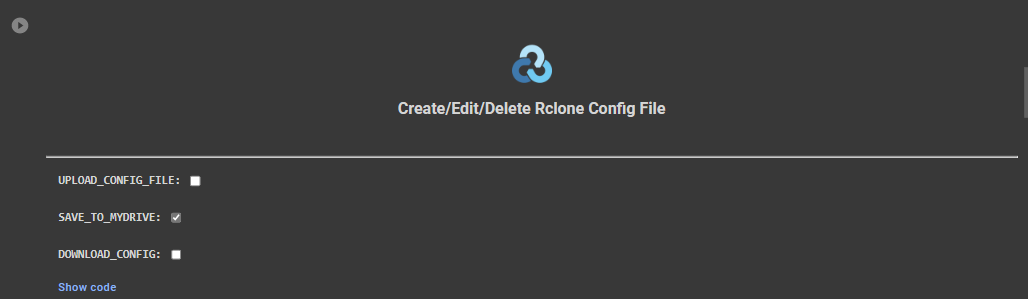
OPTIONS:
UPLOAD_CONFIG_FILE: Upload your existing Rclone config file. It will be placed in its correct location automatically.SAVE_TO_MYDRIVE: To save created Rclone config file in Google Drive.DOWNLOAD_CONFIG: Download Rclone config file in your device.
ii.Mount Rclone Remotes:
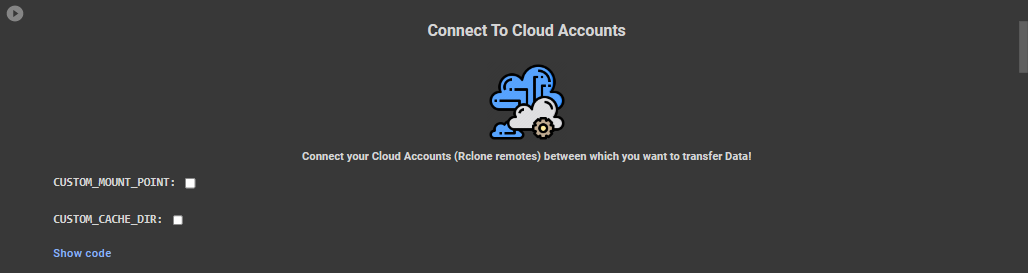
OPTIONS:
CUSTOM_MOUNT_POINT: Set custom mount point.CUSTOM_CACHE_DIR: Set custom cache directory.
iii.Using Various Rclone Modes, Flags & Other Options:
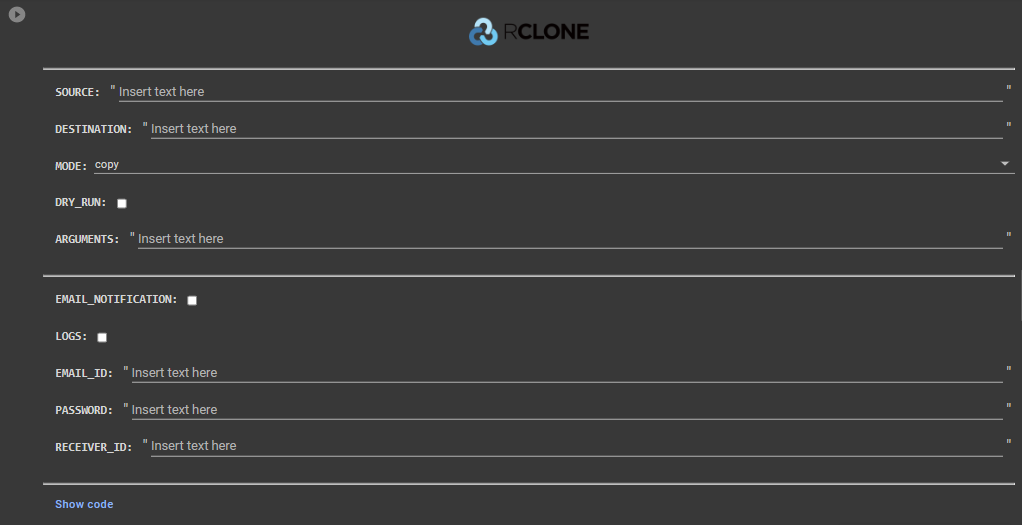
OPTIONS:
DRY_RUN: Check given source & destination.EMAIL_NOTIFICATION: Receive email notification once task is completed.LOGS: Send log file with email notification.
iv.Data Purging Methods:

OPTIONS:
delete: Delete the content of folder or single file.purge: Delete whole directory.rmdir: Completely delete the given path.rmdirs: Remove empty directories under the path.
🖇 Add-ons:
Add-ons are additional features offered by MCT Tool and are compatible with all cloud services that Rclone supports or local runtime paths.
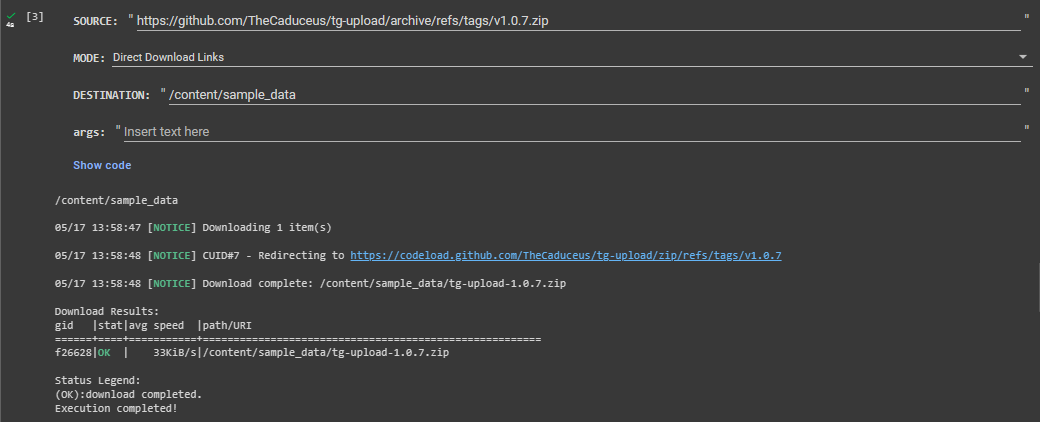
1.Direct Download Links:
Download files from direct download links using Aria2.
INPUTS:
SOURCE: One or more multiple download links (separated with “,”) to be downloaded.DESTINATION: Download location of file(s), can be mount point or local runtime path.args: Additional flags, check aria2 documentation.
2.Download Links from .txt File:
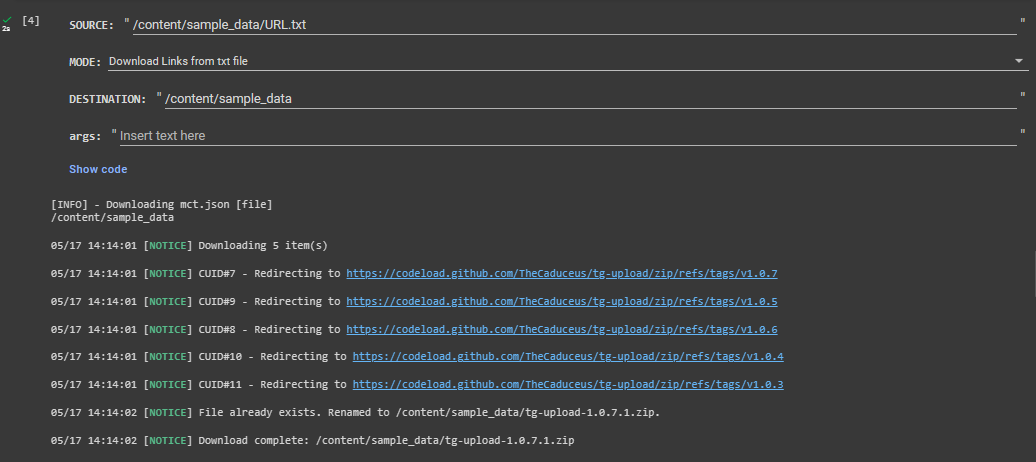
Get download links from given .txt file and download them using Aria2.
INPUTS:
SOURCE: Path of .txt file.DESTINATION: Download location of file(s), can be mount point or local runtime path.args: Additional flags, check aria2 documentation.
3.YouTube Videos/Playlist DL:
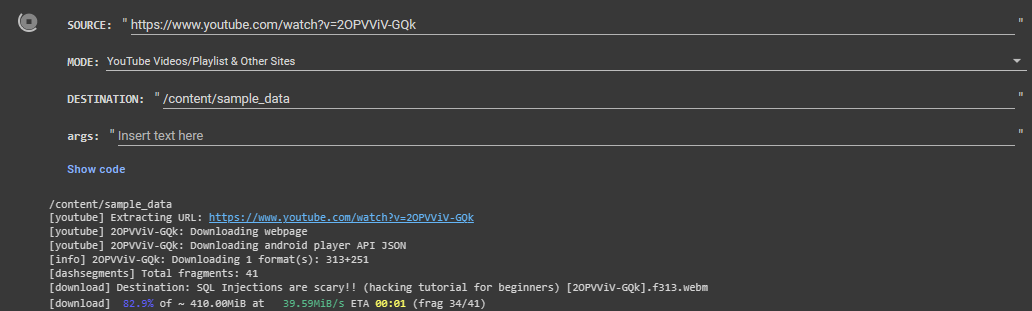
Download videos or playlists from YouTube or any other website that restrict downloading videos.
INPUTS:
SOURCE: Video/Playlist link to be downloaded.DESTINATION: Download location of file(s), can be mount point or local runtime path.args: Additional flags, check yt-dlp documentation.
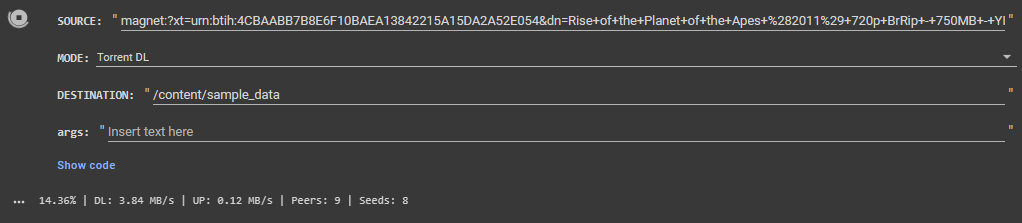
4.Torrent DL:
Download torrent using .torrent file or magnet link.
INPUTS:
SOURCE: Torrent file path or magnet link.DESTINATION: Download location of file(s), can be mount point or local runtime path.
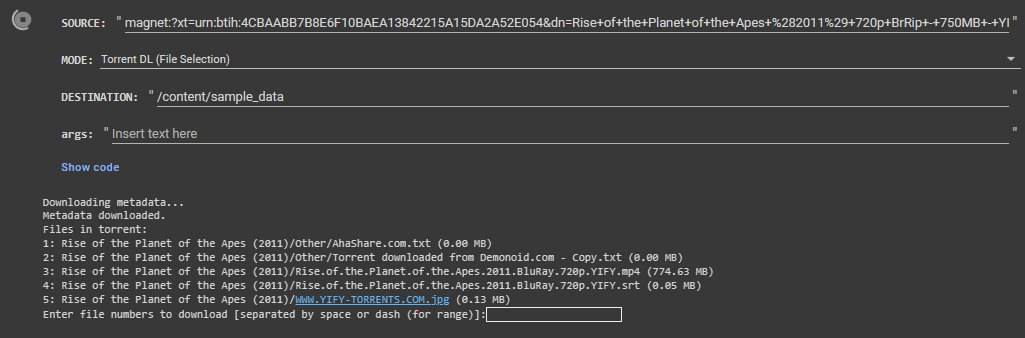
5.Torrent DL (File selection):
Select and download only specific files from torrent using .torrent file or magnet link.
INPUTS:
SOURCE: Torrent file path or magnet link.DESTINATION: Download location of file(s), can be mount point or local runtime path.
6.Upload File to Anonymous Platforms:
Upload files/folder to anonymous file-sharing platforms (10+) with recursive upload support.
INPUTS:
SOURCE: File or folder path.

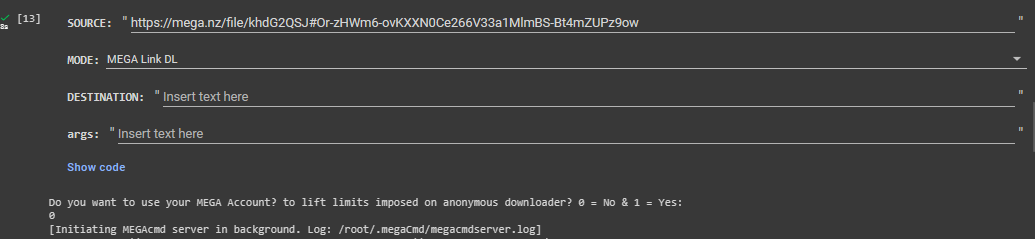
7.MEGA Link DL:
Download MEGA links with or without MEGA Account.
INPUTS:
SOURCE: MEGA Link to be downloaded.DESTINATION: Download location of file(s), can be mount point or local runtime path.
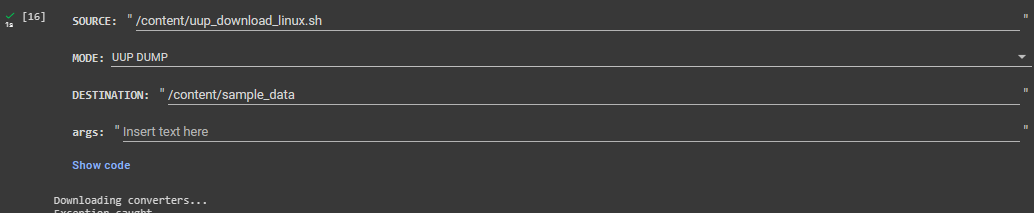
8.UUP Dump:
Download UUP files from Windows Update servers with ease.
INPUTS:
SOURCE: Path of “uup_download_linux.sh” file or folder contaning it.DESTINATION: Download location of file(s), can be mount point or local runtime path.
Zipping or unzipping files or folder with MCT Tool is fun! and you can directly zip/unzip files or folders located in any cloud service. MCT Tool supports large varity of formats with options like password protection or filename encryption.
METHODS:
- Zip with/without password.
- Extract Zip.
- RaR with/without password. (filename encryption)
- Extract RaR.
- 7z with/without password. (filename encryption)
- Extract 7z.
- Tar.
- Extract Tar.
- Tar.gz.
- Extract Tar.gz.
- Tar.bz2.
- Extract Tar.bz2.
INPUTS:
ACTION: Action to perform with the file/folder.SOURCE_PATH: Path of file/folder to be zipped/unzipped, can be mount point or local runtime path.OUTPUT_FILENAME: Name of output file.DESTINATION_PATH: Path to save output, can be mount point or local runtime path.args: Additional flags to be passed with command.
OPTIONS:
ENCRYPT_FILENAME: Encrypt filename after zipping the file.

📤 Telegram Integration:
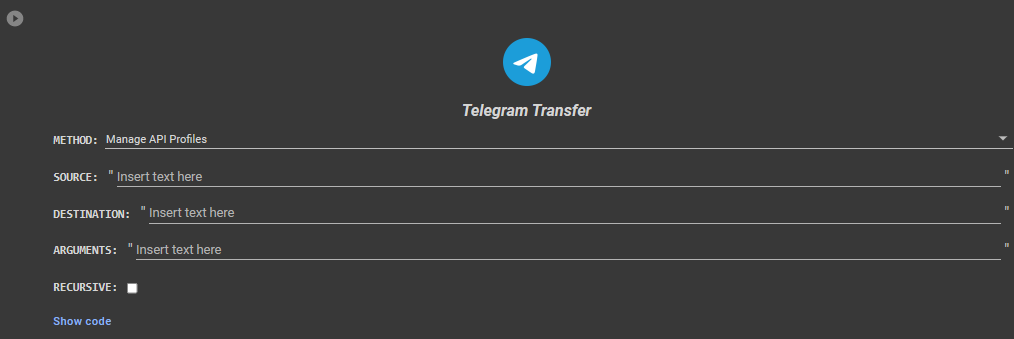
Upload files/folder to Telegram with user & bot profiles using tg-upload. User can directly upload files/folder located in any cloud service to Telegram of any size, MCT Tool will automatically sync your session files or API profiles (in encrypted form) between Colab’s runtime and Google Drive to ensure you don’t need to login again & again!
METHODS:
Manage API Profiles - To save new/delete existing API ID & API Hash.Manage Telegram Profiles - To manage your session files.Upload Files/Folders - To upload data.
INPUTS:
METHOD: Task to perform with tg-upload.SOURCE: Path of file/folder to be uploaded to Telegram, can be mount point or local runtime path.DESTINATION: Chat identity to upload files to? by default to saved messages.ARGUMENTS: Additional flags, check tg-upload documentation.
OPTIONS:
RECURSIVE: Upload files recursively from folder.
📂 GoFile Integration
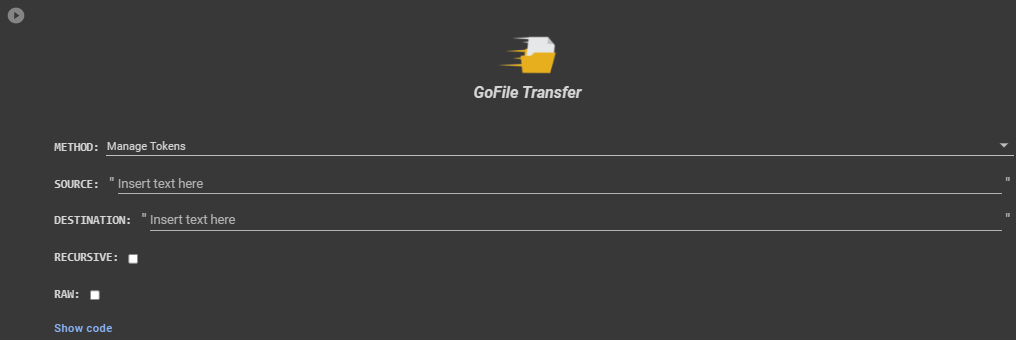
GoFile integration let you upload files/folder from any cloud service to your GoFile account or just anonymously. As usual, MCT Tool will automatically sync your API tokens (encrypted format) between Colab’s runtime and Google Drive, so you don’t need to remember them ever again!
METHODS:
Manage Tokens: Save/Delete GoFile tokens.Upload Files: Upload files/folders.Server Details: Show GoFile’s server information.Account Details: Request GoFile for user’s account details & make it human readable, also generates login URL.
INPUTS:
METHOD: Task to perform with GoFile.SOURCE: Path of file/folder to be uploaded to GoFile, can be mount point or local runtime path.DESTINATION: Parent Folder ID in which data needs to be uploaded, provided by GoFile. If not provided, files or folder will be automatically uploaded to root folder.
OPTIONS:
RECURSIVE: Upload files recursively from folder.RAW: Show GoFile API response as raw.
⛑️ Need help!
❤️ Credits & Thanks
Dr.Caduceus: Owner & developer of MCT Tool.



评论