 KeysPerSecond


KeysPerSecond is a program that counts how many times certain keys and mouse buttons are pressed. It can also show various statistics such as the average, maximum and current number of pressed per second. The program can also show a graph of the key presses over time. Almost all aspects of the program are also fully customisable.
Jump directly to downloads
Introduction
Originally I wanted to know how many keys I pressed per second in osu! and I had already seen programs like this on live streams.
However, I could not find a program that worked well on my computer so I decided to write one myself.
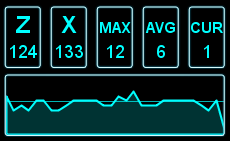
The program when active looks like this (the rightmost graph shows cursor movement):


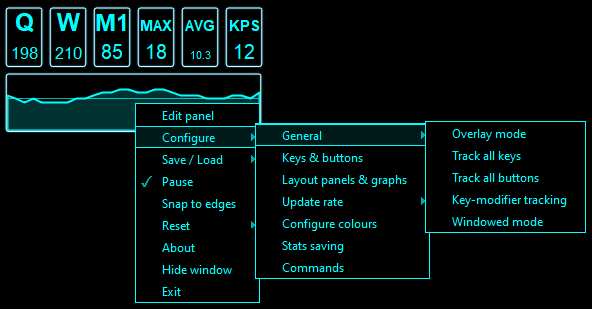
There is also a right click menu to configure all the settings:
For each configured key the program will show how many times it was pressed. By default it will also show the maximum, average and current number of keys pressed per second.
When enabled it can also show a graph of the number of keys pressed per second over time, the total number of keys pressed, and the time since the last input. A graph showing cursor movement is also available and more graph types and panel types are planned.
Everything shown in the pictures above can be toggled on or off and all the panels can be rearranged freely.
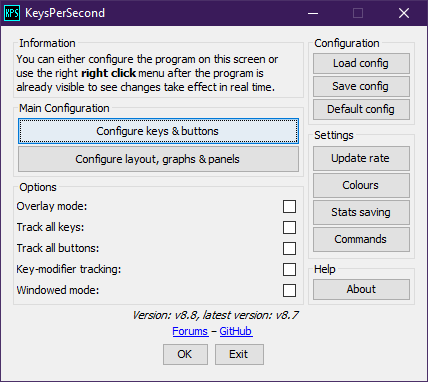
There are also some commands that can be sent to the program, however some of them are unbound by default and you may want to rebind the others if you already frequently use the key combinations. The commands enabled by default are:
- Ctrl + U: Terminates the program.
- Ctrl + Y: Shows the GUI or hides it to the system tray.
- Ctrl + T: Pauses or resumes the input tracking and panel updates.
You can also move the program using the arrow keys or snap it to the edges of your screen.
I hope some of you find this program useful and/or will use it for your streams (I would love to see that happen :) ).
And if you find any bugs feel free to report them. If you have any features you’d like to see added please tell me as well!
Notes
- The horizontal line in the graph represents the average number of keys pressed per second.
- The smoothness of the cursor graph is heavily dependent on the update rate.
- If you want to see inputs for an application running with admin privileges (e.g., Genshin Impact), then KeysPerSecond should also be executed with admin privileges, see issue #104.
- You can configure a configuration to open automatically on launch, see this wiki page for more details.
- You can add any number of keys or mouse buttons to the program.
- To change a GUI colour in the colours menu, click on the current colour
- You can move the window with the arrow keys at 3 different speeds 1, 2 & 3 pixels at a time (2=Ctrl, 3=Shift).
- When resetting something it will also be printed to the console if this program is running using cmd/shell.
- The overlay option is far from perfect, it just asks the OS to place the program on top. It’ll not overlay most full screen games. For some people running the program in Windows 98 / ME compatibility mode makes it so it can overlay full screen osu! so if you’re lucky this might work.
- If you have an old configuration file (kpsconf1 or kpsconf2) then you need to convert it with version 8.4 to load it in more recent versions.
- Windowed mode can help on operating systems that do not properly support borderless windows (e.g., chromebooks). Note that transparent windows are not supported in windowed mode.
Downloads
Requires Java 8 or higher
Tested operating systems: Mac 10.11.6 & M1, Ubuntu Linux 16.04 LTS, Windows 7 & 8 & 10 & 11
All releases: releases
GitHub repository: here
Original osu! forum post: post
Examples
The following two examples show the layout while it is being edited. All the panels have to line up with the grid, but the size of the grid cells can be changed.
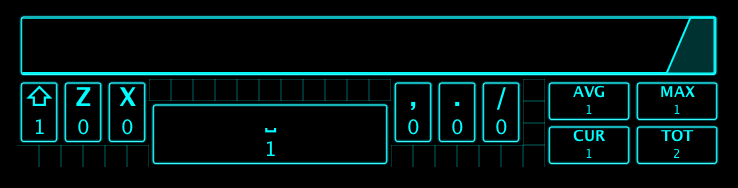
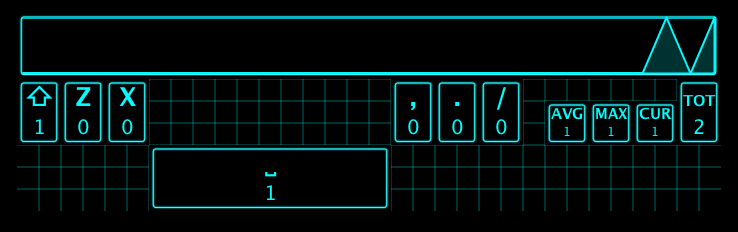
Next are two other examples of possible layouts.

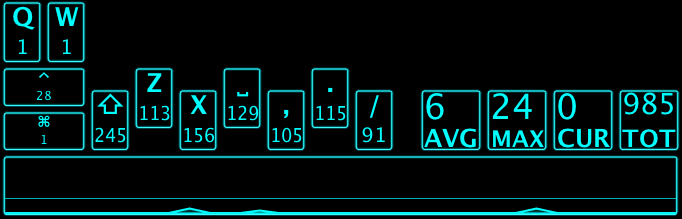
Last are some very simple layouts to highlight more of the title-value display options.

History
Project development started: 23rd of January, 2017.


评论