Gaurav-Gosain/tuios 是一个托管在 GitHub 上的开源项目,主要使用 Go 编写,采用 MIT License 许可证,目前获得 6.4k 个 Star、316 次 Fork。
仓库全名
Gaurav-Gosain/tuios
开源许可证
MIT License
Star 数
6.4k
Fork 数
316
未关闭 Issue
42
README 摘要
TUIOS: Terminal UI Operating System TUIOS is a modern terminal multiplexer and window manager built with Go. It provides a vim-like modal interface with multiple terminal panes, workspaces, BSP tiling, kitty graphics protocol support, and a command palette, all running inside your existing terminal. A daemon keeps sessions alive, reaches sessions on your other machines, and lets the coding agents in your panes…
A terminal window manager that knows what your agents are doing. Tiling panes, workspaces, sessions that survive restarts, and one Inbox for every coding agent. Official only at tuios.dev and this repo. tuios has no X/Twitter account.
TUIOS is a modern terminal multiplexer and window manager built with Go. It provides a vim-like modal interface with multiple terminal panes, workspaces, BSP tiling, kitty graphics protocol support, and a command palette, all running inside your existing terminal. A daemon keeps sessions alive, reaches sessions on your other machines, and lets the coding agents in your panes report their state and message each other.
Built on the Charm stack (Bubble Tea v2, Lipgloss v2), TUIOS features event-driven rendering for near-zero idle CPU usage, flicker-free kitty image passthrough, and comprehensive keyboard/mouse interaction.
Documentation
Full documentation is available at tuios.dev (hosted) or in the docs/ folder. To try tuios without installing it, take the guided tour at tuios.dev/learn: the real app, compiled to WebAssembly, with a practice shell in every pane. Already installed it? Run tuios tutor for the same tour in your own terminal. It changes nothing on your machine.
Homebrew, ghostty build (Linux only):tuios built with the libghostty-vt emulator. It installs a binary with the same name as the tuios formula. Uninstall the formula first.
nix run github:Gaurav-Gosain/tuios/v0.10.1#tuios   # a release
nix run github:Gaurav-Gosain/tuios#tuios          # the latest main
nix run nixpkgs#tuios                             # the nixpkgs package
Put a release tag after the repo name to build that release. Without a tag, Nix builds the newest commit on main.
Other Methods
# Quick install script (Linux/macOS, and Windows from Git Bash or PowerShell with WSL)
curl -fsSL https://raw.githubusercontent.com/Gaurav-Gosain/tuios/main/install.sh | bash

# Go install
go install github.com/Gaurav-Gosain/tuios/cmd/tuios@latest

# Docker
docker run -it --rm ghcr.io/gaurav-gosain/tuios:latest
GitHub Releases: Pre-built binaries for Linux, macOS, Windows, FreeBSD and OpenBSD, with a checksums.txt. The tuios-ghostty_* archives are tuios built on the libghostty-vt emulator, for Linux, macOS and Windows on amd64 and arm64.
Building from source needs Go 1.26.8 or newer.
Updating. If you installed with the quick install script or a release
binary, tuios update fetches the newest release and puts it in place
(tuios update --check just reports). Everything else has a package manager
that owns the binary, so use that instead; tuios update detects which you have
and prints the right command rather than overwriting it.
Images on Windows. The console host built into Windows drops sixel images
before tuios sees them. To let them through, take conpty.dll and
OpenConsole.exe for the architecture of your tuios.exe (x64, x86 or arm64)
from the
Microsoft.Windows.Console.ConPTY
package, at runtimes/win-<arch>/native/conpty.dll and
build/native/runtimes/<arch>/OpenConsole.exe, and put both in the folder that
holds tuios.exe. tuios then opens panes through them, as Windows Terminal
does. Without both files, panes use the built-in ConPTY. The daemon looks for
the two files when it starts, so run tuios kill-server after adding them.
Shell Completions
tuios completion <shell> prints a completion script for bash, zsh, fish or
PowerShell. Besides subcommands and flags, it completes values such as session
names for --session and configured hosts for --host.
# Bash (needs the bash-completion package)
tuios completion bash > ~/.local/share/bash-completion/completions/tuios

# Zsh (the directory must be on your $fpath, before compinit runs)
tuios completion zsh > "${fpath[1]}/_tuios"

# Fish
tuios completion fish > ~/.config/fish/completions/tuios.fish
# PowerShell: add this line to your $PROFILE
tuios completion powershell | Out-String | Invoke-Expression
Start a new shell afterwards. Run tuios completion <shell> --help for more
options, or see the CLI reference.
Requirements: A terminal with true color support. Kitty graphics and sixel support recommended (Ghostty, Kitty, WezTerm).
Features
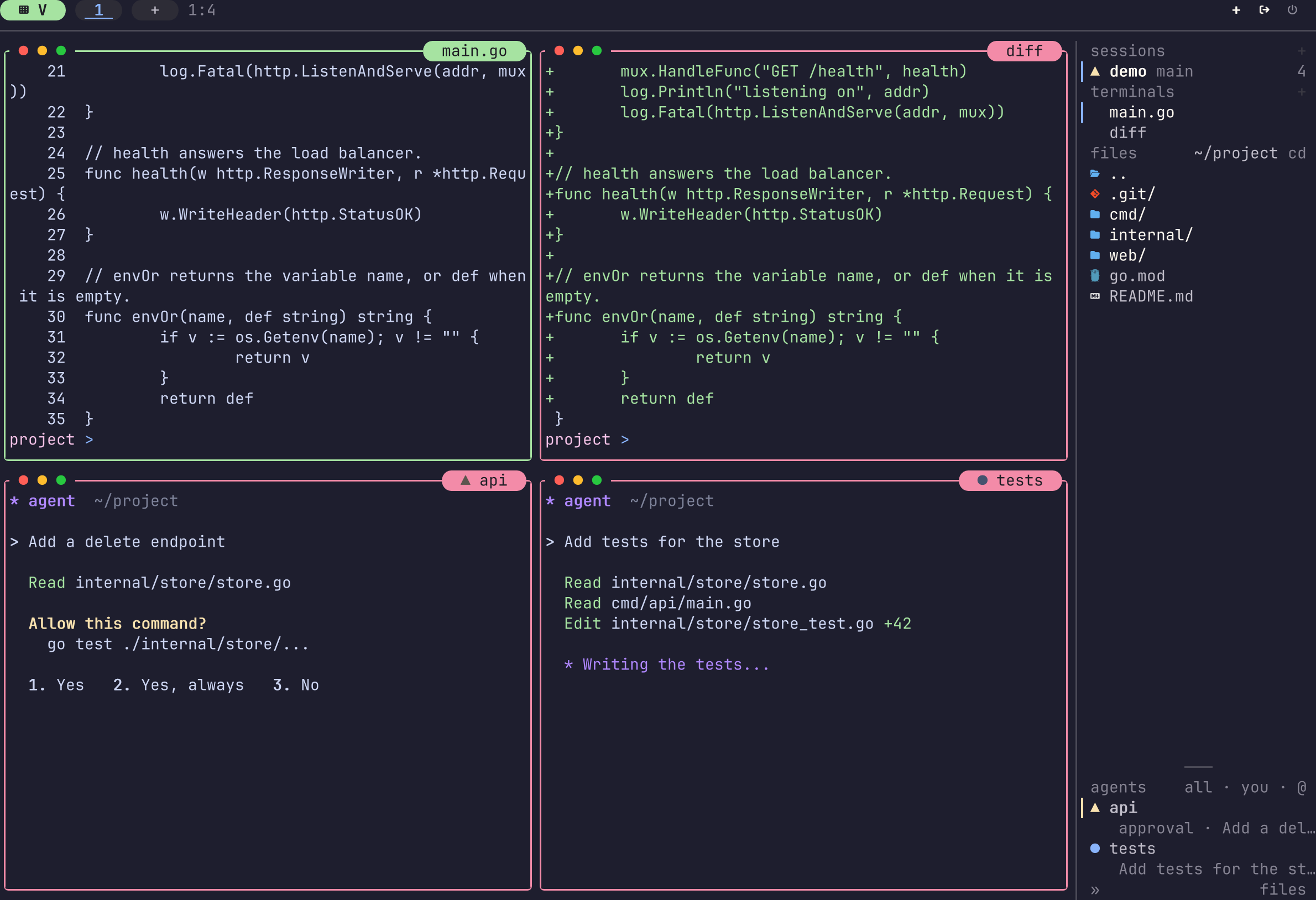
Panes and the rail. Tiled panes, and every agent's state at a glance.
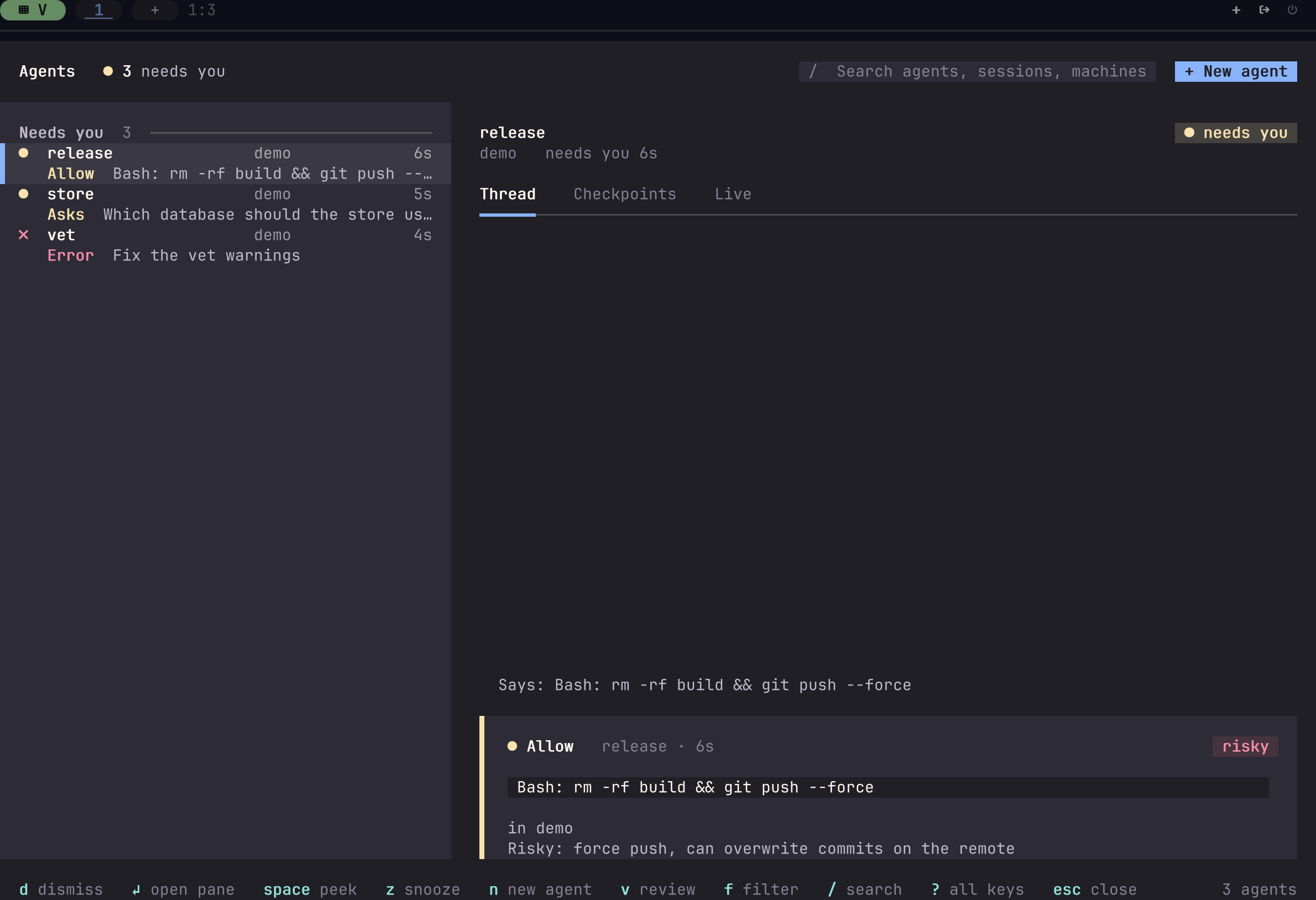
The Inbox. Everything your agents wait on, in one list.
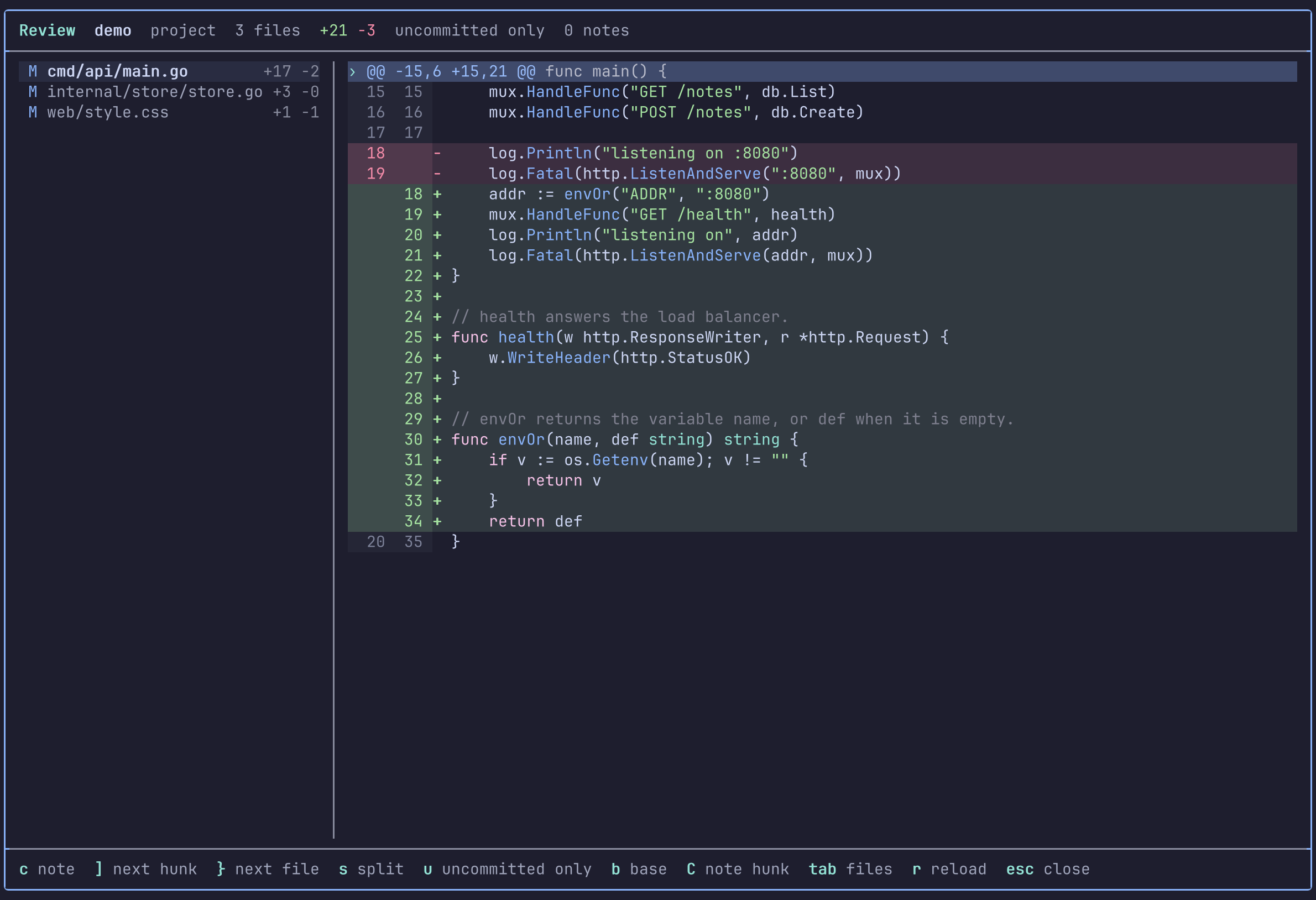
Review. Read an agent's changes and send notes back to it.
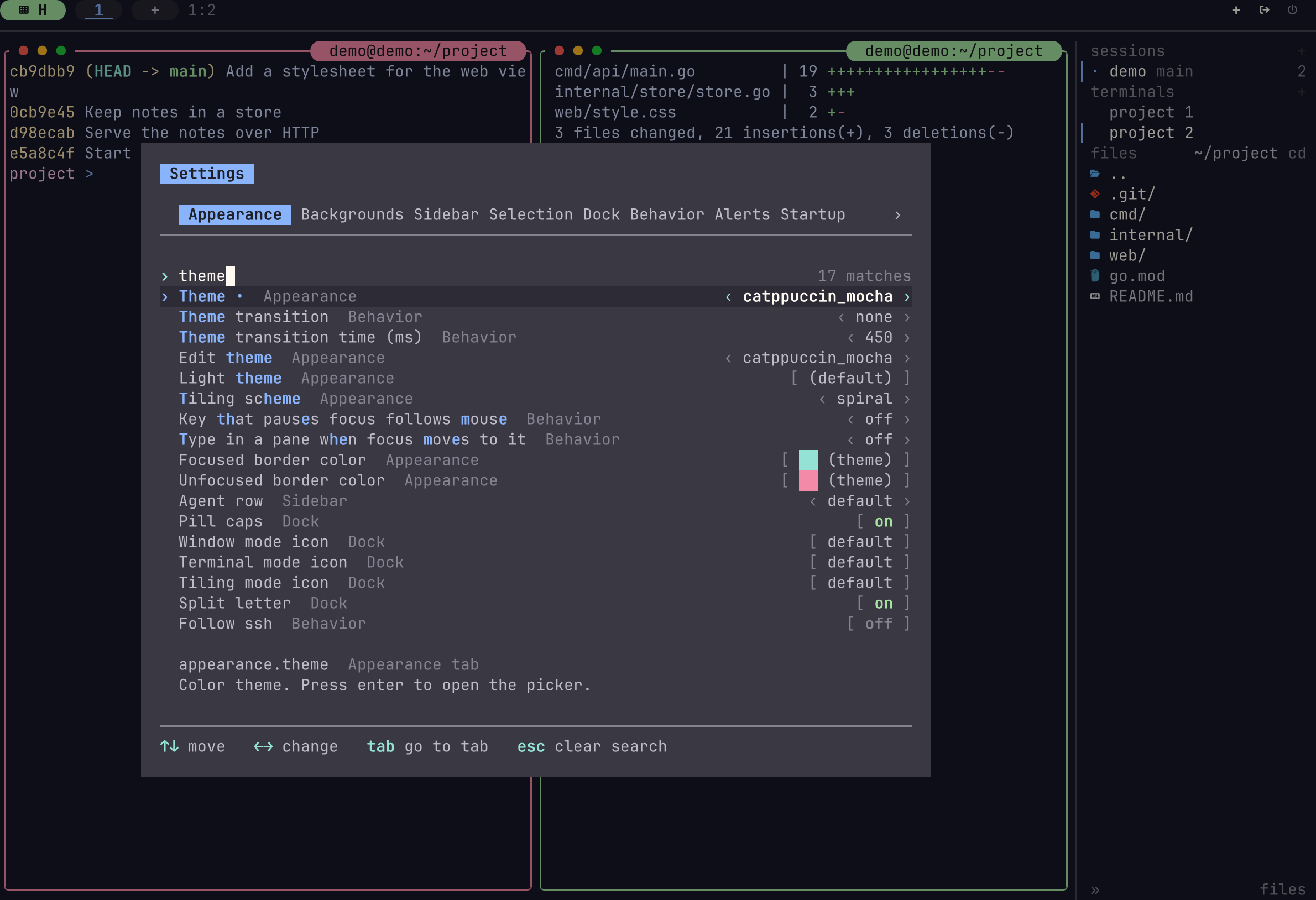
Settings. Every option on one page, applied at once.
Each picture is a capture that tuios made of itself. Click one to read its docs page.
Core
Multiple Terminal Panes: Create, resize, drag, and organize terminal sessions
9 Workspaces: Independent workspace isolation with instant switching
Modal Interface: Vim-inspired Window Management and Terminal modes
Launcher: Fuzzy search everything on $PATH plus your installed desktop apps (Alt+Space), ranked by what you actually run. Enter starts it; Tab opens a shell with the command typed but not entered, so you can add arguments. App icons are drawn where the terminal supports kitty graphics.
Pane Zoom: Zoom any pane with z (WM mode) or Prefix+z. It takes 95% of the screen by default; set appearance.zoom_size = 100 for fullscreen. A fullscreen zoom hides the shared borders, and the dockbar shows a Z indicator.
Session Rail: A sidebar with sessions, terminals, files, git state and agents, on by default on the right (appearance.sidebar.enabled)
Settings Page: Change options in the app with Prefix+,
Popups: tuios popup -- fzf runs a command in a floating pane that closes when it exits
Agent State: Panes running a coding agent show whether it is working, waiting for you, done or errored, as a shape in the title and a row on the rail. tuios integration install wires 19 harnesses (Claude Code, Codex, Gemini CLI, opencode and more) to report it, and tuios detects 24 agent CLIs by their process and screen
Program Status (OSC 7501): Any program can say what it is doing with the Program Status Protocol, or with tuios status working --app build --progress 40. A build, a deploy script or brew then shows on the rail and in the Inbox like an agent. tuios also reports its panes to a terminal that reads the protocol, such as Rex (docs)
Inbox: Prefix+i lists everything waiting for you in every session and on every machine: approvals, questions, mail, errors, finished turns. Prefix+o jumps to the oldest. Answer a prompt from there without going to the pane, and with [agents.approvals] answer Claude Code, opencode, Kilo and Qwen Code permission requests with one key
Questions and Messages: tuios ask-human puts a question with fixed answers in your Inbox. Agents mail each other with tuios send-agent-message, and tuios ask-agent asks one and waits for its answer. It never types into a pane waiting on a prompt, and replies from you are marked verified
Fleets: tuios fan starts one prompt in several agents, mixed harnesses allowed, each in its own git worktree. tuios start-agent starts one helper beside you, in its TUI or headless over ACP or the Codex app-server. Selectors such as group:fan/retry needs:you address a whole group
Resume: After a daemon restart, the Inbox offers to resume each agent conversation that was running
Pane Grants: Say what an agent’s pane may do through tuios (read, write, fan, respond, admin), and give a helper less with --grants
MCP Server: tuios mcp serves the same surface as MCP tools, read-only and held to the agent’s own session unless you say otherwise
tmux Shim: tuios tmux-shim runs tools that drive tmux, such as Claude Code agent teams, with their panes opened as tuios panes
Session Stash: tuios stash put keeps a file for the session, so another agent can still open it
Agent Skill: tuios --skill prints the short guide an agent in a pane reads to drive tuios, and tuios --skill TOPIC the rest, recipes included. To move your tmux, zellij or herdr settings over, tell your agent: “Run tuios --skill config and move my tmux settings over.”
Machines
Hosts: tuios hosts add names another machine, reached over ssh. tuios hosts tailnet lists the machines on a Tailscale tailnet
Remote Sessions: tuios attach --host build api draws a session on another machine in this client, and -s HOST:SESSION sends any command there
Hosted Panes: tuios new-window NAME --host build runs one pane’s process on another machine, in a session here
Global Sessions: tuios new NAME --global holds panes from several machines (docs)
Agents on Other Machines: tuios fan --host build and tuios start-agent -s build:api run agents there, their Inbox items show here, and tuios worktree pull brings their work back. Each machine’s [hosts] policy says what the others may do
Tiling
BSP Tiling: Binary Space Partitioning with spiral layout
Scrolling Layout: niri-style columns on an infinite horizontal strip (docs)
Master-Stack Layout: One master pane with the rest stacked beside it
Shared Borders: tmux-style separator lines between panes (--shared-borders)
Preselection: Control where the next pane spawns
Equalize Splits: Reset all splits to balanced ratios
Scrollback & Copy Mode
Vim-Style Copy Mode: Navigate 10,000-line scrollback with hjkl, search down with / and up with ?, yank with y
Multi Copy Mode: Copy mode on every pane of the multifocus set at once. Search once, select with v/V in each pane, and yank all selections as plain text, markdown or JSON, to the clipboard or a file (docs)
Mouse Wheel Scrollback: The wheel scrolls history with no mode entered; typing or reaching the bottom returns to live output
Interactive Scrollbar: Click or drag the right border to jump to scroll position
Selection Auto-Scroll: Drag selection above/below pane to scroll
Scroll Position Indicator: Shows offset/total on the bottom border
Graphics & Protocols
Kitty Graphics Protocol: Full image rendering with flicker-free video playback. mpv --vo=kitty works (both shm and base64), and youterm works.
Sixel Graphics: Sixel image passthrough (experimental, no pixel-level clipping yet)
Kitty Keyboard Protocol: Progressive enhancement (CSI u) with push/pop/query support. Fish 4.x compatible; Shift+printable bypasses the protocol and sends text directly.
Shared Memory Support: t=s passthrough for mpv --vo-kitty-use-shm
Animation Frames: A guest’s a=f frame edits are forwarded to the host, so a program that patches its own image costs a rectangle instead of a whole bitmap. TUIOS also patches guests that only retransmit. Panes are told whether the host carries frame edits through TUIOS_KITTY_ANIMATION, because the host’s reply is not relayed back into the pane and a guest cannot find out for itself.
Tape Scripting: DSL for recording and replaying terminal workflows
Tape Recording: Record live sessions (Prefix+Tr)
Headless Execution: tuios tape exec runs a tape against a running daemon session
Layout Export: Convert layouts to tape scripts for sharing
Discovery & Navigation
Which-Key Popup: Hold the prefix key to see the chords available (appearance.whichkey_enabled, docs)
App Launcher: Alt+Space runs anything on $PATH, frecency-ranked, with desktop-entry names and icons
Keybind Manager: Prefix+k in-app, or tuios keybinds doctor and tuios keybinds explain <key> from the shell
Aggregate View: Searchable list of every window across every workspace, with previews (docs)
Multifocus: Broadcast typing to several panes at once, Ctrl+Shift+click to select (docs)
More
Showkeys Overlay: Display pressed keys for presentations
Spotlight: Light one area of the screen and dim the rest, for demos and recordings ([spotlight] config table)
Screenshots: tuios screenshot renders a pane to PNG, SVG, ANSI, HTML or text
Dock Components: Your own commands drawn in the dock, updated on events, from a running command, or by polling (examples)
Customizable Keybindings: TOML configuration with Kitty protocol support
Hooks: Run shell commands on ten events, including window, workspace, attach and agent state changes (docs)
Mouse Support: Wheel scrollback, drag-to-select with copy on release, double-click word and triple-click line, window drag, resize, scrollbar
SSH Server Mode: Remote terminal multiplexing
Web Terminal Mode: Browser-based access (separate tuios-web binary)
Themes: Bundled themes plus custom themes from JSON, with chrome designed for truecolor, 256 and 16 colours and for light themes (docs)
Host Colours: tuios asks your terminal for its colours, passes them to programs that ask, and follows its light and dark switch
Backgrounds: appearance.background paints empty cells with the theme’s background or a colour of your own, per surface if you like
Motion: appearance.motion is none, basic or full (fades, the working shimmer, confetti)
Glyph Sets: Choose the characters the chrome is drawn with (docs)
Quick Start
tuios                    # Launch TUIOS
tuios --show-keys        # Launch with key overlay for learning
tuios --standalone       # Launch without the daemon, for this run only
tuios attaches to a daemon-backed session, so the session outlives the
terminal window it started in. New panes are tiled. See
SESSIONS.md to turn either off.
Essential Keys
Key
Action
Ctrl+P
Command palette: search and run any action
Alt+Space
Launcher: search and start a program (Enter runs it, Tab types it out)
n
New pane (Window Management mode)
i / Enter
Enter Terminal mode
Prefix+Esc or Alt+Esc
Back to Window Management mode (a bare Esc goes to the shell)
Prefix+d
Detach in a daemon session, otherwise back to Window Management mode
z (WM) or Prefix+z
Toggle pane zoom
Prefix+Space
Toggle BSP tiling
Prefix+[
Enter copy mode (vim scrollback)
Prefix+S
Session switcher
Prefix+L then l/s
Load/Save layout template
Prefix+?
Help overlay
Prefix+q
Quit
The prefix key is Ctrl+B by default (configurable).
Daemon Mode
tuios new mysession          # Create persistent session
tuios attach mysession       # Reattach
tuios ls                     # List sessions
tuios kill-session mysession # Kill session
Layout Templates
# In-app: Ctrl+B, L, l to load / Ctrl+B, L, s to save
# Or via command palette: Ctrl+P → "Save layout" / "Load layout"

# CLI:
tuios layout list            # List saved layouts
tuios layout delete mysetup  # Delete a layout
tuios layout export mysetup  # Export as tape script
Configuration
tuios config edit            # Edit config in $EDITOR
tuios keybinds list          # View the common keybindings
See the configuration reference (or run tuios list-options) for all options including show_clock, show_cpu, show_ram, shared_borders, window_button_style, window_button_position, custom themes, and keybinding customization.
Architecture
TUIOS follows the Model-View-Update pattern on Bubble Tea v2. For details, see Architecture Guide.
Key design decisions:
Event-driven rendering: PTY reader goroutines signal bubbletea via a buffered channel. No fixed-rate ticking for terminal content.
Kitty graphics passthrough: Image IDs are reused across frames for flicker-free video. Output is batched with the render cycle and wrapped in mode 2026 sync.
BSP tiling: Binary space partitioning tree with configurable schemes (spiral, smart split). Shared borders mode overlaps window rects and draws separator lines as a separate layer.
Copy mode: Full vim navigation over scrollback. Wheel scrolling and mouse selection borrow the same machinery through an implicit session that presents as nothing at all, plus scrollbar interaction and selection auto-scroll (timer-based continuous drag scrolling).
Core Components:
Window Manager (internal/app/os.go): Central state, workspaces, overlays
Viewport culling: Off-screen and minimized panes skip rendering.
Memory pooling: Pooled strings, buffers, and styles.
Development
git clone https://github.com/gaurav-gosain/tuios.git
cd tuios
go build -o tuios ./cmd/tuios
./tuios
To install a local build on your PATH instead, ./scripts/install.sh builds
and installs into ~/.local/bin. It builds the pure Go emulator.
./scripts/install.sh ghostty builds the
ghostty emulator backend instead, and tuios --version
says which is installed.
go test ./...              # Run the tests of the app module
just test                  # Run the tests of every module, the libraries too
just check --changed       # Run fmt, vet, lint, vulns, tidy and cross builds on your branch's changes
The justfile holds the other dev commands, and just lists them. See
CONTRIBUTING.md.
Support:
Star History
Contributors
Thank you to everyone who helps build tuios. To join them, read the contributing guide.








评论