UnityURP-Unlit ScreenSpaceDecal Shader(SRP batcher compatible)
Before adding decal
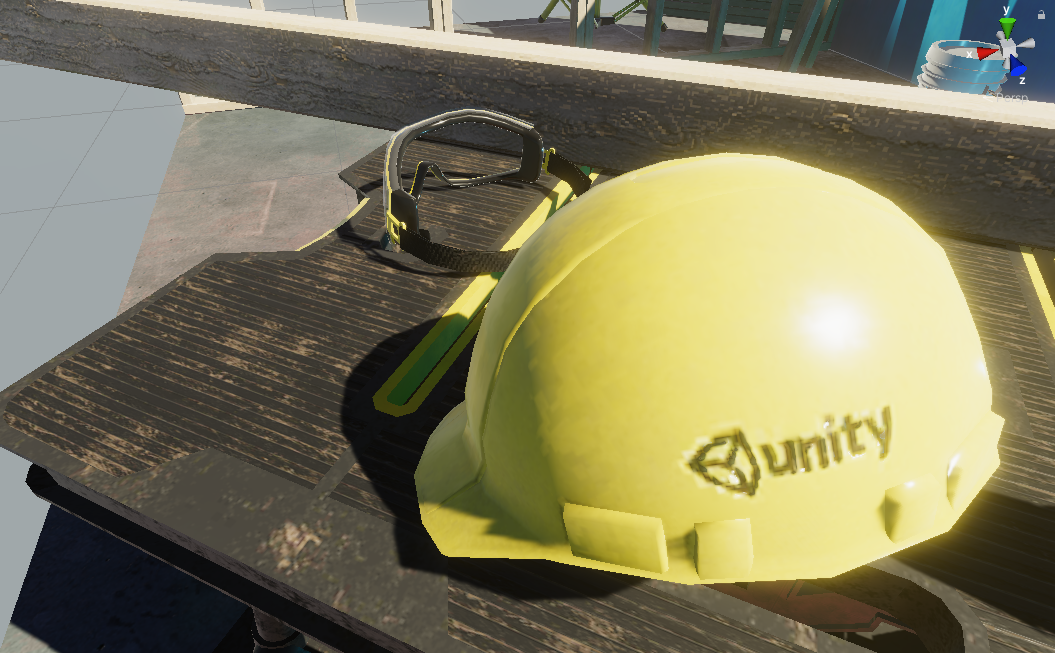
After adding decal
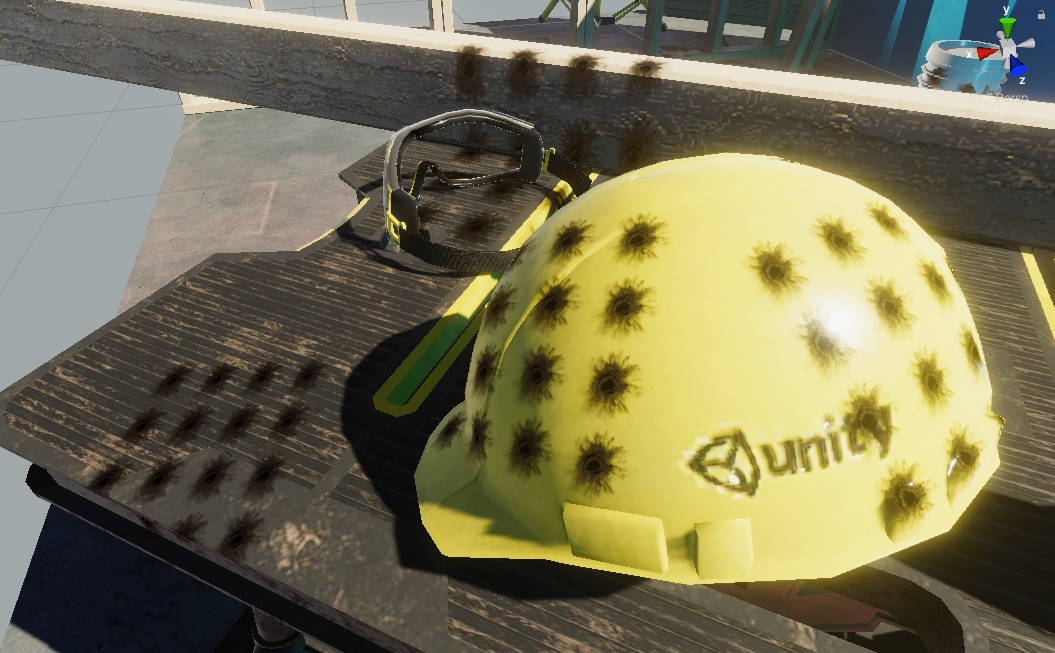
Before adding decal

After adding decal(multiply blend mode)
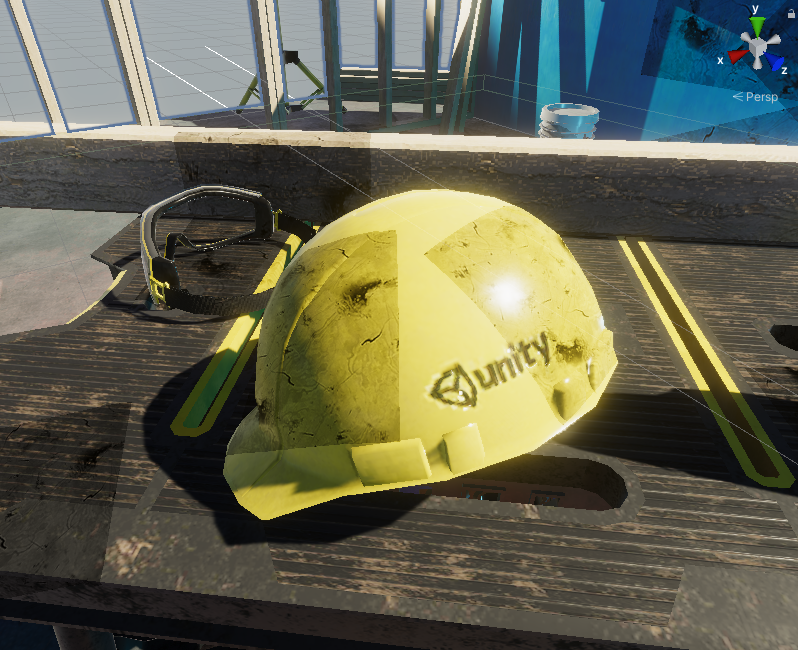
Each decal is just a unity cube GameObject, using material of this shader, nothing else.

Before adding decal

After adding decal:
(alpha blending)
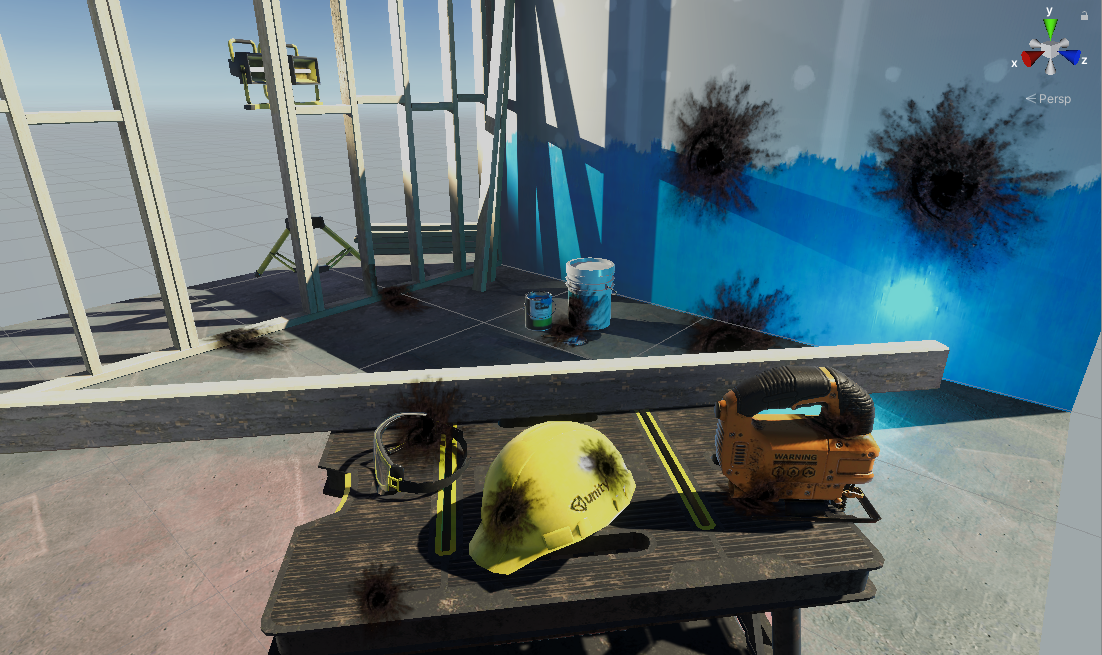 (additive)
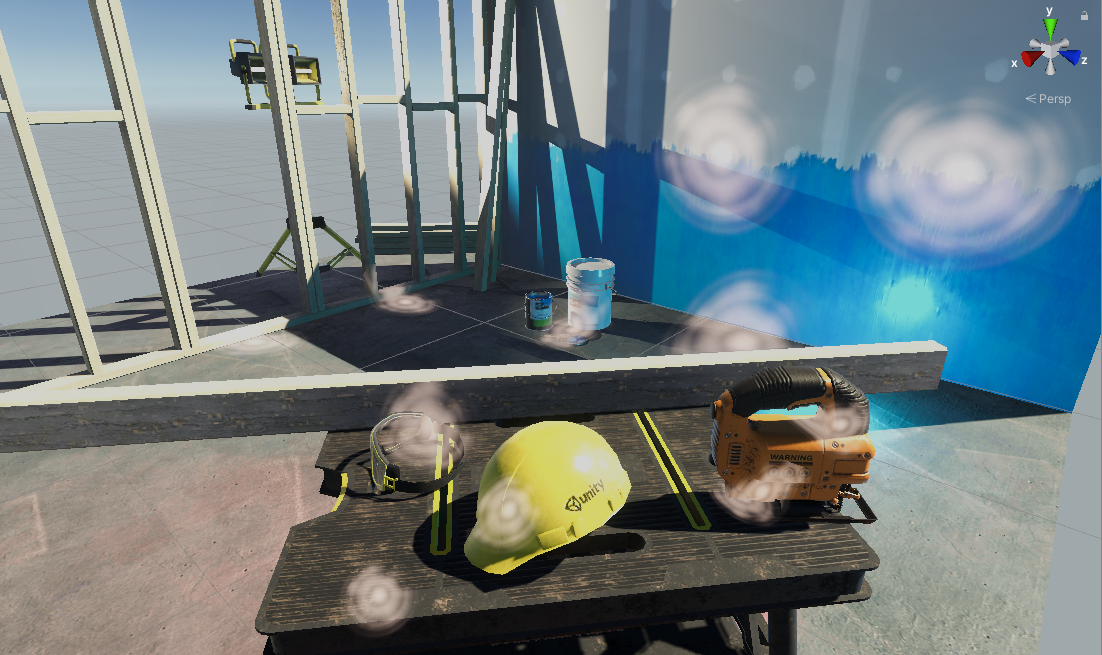 (multiply)
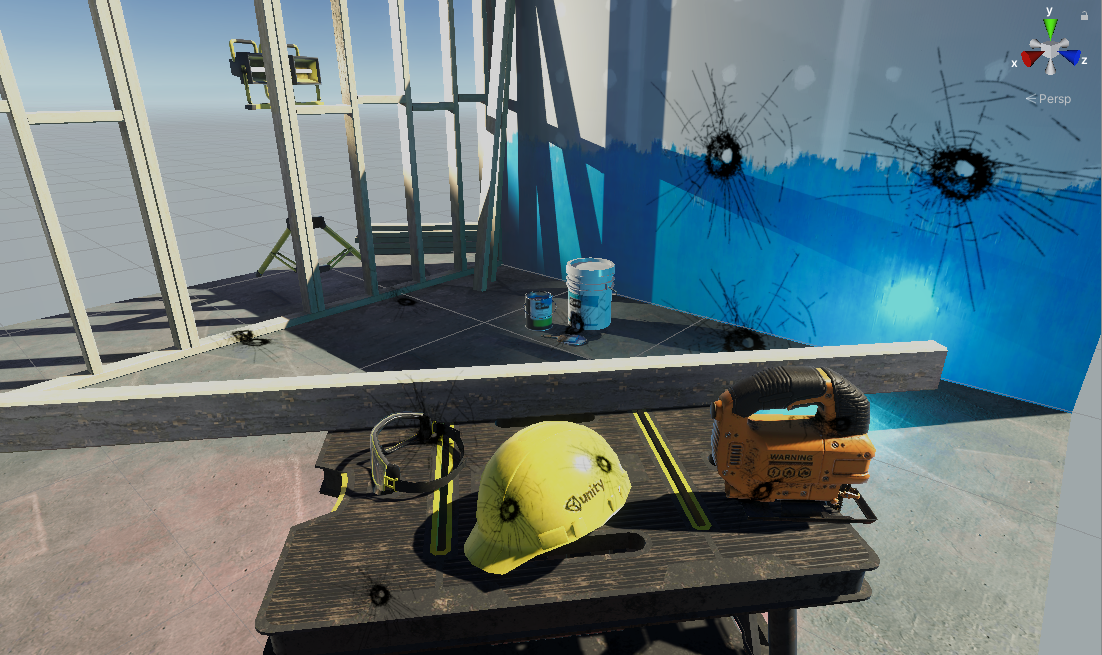 (alpha blending, tint to HDR red, extra multiply alpha to rgb in shader)
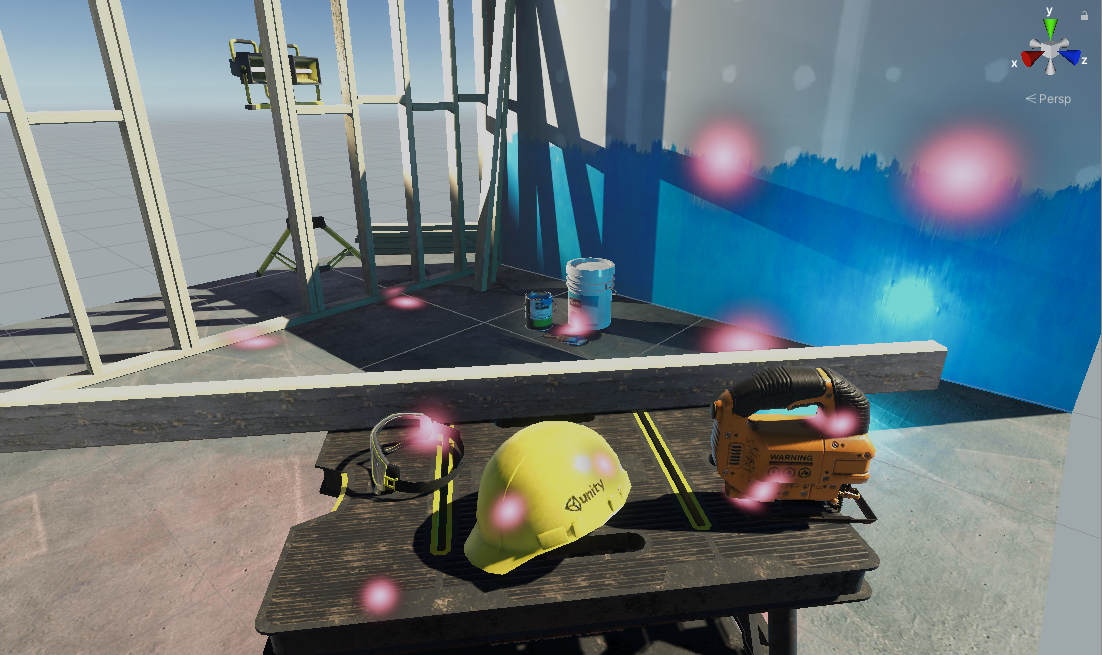 (opaque)
 (each decal is just a unity cube GameObject)
 (multiply)
 (additive, blue tint)
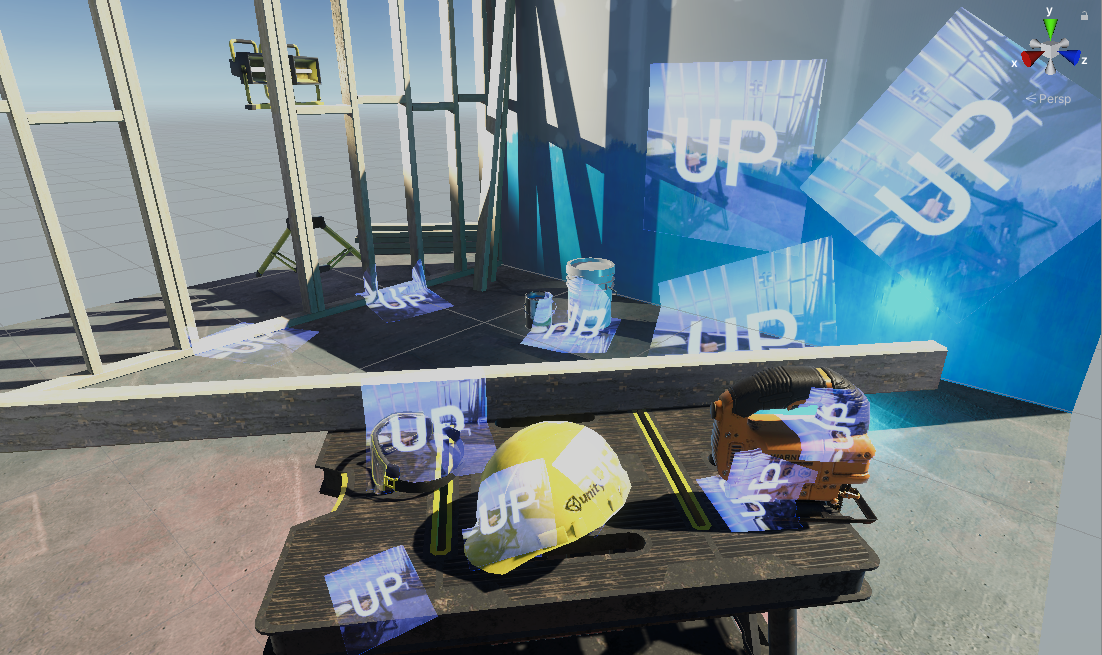
(no tiling)
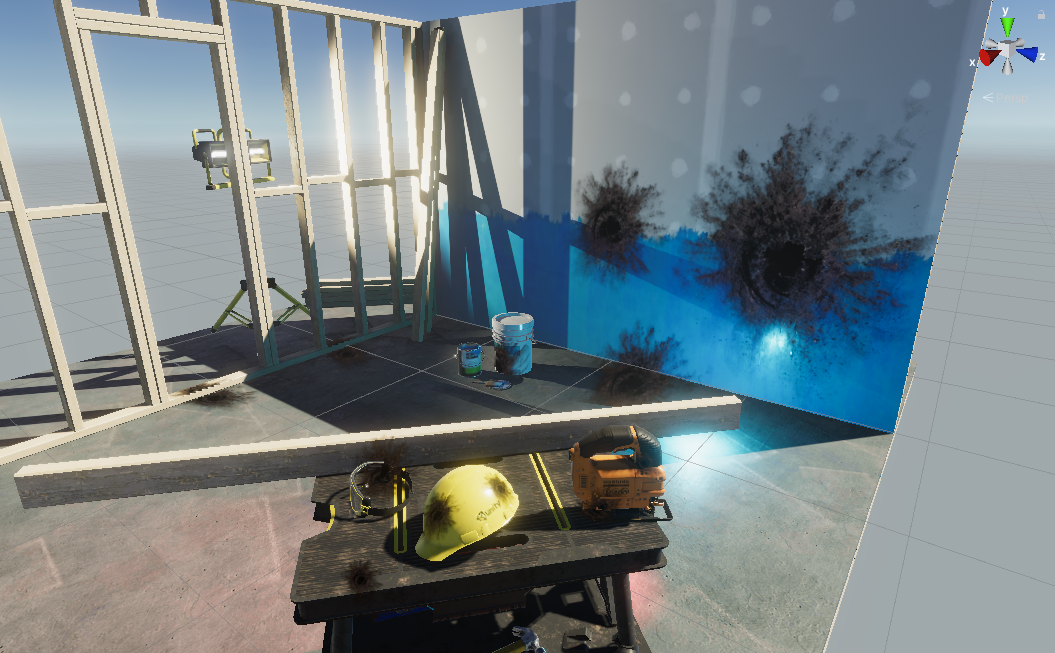 (add 4x4 tiling)
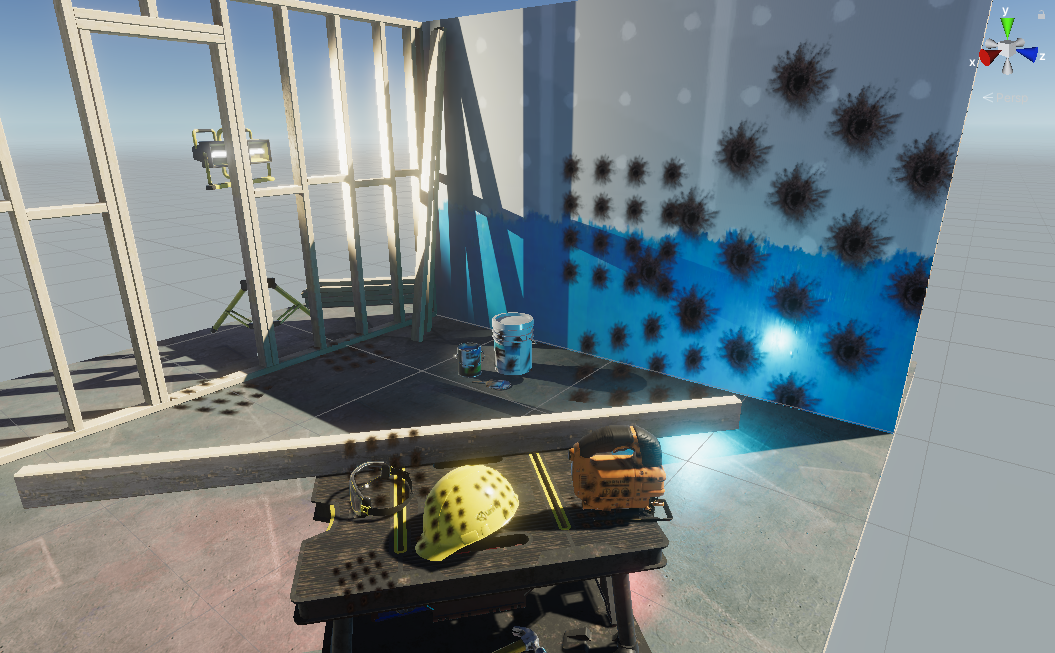 (add 4x4 tiling , alpha * 2 - 1)
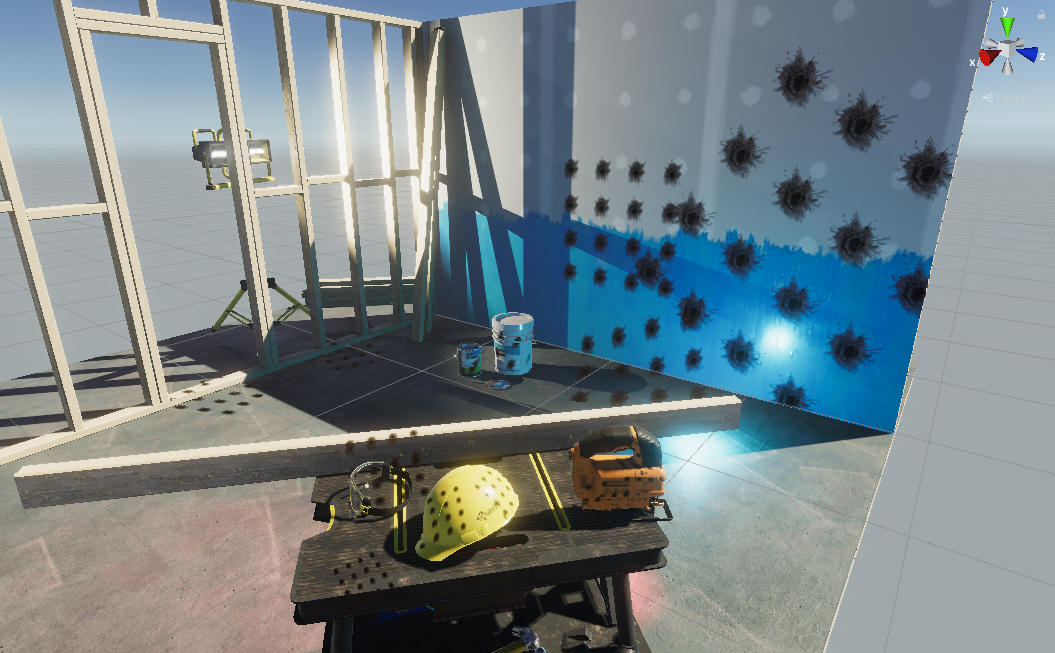 (add 4x4 tiling , alpha * 4 - 3)
 (add 4x4 tiling , alpha * 10 - 9)

When should I use this shader?
if you need to render bullet holes, dirt/logo on wall, 3D projected UI, explosion dirt mark, blood splat, projected texture fake shadow(blob shadow) … and the receiver surface is not flat(can’t use a flat transparent quad to finish the job), try using this shader.
How to use this shader in my project?
- clone the shader to your project
- First, you must enable depth texture in URP’s setting (search UniversalRP-HighQuality in your project)
- First, you must enable depth texture in URP’s setting (search UniversalRP-HighQuality in your project)
- First, you must enable depth texture in URP’s setting (search UniversalRP-HighQuality in your project)
- First, you must enable depth texture in URP’s setting (search UniversalRP-HighQuality in your project)
- First, you must enable depth texture in URP’s setting (search UniversalRP-HighQuality in your project)

- create a new material using that shader (right click on the shader->Create->Material)
- assign any texture to material’s Texture slot
- create a new unity default cube GameObject in scene (in Hierarchy window, click +/3D Object/Cube)
- apply that material to Cube Gameobject’s MeshRenderer component’s material slot (drag material on the cube)
- edit the GameObject’s transform so the local forward vector (blue Z arrow) is pointing to scene objects, and the cube is intersecting scene objects
- you should now see your new decal cube is rendering correctly(projecting alpha blending texture to scene objects correctly)
- (optional)edit _Color / BlendingOption, according to your needs
- (optional)finally make the cube as thin/small as possible to improve GPU rendering performance
Requirement when using this shader
- Forward rendering in URP
- _CameraDepthTexture is already rendering by unity (toggle on DepthTexture in your Universal Render Pipeline Asset)
- For mobile, you need at least OpenGLES3.0 (#pragma target 3.0 due to ddx() & ddy())
Editor System Requirements
- Unity 2020.3LTS or 2021.3LTS
I can see decal in scene window, but not in game window
you must enable depth texture in URP’s setting (search UniversalRP-HighQuality in your project)
If it still doesn’t work, try adding an empty renderer feature.
I can see decal in editor(both scene and game window), but not in mobile build
search “UniversalRP-MediumQuality” and “UniversalRP-LowQuality” in your project, turn on depth texture.

My Game use orthographic camera, but the decal shader doesn’t work
enable toggle “_SupportOrthographicCamera” in material
I can see decal renders correctly, but which BlendMode should I use in the material inspector?
Blend SrcAlpha OneMinusSrcAlpha // Traditional transparency
Blend One OneMinusSrcAlpha // Premultiplied transparency
Blend One One // Additive
Blend OneMinusDstColor One // Soft Additive
Blend DstColor Zero // Multiplicative
Blend DstColor SrcColor // 2x Multiplicative
https://docs.unity3d.com/Manual/SL-Blend.html
Is this shader optimized for mobile?
This screen space decal shader is SRP batcher compatible, so you can put lots of decals in scene without hurting CPU performance too much(even all decals use different materials).
Also, this shader moved all matrix mul() inside the fragment shader to vertex shader, so you can put lots of decals in scene without hurting GPU performance too much, as long as they are thin, small and don’t overlap(overdraw).
- make all decal cube as thin/small as possible
- don’t overlap decals too much for each pixel(overdraw)
- If your camera never goes into decal’s cube volume, you should set ZTest to LessEqual, and Cull to Back in the material inspector, doing this will improve GPU performance a lot! (due to effective early-Z, GPU only need to render visible decals)
- disable _ProjectionAngleDiscardEnable, doing this will improve GPU performance a lot!
- enable “generate mipmap” for your decal texture, else a high resolution decal texture will make your game slow due to cache miss in GPU memory
if you do every optimzations listed above, and your game is still slow due to this decal shader, please send me an issue, I will treat it as bug.
Implementation Reference
Low Complexity, High Fidelity: The Rendering of INSIDE’s optimized decal shader
https://youtu.be/RdN06E6Xn9E?t=2153
Screen Space Decals in Warhammer 40,000: Space Marine
https://www.slideshare.net/blindrenderer/screen-space-decals-in-warhammer-40000-space-marine-14699854?fbclid=IwAR2X6yYeWmDiz1Ho4labx3zA3GATpC7fi5qNkzjEj-MYTOBpXnkIsnA3T-A


评论